
Connect to local Model Context Protocol (MCP) servers
Model Context Protocol (MCP) servers extend AI applications' capabilities by providing secure, controlled access to local resources and tools. Many clients support MCP, enabling diverse integration possibilities across different platforms and applications.
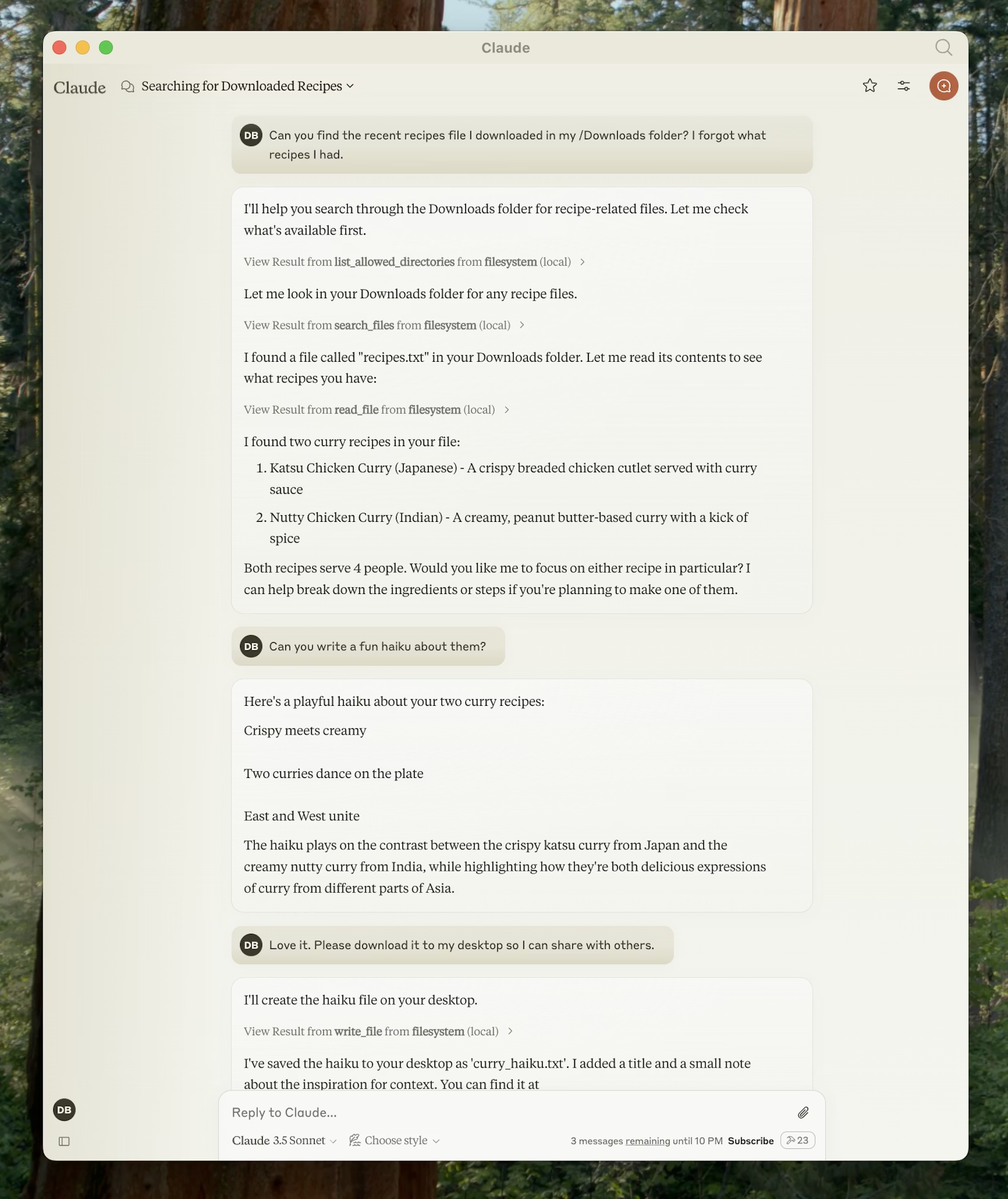
This guide demonstrates how to connect to local MCP servers using Claude Desktop as an example, one of the many clients that support MCP. While we focus on Claude Desktop's implementation, the concepts apply broadly to other MCP-compatible clients. By the end of this tutorial, Claude will be able to interact with files on your computer, create new documents, organize folders, and search through your file system—all with your explicit permission for each action.
Prerequisites
Before starting this tutorial, ensure you have the following installed on your system:
Claude Desktop
Download and install Claude Desktop for your operating system. Claude Desktop is available for macOS and Windows.
If you already have Claude Desktop installed, verify you're running the latest version by clicking the Claude menu and selecting “Check for Updates...”
Node.js
The Filesystem Server and many other MCP servers require Node.js to run. Verify your Node.js installation by opening a terminal or command prompt and running:
node --version
If Node.js is not installed, download it from nodejs.org. We recommend the LTS (Long Term Support) version for stability.
Understanding MCP Servers
MCP servers are programs that run on your computer and provide specific capabilities to Claude Desktop through a standardized protocol. Each server exposes tools that Claude can use to perform actions, with your approval. The Filesystem Server we'll install provides tools for:
- Reading file contents and directory structures
- Creating new files and directories
- Moving and renaming files
- Searching for files by name or content
All actions require your explicit approval before execution, ensuring you maintain full control over what Claude can access and modify.
Installing the Filesystem Server
The process involves configuring Claude Desktop to automatically start the Filesystem Server whenever you launch the application. This configuration is done through a JSON file that tells Claude Desktop which servers to run and how to connect to them.
-
Open Claude Desktop Settings
Start by accessing the Claude Desktop settings. Click on the Claude menu in your system's menu bar (not the settings within the Claude window itself) and select “Settings...”
On macOS, this appears in the top menu bar:
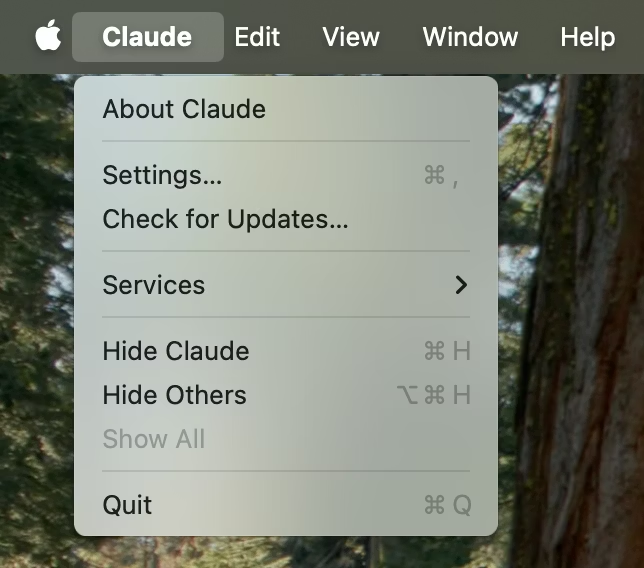
Figure 2 - Claude Desktop menu showing Settings option This opens the Claude Desktop configuration window, which is separate from your Claude account settings.
-
Access Developer Settings
In the Settings window, navigate to the “Developer” tab in the left sidebar. This section contains options for configuring MCP servers and other developer features.
Click the “Edit Config” button to open the configuration file:
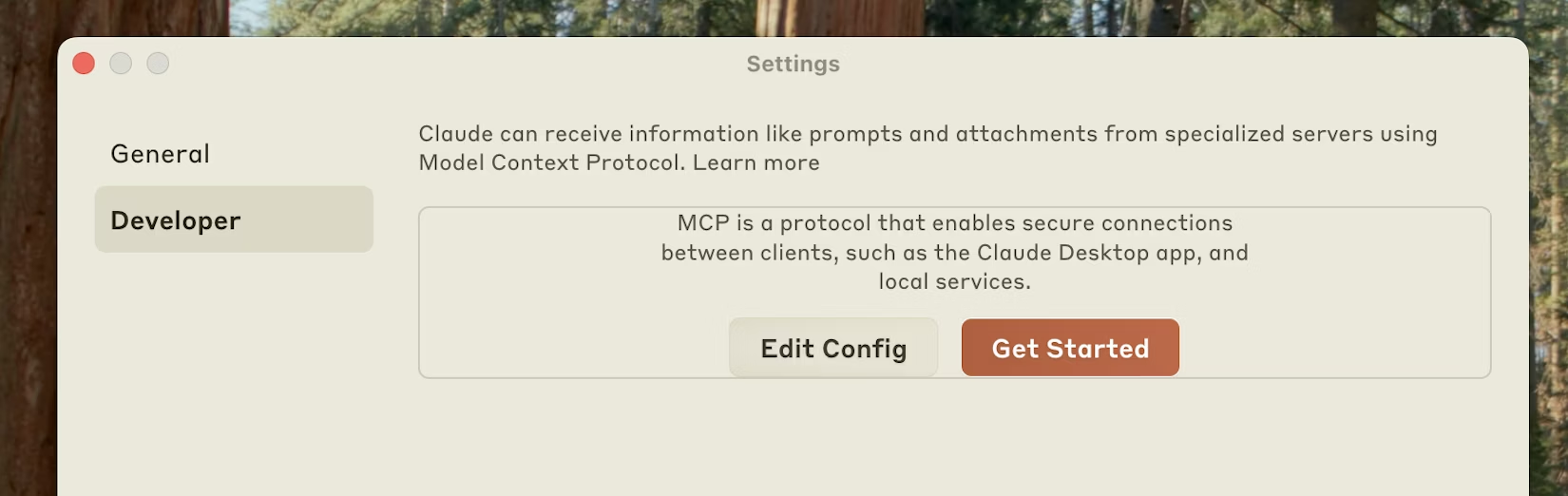
Figure 3 - Developer settings showing Edit Config button This action creates a new configuration file if one doesn't exist, or opens your existing configuration. The file is located at:
- macOS:
~/Library/Application Support/Claude/claude_desktop_config.json - Windows:
%APPDATA%\Claude\claude_desktop_config.json
- macOS:
-
Configure the Filesystem Server
Replace the contents of the configuration file with the following JSON structure. This configuration tells Claude Desktop to start the Filesystem Server with access to specific directories:
{
  "mcpServers": {
    "filesystem": {
      "command": "npx",
      "args": [
        "-y",
        "@modelcontextprotocol/server-filesystem",
        "/Users/username/Desktop",
        "/Users/username/Downloads"
      ]
    }
  }
}
{ "mcpServers": { "filesystem": { "command": "npx", "args": [ "-y", "@modelcontextprotocol/server-filesystem", "C:\\Users\\username\\Desktop", "C:\\Users\\username\\Downloads" ] } } }Replace
usernamewith your actual computer username. The paths listed in theargsarray specify which directories the Filesystem Server can access. You can modify these paths or add additional directories as needed.Understanding the Configuration"filesystem": A friendly name for the server that appears in Claude Desktop"command": "npx": Uses Node.js's npx tool to run the server"-y": Automatically confirms the installation of the server package"@modelcontextprotocol/server-filesystem": The package name of the Filesystem Server- The remaining arguments: Directories the server is allowed to access
Security ConsiderationOnly grant access to directories you're comfortable with Claude reading and modifying. The server runs with your user account permissions, so it can perform any file operations you can perform manually.
-
Restart Claude Desktop
After saving the configuration file, completely quit Claude Desktop and restart it. The application needs to restart to load the new configuration and start the MCP server.
Upon successful restart, you'll see an MCP server indicator in the bottom‑right corner of the conversation input box:
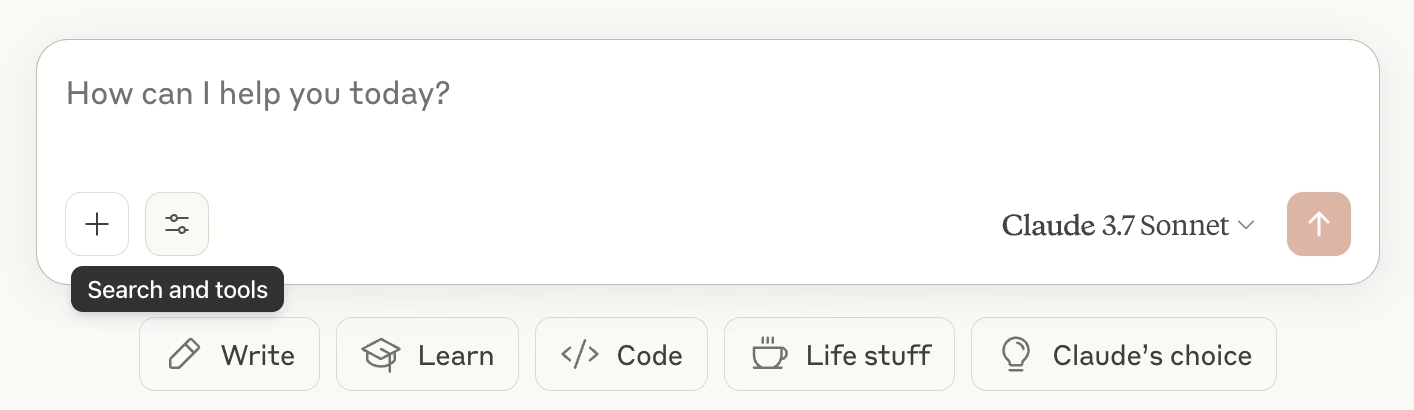
Figure 4 - Claude Desktop interface showing MCP server indicator Click on this indicator to view the available tools provided by the Filesystem Server:
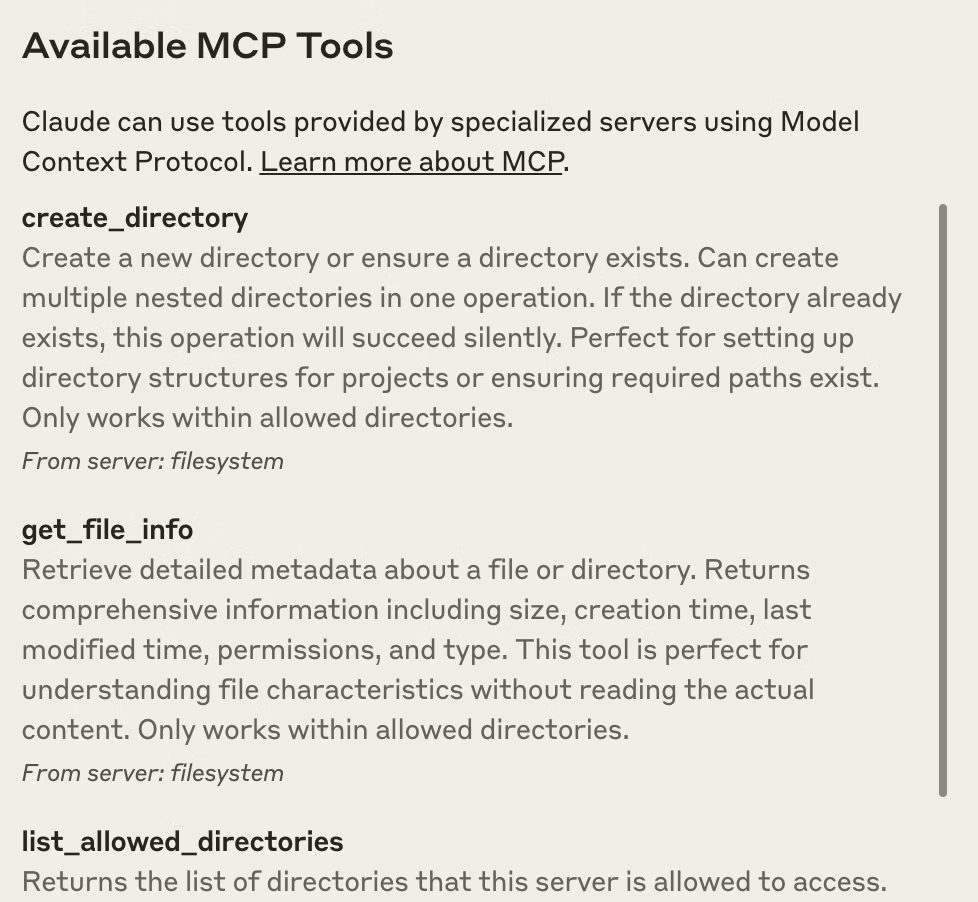
Figure 5 - Available filesystem tools in Claude Desktop If the server indicator doesn’t appear, refer to the “Troubleshooting” section for debugging steps.
Using the Filesystem Server
With the Filesystem Server connected, Claude can now interact with your file system. Try these example requests to explore the capabilities:
File Management Examples
- “Can you write a poem and save it to my desktop?” – Claude will compose a poem and create a new text file on your desktop
- “What work‑related files are in my downloads folder?” – Claude will scan your downloads and identify work‑related documents
- “Please organize all images on my desktop into a new folder called ‘Images’” – Claude will create a folder and move image files into it
How Approval Works
Before executing any file system operation, Claude will request your approval. This ensures you maintain control over all actions:
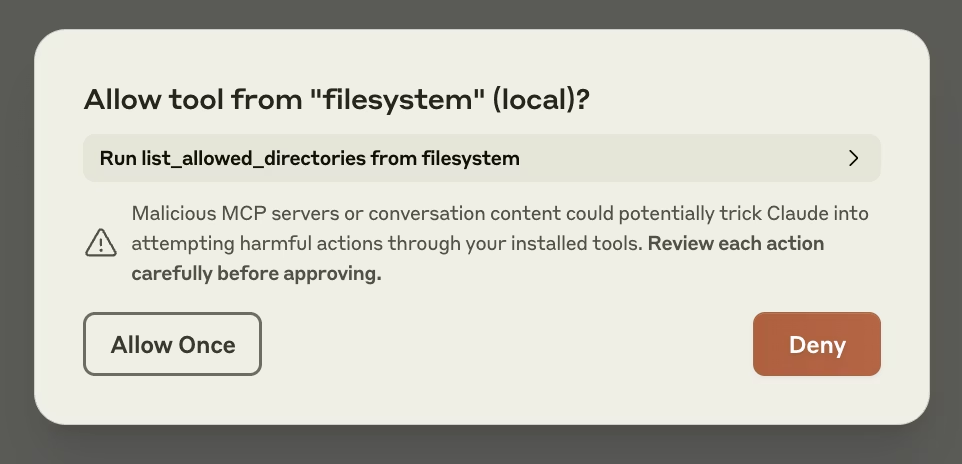
Review each request carefully before approving. You can always deny a request if you’re not comfortable with the proposed action.
Troubleshooting
Server not showing up in Claude / hammer icon missing
- Restart Claude Desktop completely
- Check your
claude_desktop_config.jsonfile syntax - Make sure the file paths included in
claude_desktop_config.jsonare valid and that they are absolute and not relative - Look at logs to see why the server is not connecting
- In your command line, try manually running the server (replacing
usernameas you did inclaude_desktop_config.json) to see if you get any errors:
npx -y @modelcontextprotocol/server-filesystem /Users/username/Desktop /Users/username/Downloads
npx -y @modelcontextprotocol/server-filesystem C:\Users\username\Desktop C:\Users\username\Downloads
Getting logs from Claude Desktop
Claude.app logging related to MCP is written to log files in:
- macOS:
~/Library/Logs/Claude - Windows:
%APPDATA%\Claude\logs mcp.logwill contain general logging about MCP connections and connection failures.- Files named
mcp-server‑SERVERNAME.logwill contain error (stderr) logging from the named server.
You can run the following command to list recent logs and follow along with any new ones (on Windows, it will only show recent logs):
tail -n 20 -f ~/Library/Logs/Claude/mcp*.log
type "%APPDATA%\Claude\logs\mcp*.log"
Tool calls failing silently
- Check Claude's logs for errors
- Verify your server builds and runs without errors
- Try restarting Claude Desktop
None of this is working. What do I do?
Please refer to our debugging guide for better debugging tools and more detailed guidance.
ENOENT error and `${APPDATA}` in paths on Windows
If your configured server fails to load, and you see within its logs an error
referring to ${APPDATA} within a path, you may need to add the expanded value of
%APPDATA% to your env key in claude_desktop_config.json:
{
  "brave-search": {
    "command": "npx",
    "args": ["-y", "@modelcontextprotocol/server-brave-search"],
    "env": {
      "APPDATA": "C:\\Users\\user\\AppData\\Roaming\\",
      "BRAVE_API_KEY": "..."
    }
  }
}
With this change in place, launch Claude Desktop once again.
The npx command may continue to fail if you have not installed npm globally.
If npm is already installed globally, you will find %APPDATA%\npm exists on your system.
If not, you can install npm globally by running the following command:
npm install -g npm
Next Steps
Source: https://modelcontextprotocol.io/docs/develop/connect-local-servers.md