
Qwen3 Coder Next NVFP4 setup
This is an NVFP4 quantized version of Qwen/Qwen3-Coder-Next (80B-A3B), a state-of-the-art code generation model using Hybrid DeltaNet + Attention + Mixture of Experts architecture. The quantization reduces the model size from ~149GB BF16 to 45GB (70% reduction) while maintaining strong performance across code generation tasks. This model is optimized for deployment with vLLM and supports context lengths up to 262,144 tokens. The NVFP4 quantization runs very efficiently on NVIDIA Blackwell GPUs.
Original model: https://huggingface.co/Qwen/Qwen3-Coder-NextNVFP4 model: https://huggingface.co/GadflyII/Qwen3-Coder-Next-NVFP4
Model Specifications & Architecture
| Property | Value |
|---|---|
| Base Model | Qwen/Qwen3-Coder-Next |
| Architecture | Qwen3NextForCausalLM (Hybrid DeltaNet + Attention + MoE) |
| Parameters | 80B total, 3B activated per token |
| Experts | 512 total, 10 activated + 1 shared |
| Layers | 48 |
| Context Length | 262,144 tokens (256K) |
| Quantization | NVFP4 (FP4 weights + FP4 activations) |
| Size | 45GB (down from ~149GB BF16, 70% reduction) |
| Format | compressed-tensors |
NVFP4 Quantization Configuration
Quantized using llmcompressor 0.9.0.1 with the following configuration:
NUM_CALIBRATION_SAMPLES = 20
MAX_SEQUENCE_LENGTH = 2048
DATASET = "HuggingFaceH4/ultrachat_200k" (train_sft)
moe_calibrate_all_experts = True

# Layers kept in BF16
ignore = [
    "lm_head",
    "re:.*mlp.gate$",               # MoE router gates
    "re:.*mlp.shared_expert_gate$", # Shared expert gates
    "re:.*linear_attn.*",           # DeltaNet linear attention
]
Performance Benchmarks & Evaluation
MMLU-Pro
| Model | Accuracy | Delta |
|---|---|---|
| BF16 | 52.90% | - |
| NVFP4 | 51.27% | -1.63% |
Context Length Testing
Successfully tested up to 128K tokens with FP8 KV cache (Not enough VRAM to test any higher context).
vLLM Integration & Usage Guide
Requires vLLM with NVFP4 support (0.16.0+), Transformers 5.0.0+
# vLLM Serving
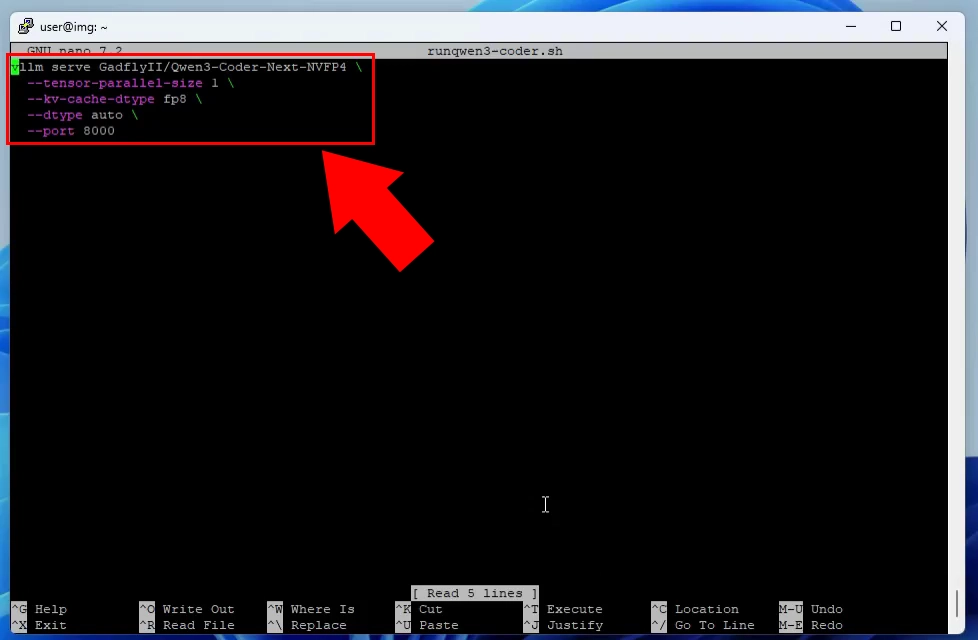
vllm serve GadflyII/Qwen3-Coder-Next-NVFP4 \
  --tensor-parallel-size 1 \
  --kv-cache-dtype fp8 \
  --dtype auto \
  --port 8000
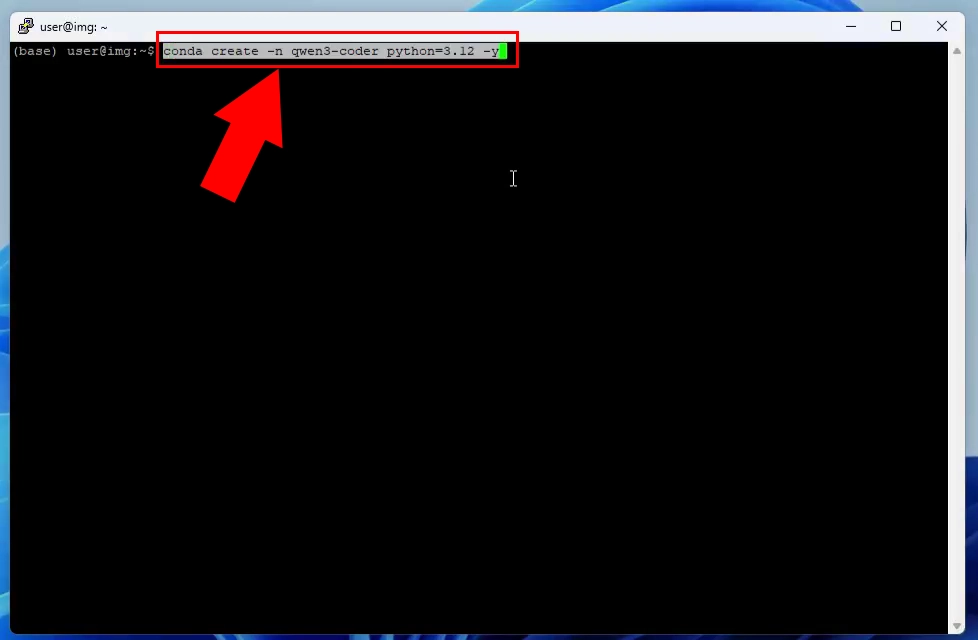
The first step is to create a dedicated conda environment for the Qwen3-Coder model by executing the command "conda create -m qwen3-coder python=3.12" in the terminal. This command sets up an isolated Python 3.12 environment specifically named "qwen3-coder" to manage dependencies separately from other projects. Creating this environment ensures a clean installation space for VLLM and all required packages without conflicts.
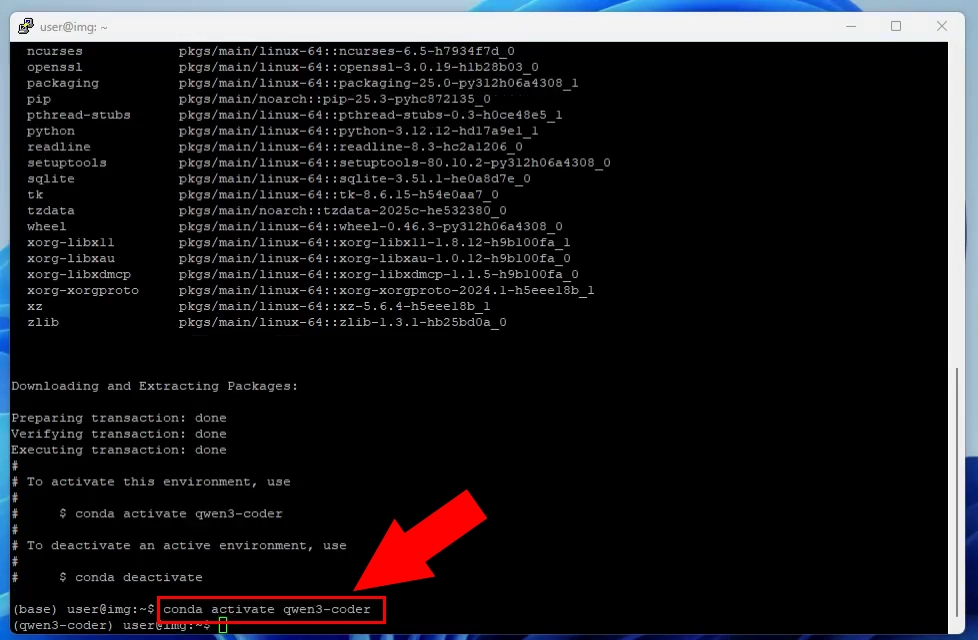
After creating the environment, you must activate it using the command "conda activate qwen3-coder" as shown in the terminal prompt. The activation changes your command prompt to display "(qwen3-coder)" at the beginning, confirming you're working within the correct environment. This step is essential before installing any packages to ensure they're installed in the right location.
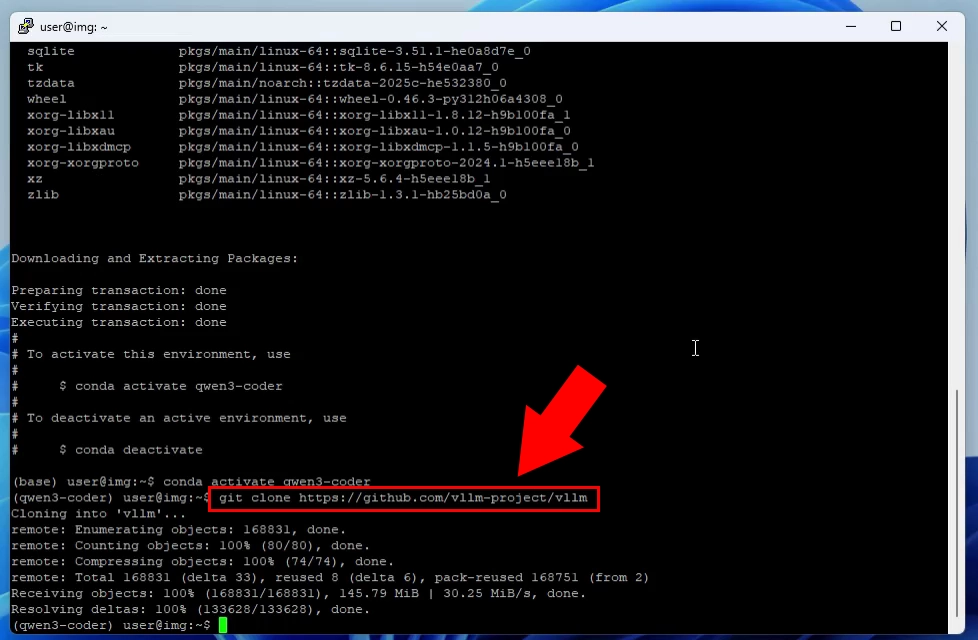
The next step involves cloning the VLLM repository from GitHub using the command "git clone https://github.com/vllm-project/vllm" which downloads the complete source code. The terminal displays the cloning progress, showing enumeration, counting, and compression of objects being downloaded. This provides access to the latest VLLM codebase needed to run the quantized Qwen3-Coder model.
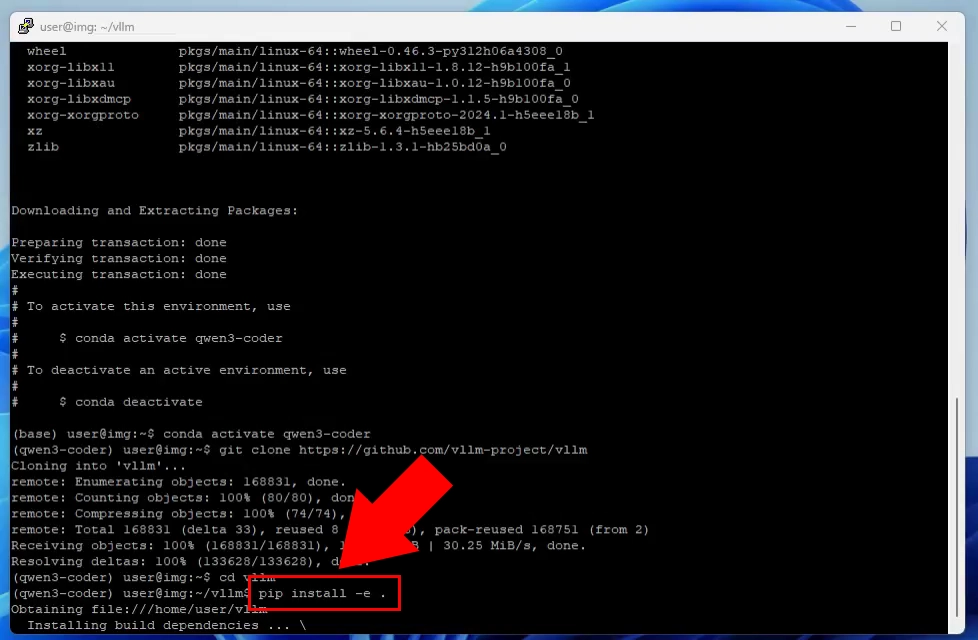
Once the repository is cloned, navigate to the vllm directory and execute "pip install -e ." to install VLLM in editable mode. The installation process downloads and installs all required dependencies and build tools needed for VLLM to function properly. This step compiles the necessary components and makes VLLM available for serving the model.
Create a shell script file named "runqwen3-coder.sh" using a text editor like nano, which will contain the vllm serve command with all necessary parameters. The script should include the model identifier "GadflyII/Qwen3-Coder-Next-NVFP4", tensor parallel size, KV cache type (fp8), and port configuration (8000). Having this script allows for easy repeated launching of the model server without retyping complex command parameters.
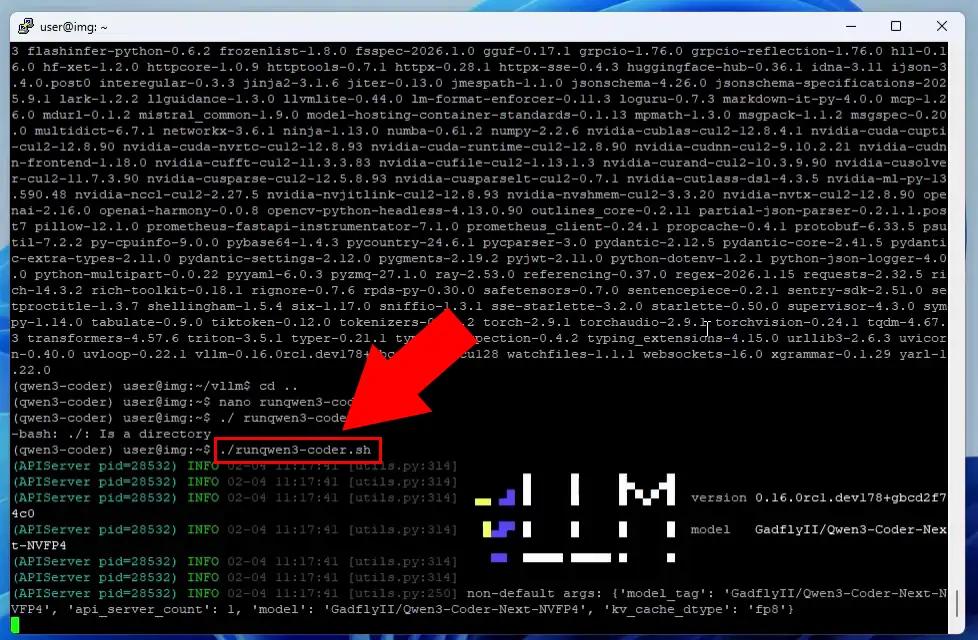
Execute the script "./runqwen3-coder.sh" to start the VLLM server, which begins loading the Qwen3-Coder-Next-NVFP4 model into memory. The terminal displays the VLLM logo and initialization information showing the model loading progress and configuration details. Multiple API server processes start up to handle incoming requests on the specified port.
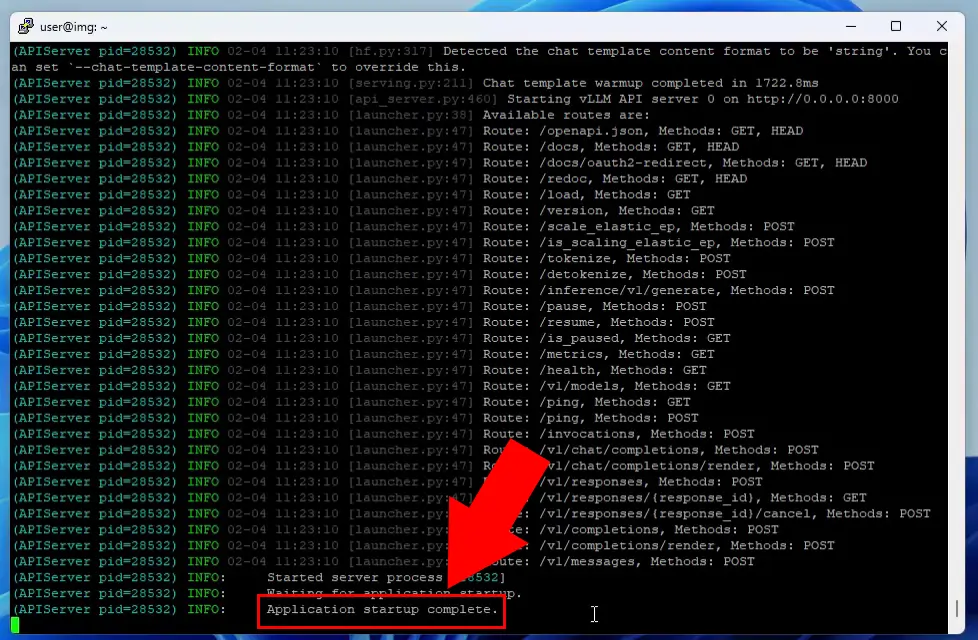
The server startup completes successfully when you see "Application startup complete" message along with route registrations for various API endpoints. The terminal shows all available routes including /docs, /health, /tokenize, and various chat completion endpoints using different methods (GET, POST). At this point, the VLLM server is fully operational and ready to accept requests at http://0.0.0.0:8000.
License & Citation Information
Apache 2.0 (same as base model)
How to test the Qwen3-Coder model in Ozeki AI Gateway
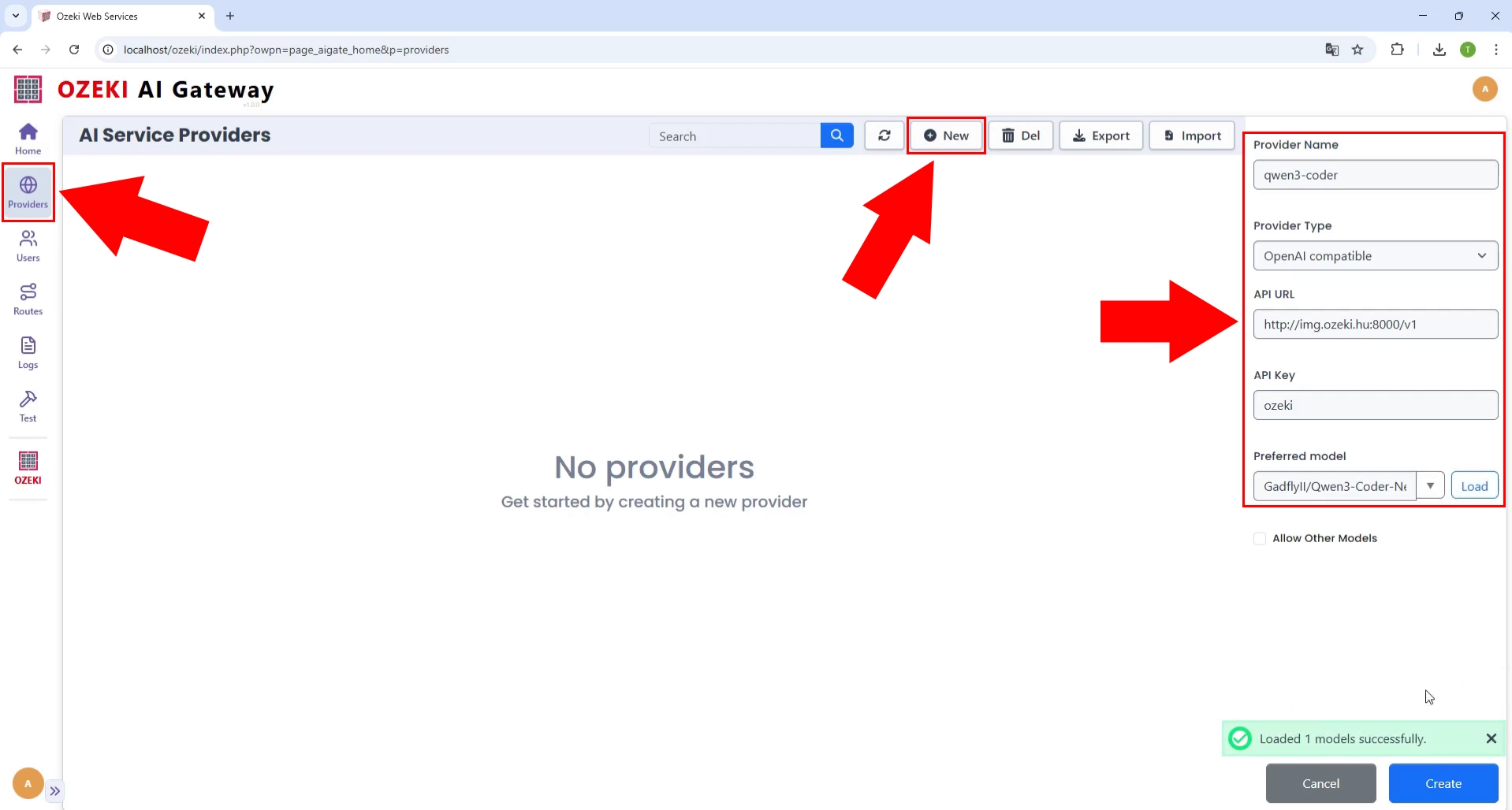
In the Ozeki AI Gateway web interface, navigate to the AI Service Providers section and click the "New" button to create a new provider connection. Fill in the provider details including the provider name "qwen3-coder", select "OpenAI compatible" as the provider type, and enter the API URL as "http://server.ip:8000/v1". Complete the configuration by specifying the reference model as "GadflyII/Qwen3-Coder-Next-NVFP4" and save the provider settings.
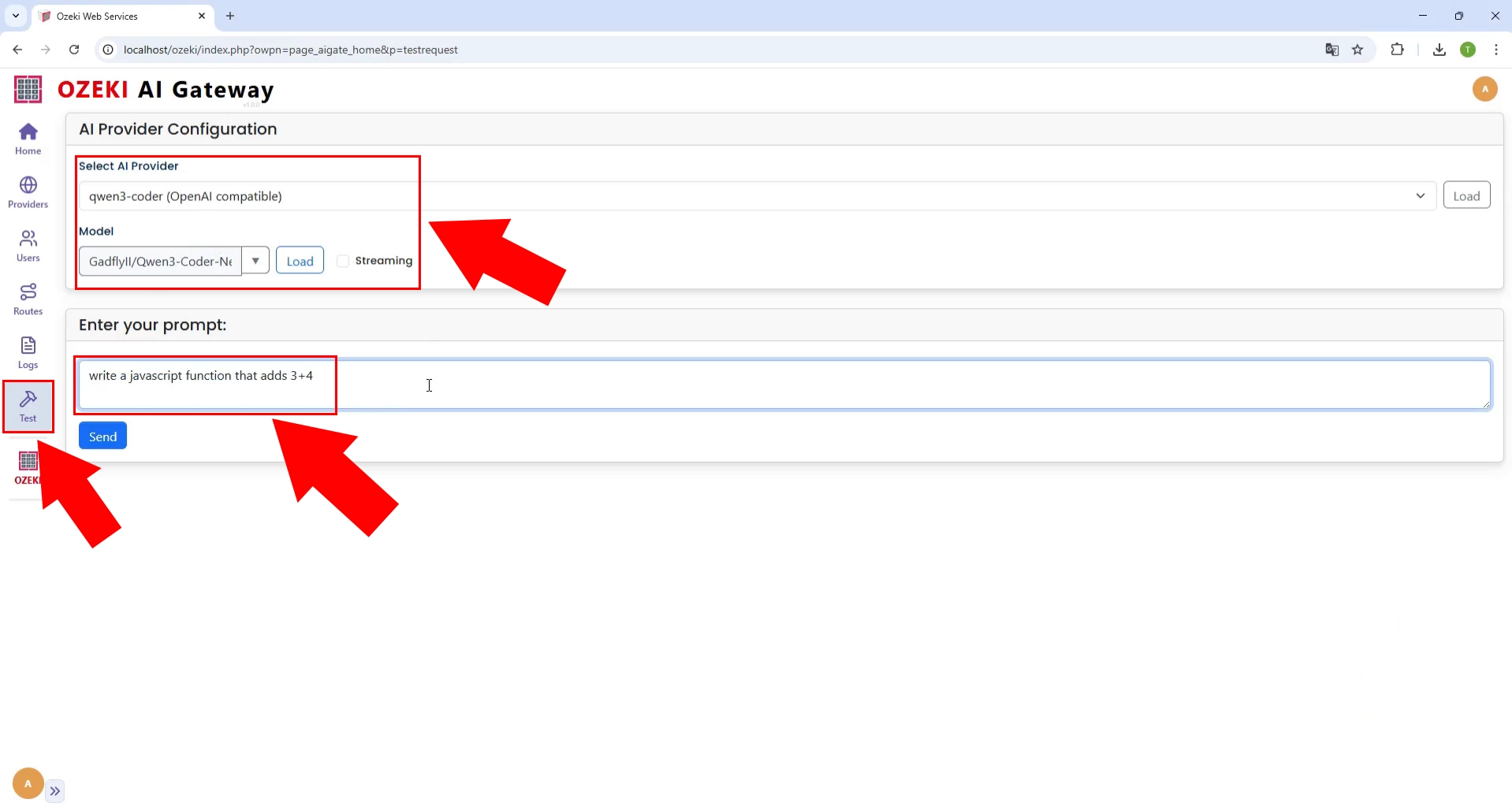
To test the configuration, select your newly created "qwen3-coder" provider from the dropdown menu in the AI Provider Configuration panel. Click on the "Test" section in the left sidebar, enter a test prompt like "write a javascript function that adds 3+4" in the prompt field, and click the "Send" button. This sends a request to your local VLLM server to verify the model responds correctly.
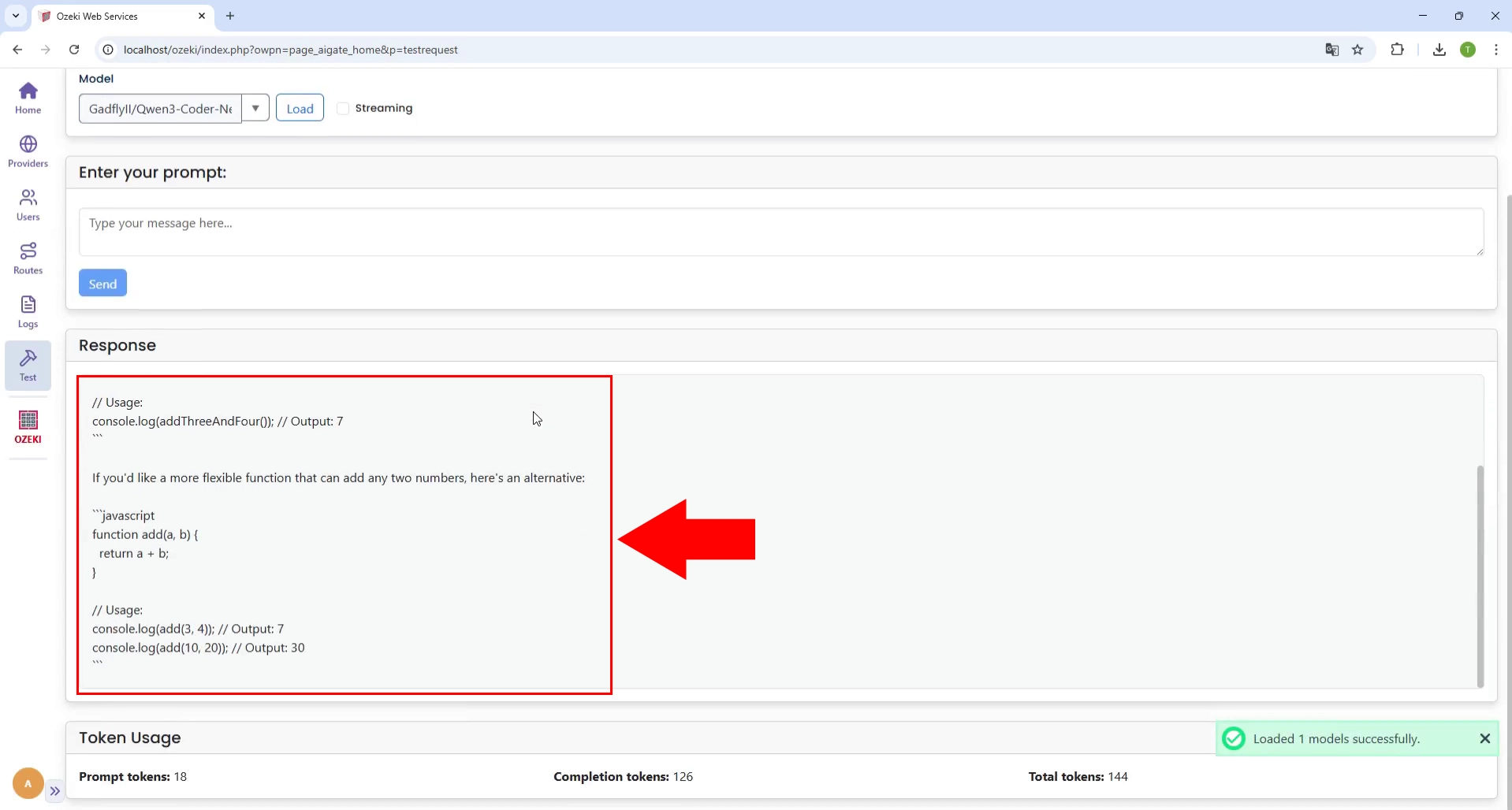
The response section displays the code output generated by the Qwen3-Coder model, showing a properly formatted JavaScript function with syntax highlighting. The interface also shows token usage statistics at the bottom, including prompt tokens, completion tokens, and total tokens used for the request. This confirms successful integration between Ozeki AI Gateway and your locally running Qwen3-Coder-Next model via VLLM.
Credits & Acknowledgments
- Qwen Team for the base model
- RedHatAI for the quantization approach reference
- vLLM Project for llmcompressor