
How to Test LLM Services Using Postman
This guide demonstrates how to test LLM services through Postman by sending API requests to Ozeki AI Gateway. You'll learn how to configure Postman with the correct endpoint, authentication, and payload format to send test prompts and verify AI service responses.
What is Postman?
Postman is a popular API development and testing platform that allows developers to send HTTP requests to web services and APIs. When working with Ozeki AI Gateway, Postman provides a convenient way to test your gateway's API endpoints, verify authentication tokens, and examine request and response data in detail.
Request format
To test LLM services through Ozeki AI Gateway using Postman, you need to send a POST request to the chat completions endpoint with proper authentication and a JSON payload. Here's the basic request structure:
POST http://localhost/v1/chat/completions

Authorization: Bearer Token sk-123

Payload:
{
  "model": "ai-model",
  "messages": [
    {
      "role": "user",
      "content": "Where is Budapest?"
    }
  ],
  "stream": false,
  "max_tokens": 500
}
Steps to follow
We assume Ozeki AI Gateway is already installed on your system. You can install it on Linux, Windows or Mac.
- Download and install Postman
- Create new POST request
- Configure authentication
- Set request body
- Send test request
- View response
- Check gateway logs
How to test LLM services with Postman video
The following video shows how to test LLM services using Postman step-by-step. The video covers downloading Postman, configuring the request with proper authentication, sending test prompts to Ozeki AI Gateway, and reviewing the responses.
Step 0 - Configure Ozeki AI Gateway prerequisites
Before you can test LLM services with the llm-tester script, you need to have Ozeki AI Gateway properly configured with the following components:
- At least one AI provider configured with valid credentials
- A user account created in the gateway
- An API key generated for the user
- A route connecting the user to the provider
These components work together to enable authentication and routing of AI requests through your gateway. If you haven't set up these prerequisites yet, follow the linked guides to complete the configuration before proceeding with the llm-tester script.
Step 1 - Download and install Postman
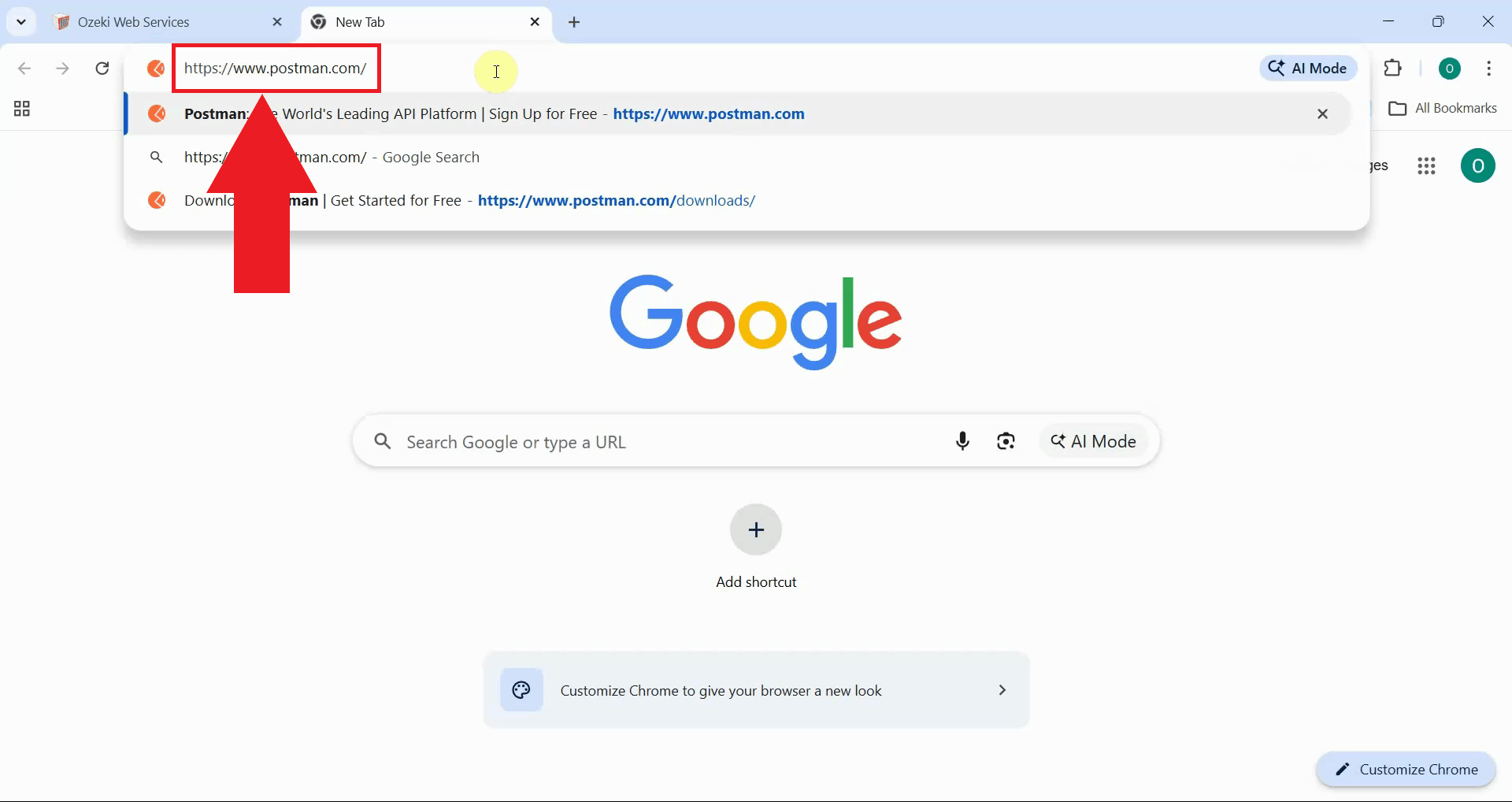
Navigate to the Postman website in your web browser. The Postman platform provides both desktop and web-based versions for API testing and development (Figure 1).
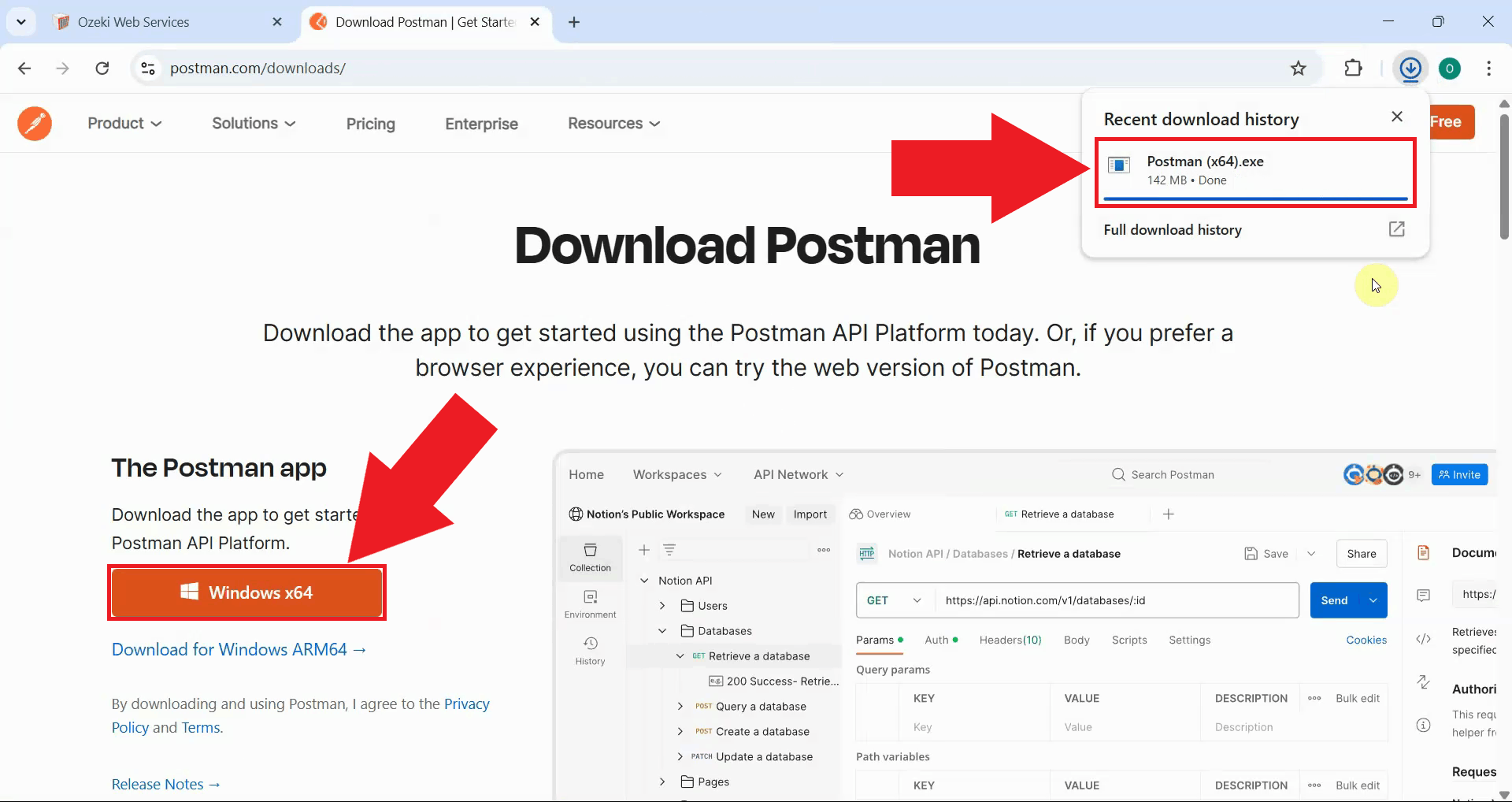
Download the Postman application for your operating system. Postman is available for Windows, macOS, and Linux. The installer will automatically detect your operating system and provide the appropriate download (Figure 2).
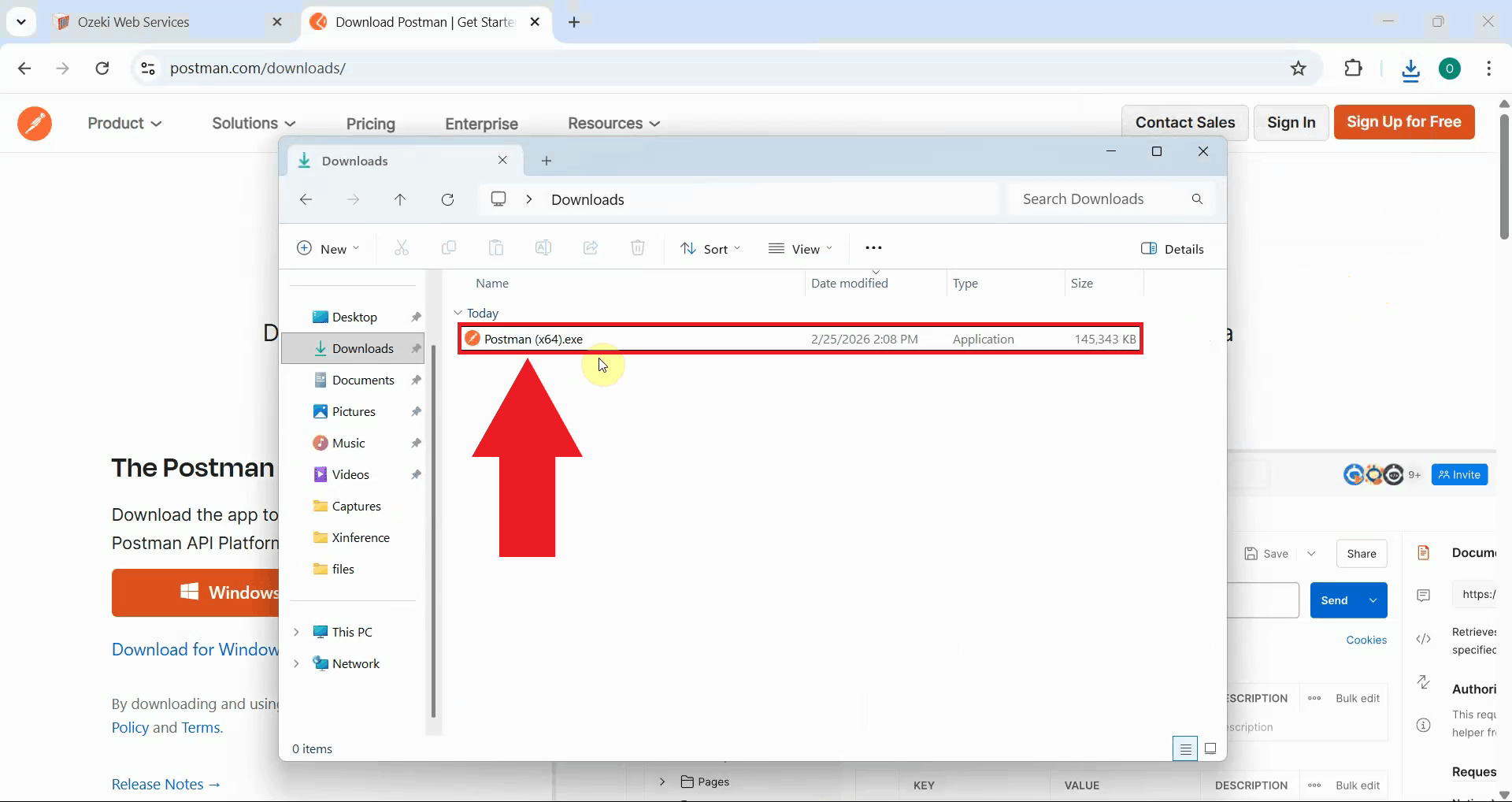
After the download completes, locate Postman in your Downloads folder and launch the application (Figure 3).
Step 2 - Create new POST request
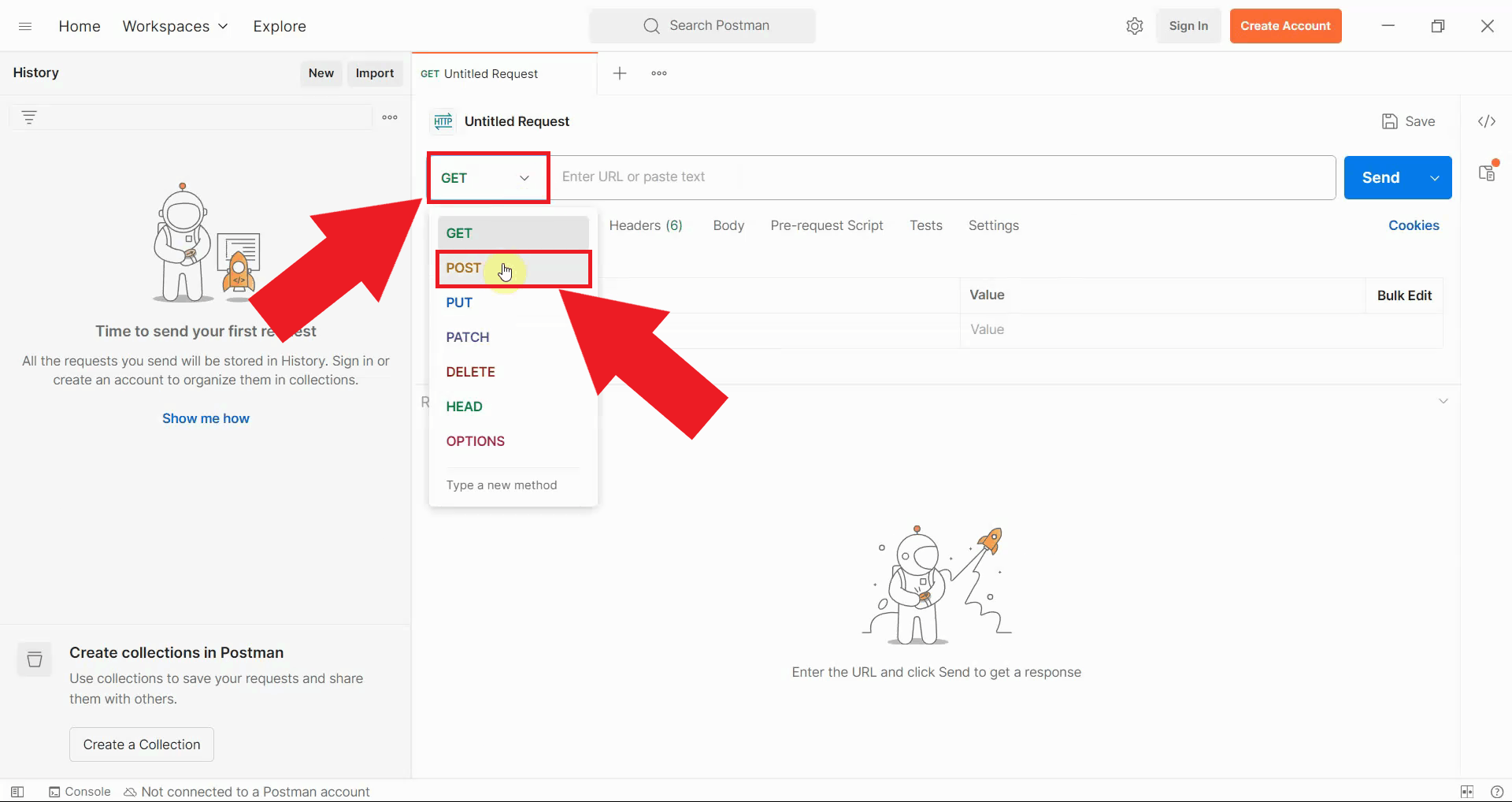
In the Postman interface, locate the request method dropdown menu which defaults to GET. Click on this dropdown and select POST as the request type. POST requests are used to send data to an API endpoint, which is necessary for submitting chat completion requests to Ozeki AI Gateway (Figure 4).
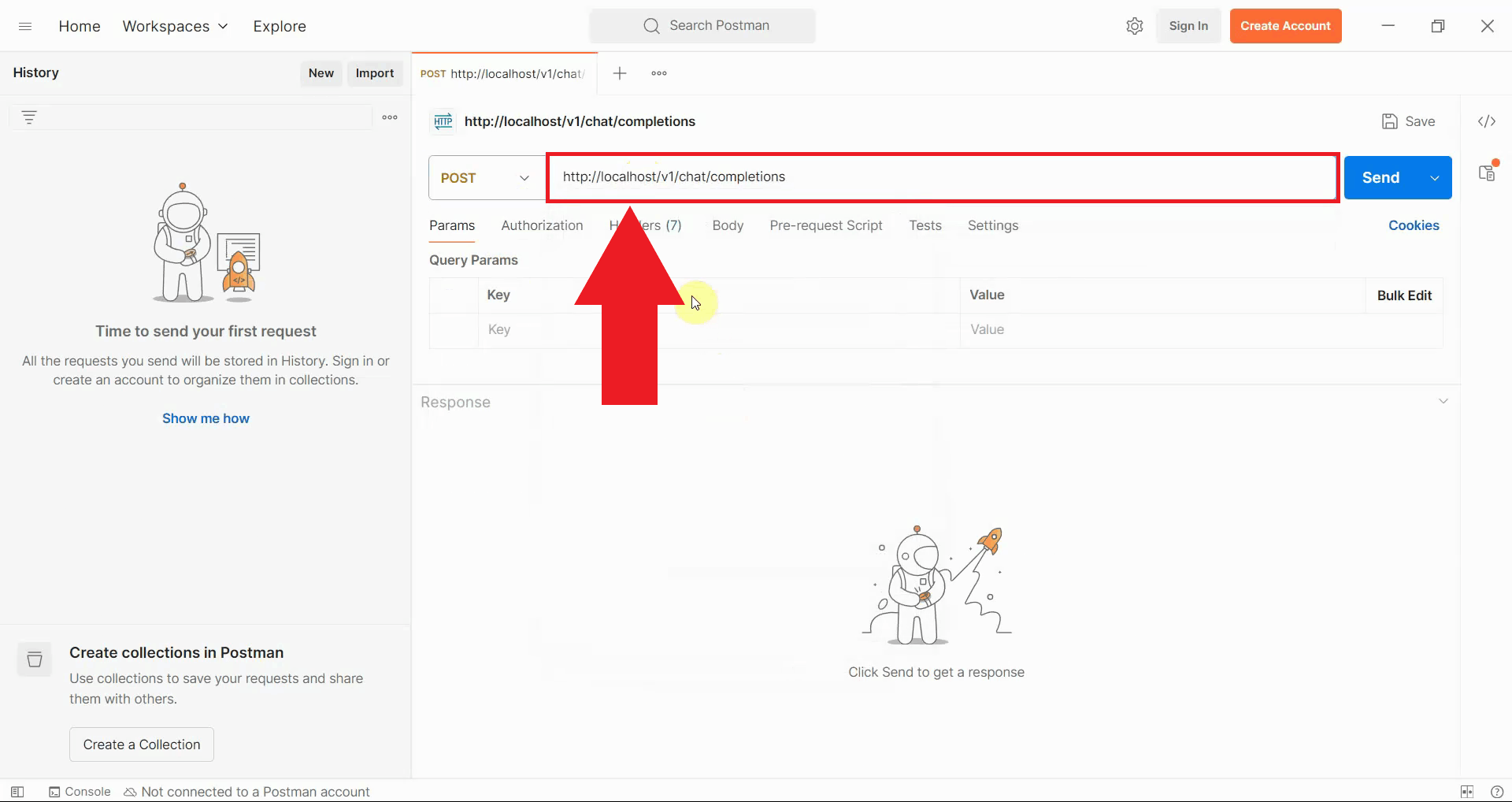
In the URL field, enter the Ozeki AI Gateway endpoint URL. If you're running the gateway locally,
use http://localhost/v1/chat/completions (Figure 5).
Step 3 - Configure authentication
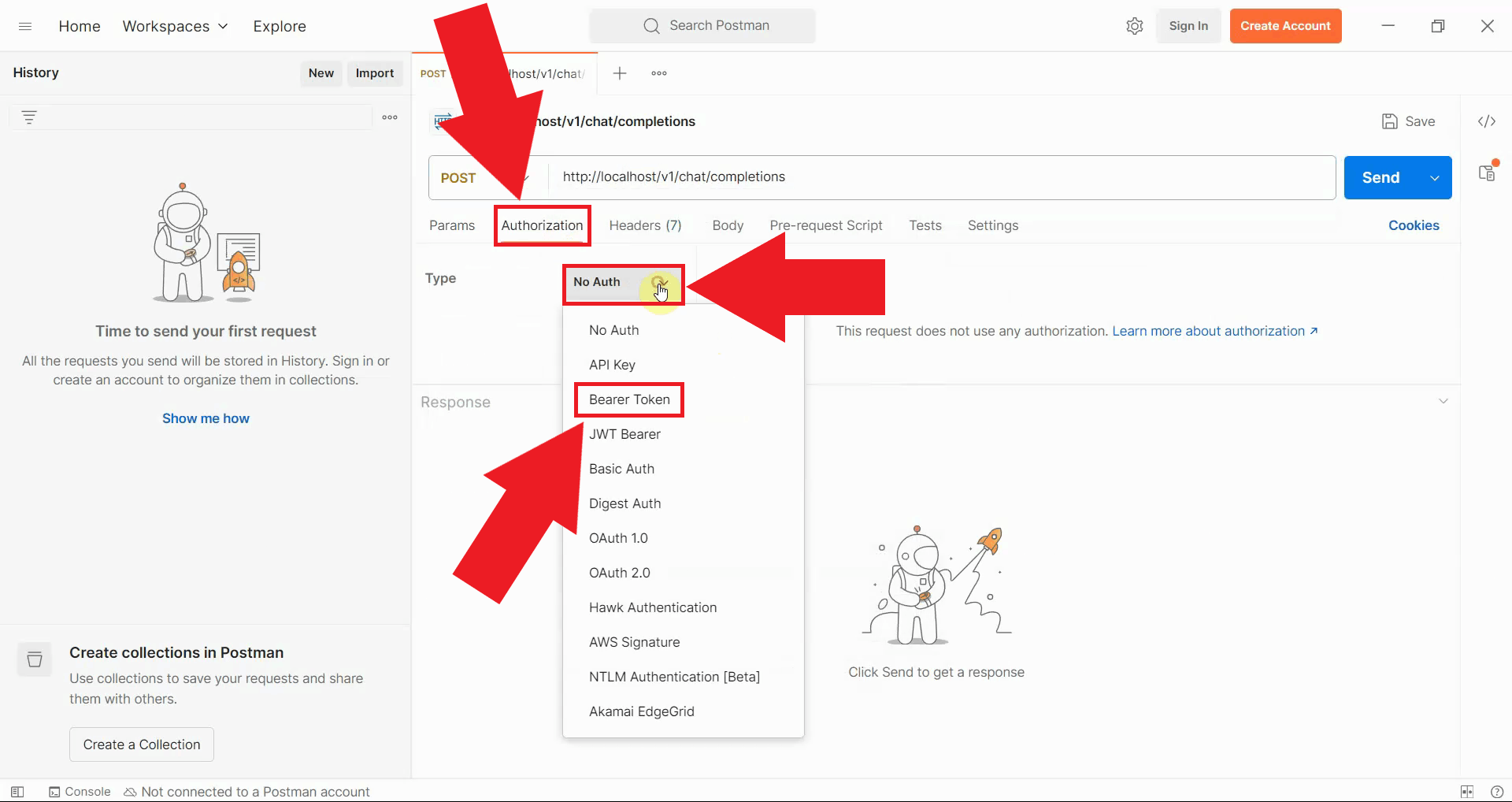
Navigate to the Authorization tab below the URL field. From the Type dropdown menu, select Bearer Token. This authentication method is used by Ozeki AI Gateway to verify that requests come from authorized users (Figure 6).
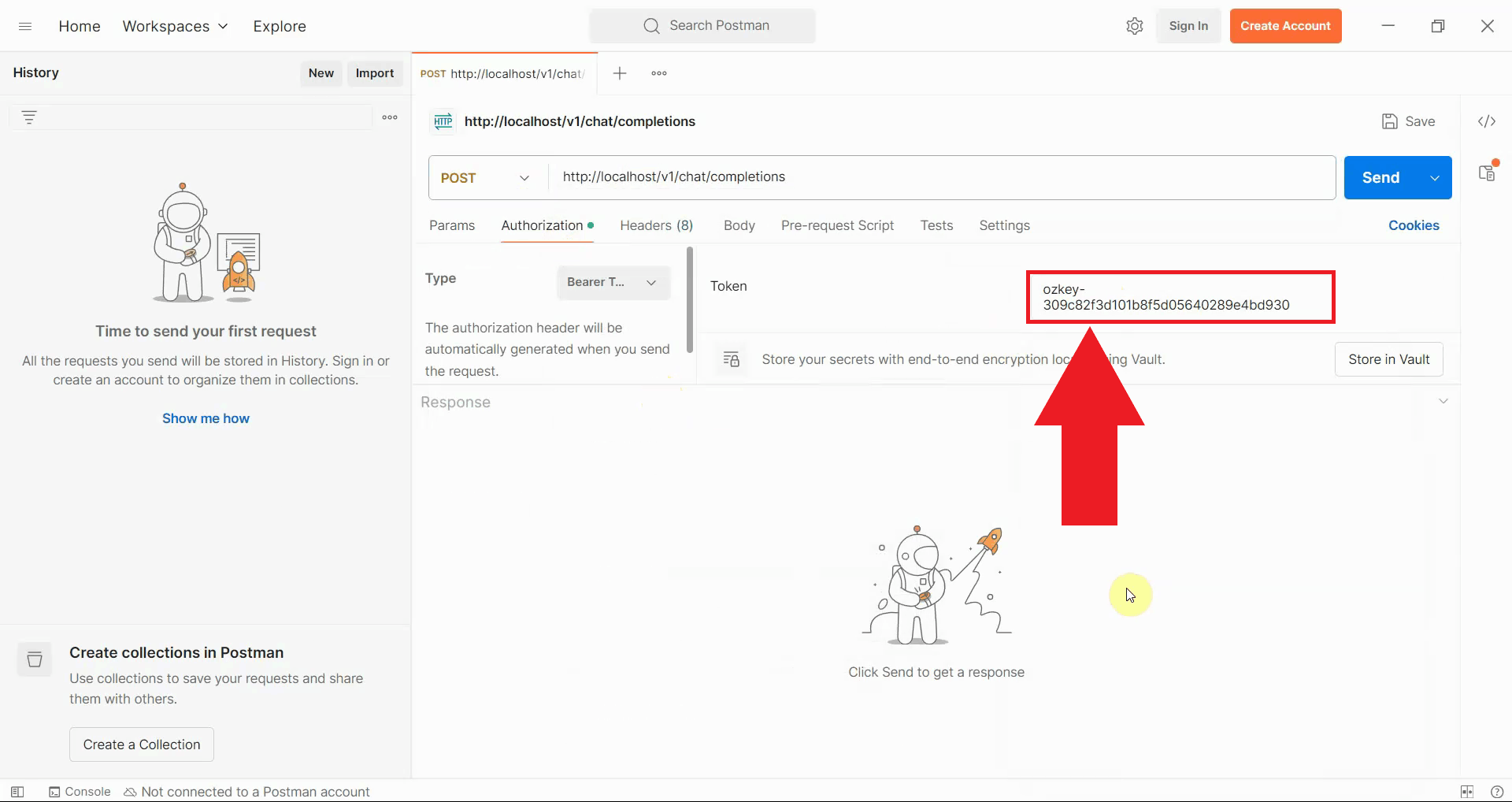
In the Token field that appears, enter your API key that you obtained when creating a user account in Ozeki AI Gateway. This token authenticates your request and associates it with your user account in the gateway (Figure 7).
Step 4 - Set request body
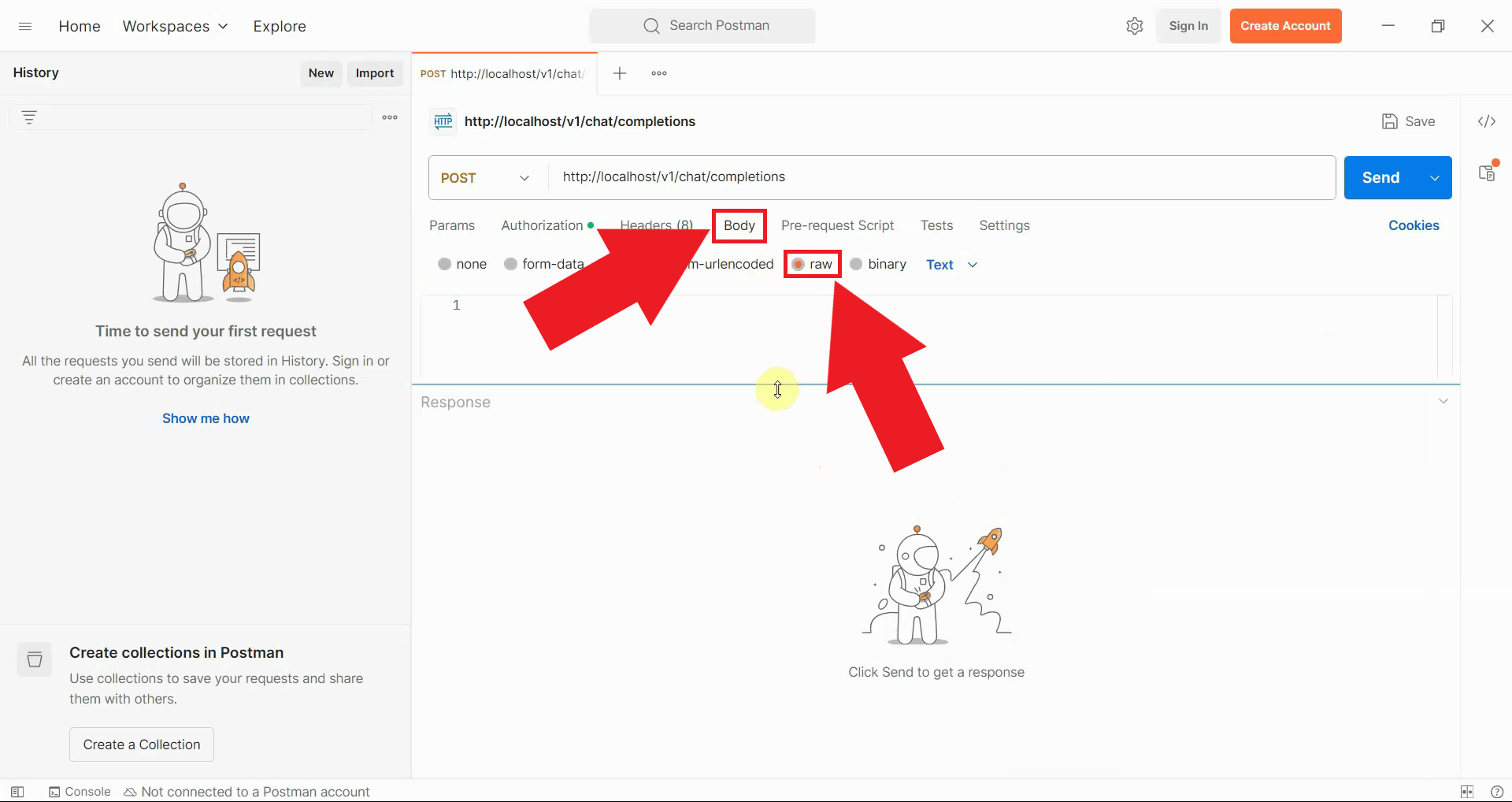
Switch to the Body tab in the request configuration area. Select the raw radio button to enable sending raw JSON data in the request body. From the format dropdown that appears on the right, select JSON to ensure proper content type headers are set (Figure 8).
Step 5 - Send test request
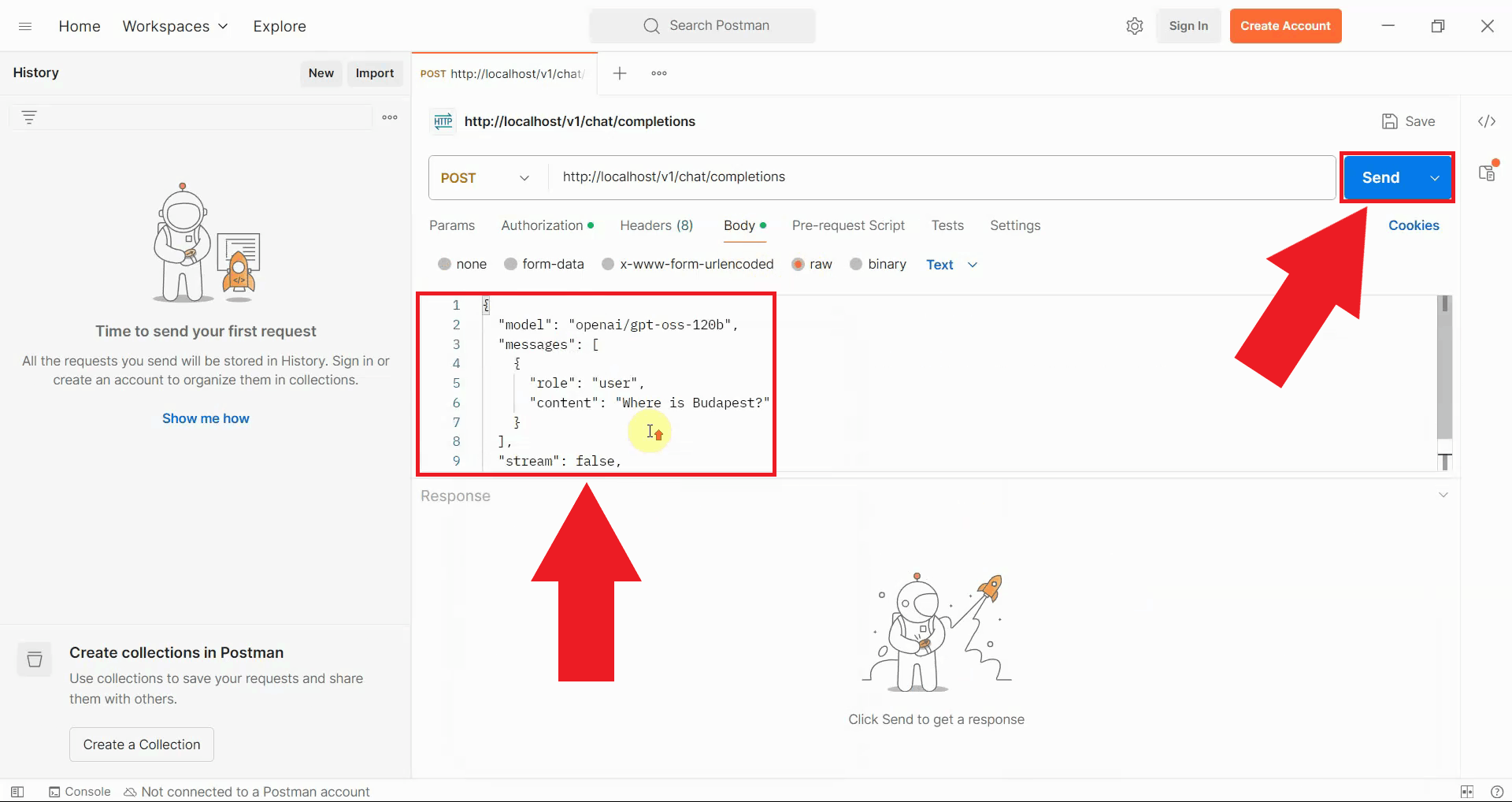
In the request body text area, enter the JSON payload for your chat completion request. The payload should include the model you want to use, the messages array with your prompt, and optional parameters like stream and max_tokens. After entering the payload, click the blue Send button to submit your request to Ozeki AI Gateway (Figure 9).
{
  "model": "ai-model",
  "messages": [
    {
      "role": "user",
      "content": "Where is Budapest?"
    }
  ],
  "stream": false,
  "max_tokens": 500
}
Step 6 - View response
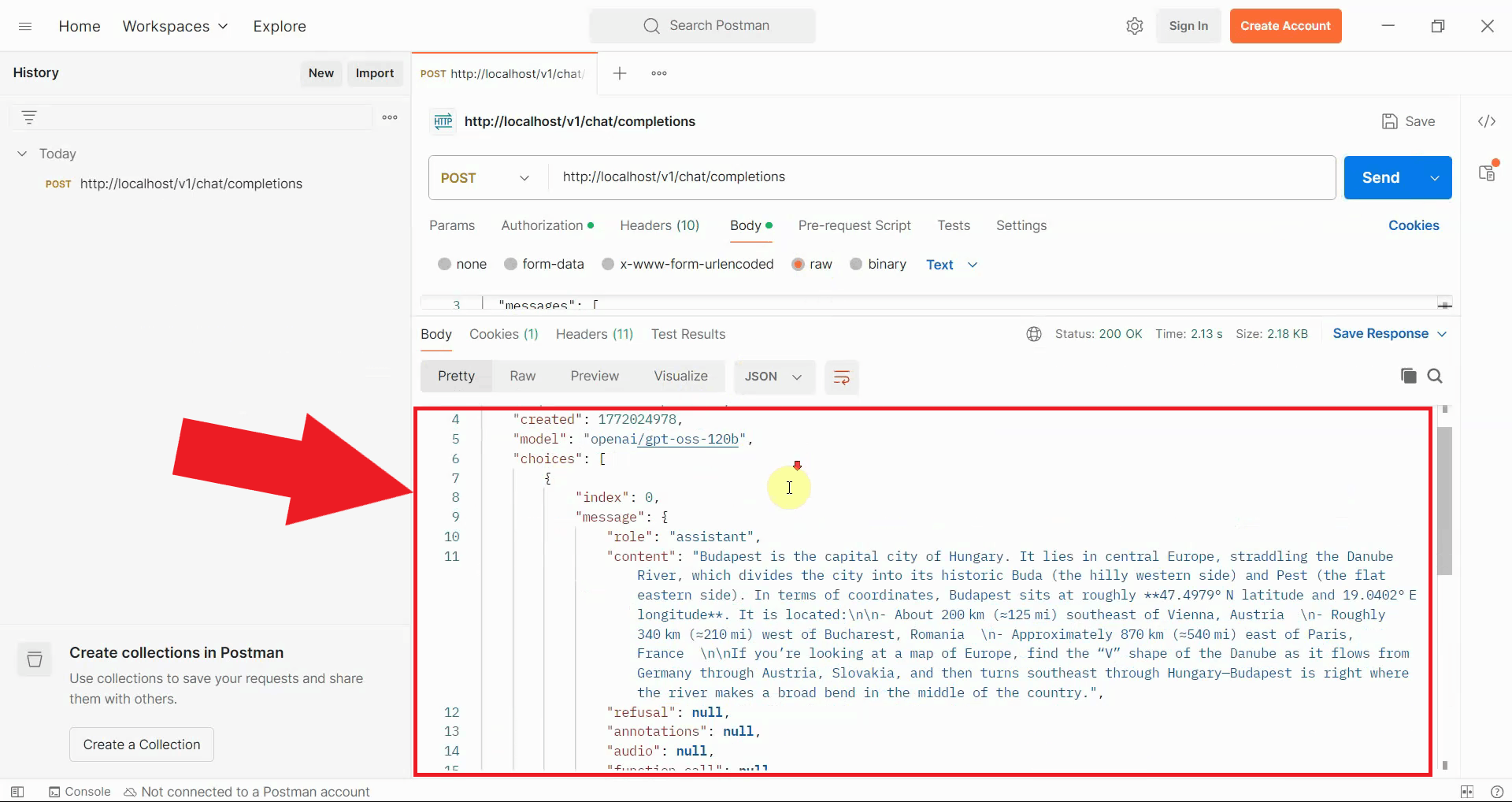
After sending the request, the gateway processes your prompt through the configured AI provider and returns the response. The response appears in the lower section of the Postman interface, displaying the complete JSON response. A successful response with status code 200 indicates that your gateway is correctly configured (Figure 10).
Step 7 - Check gateway logs
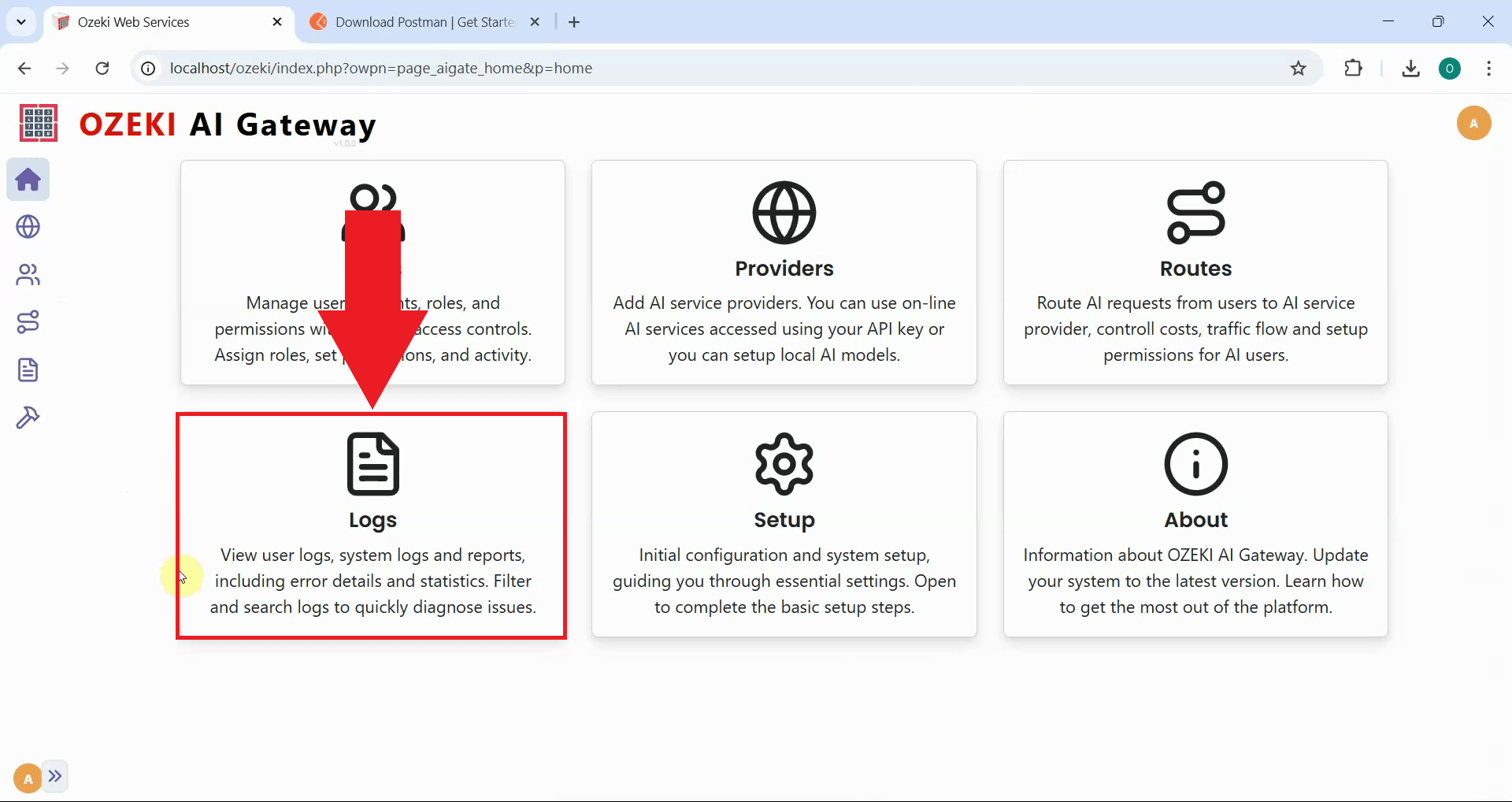
To view detailed transaction information about your test request, open the Ozeki AI Gateway web interface and navigate to the Logs page (Figure 11).
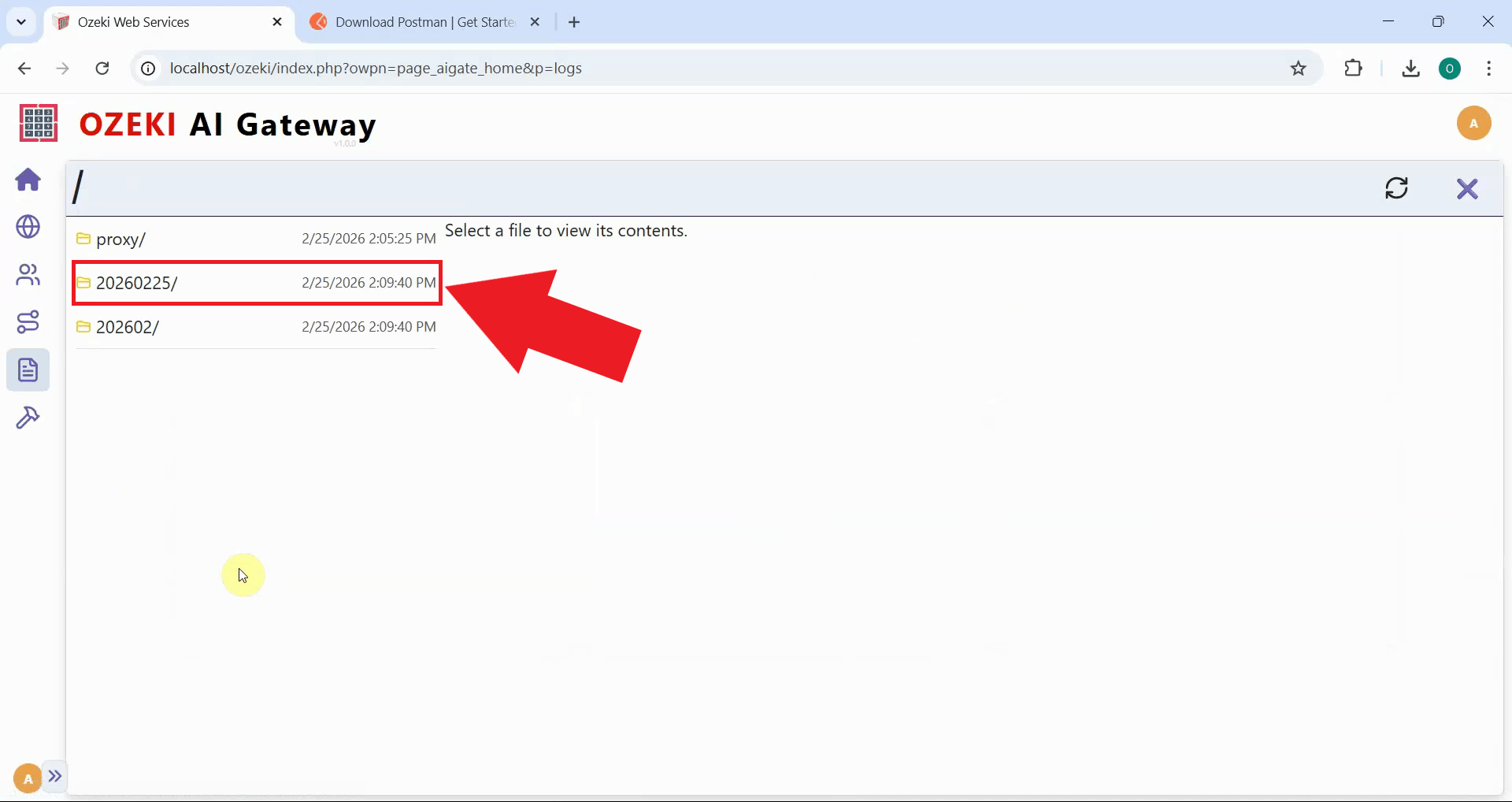
In the Logs section, navigate to the date folder corresponding to when you sent your Postman request (Figure 12).
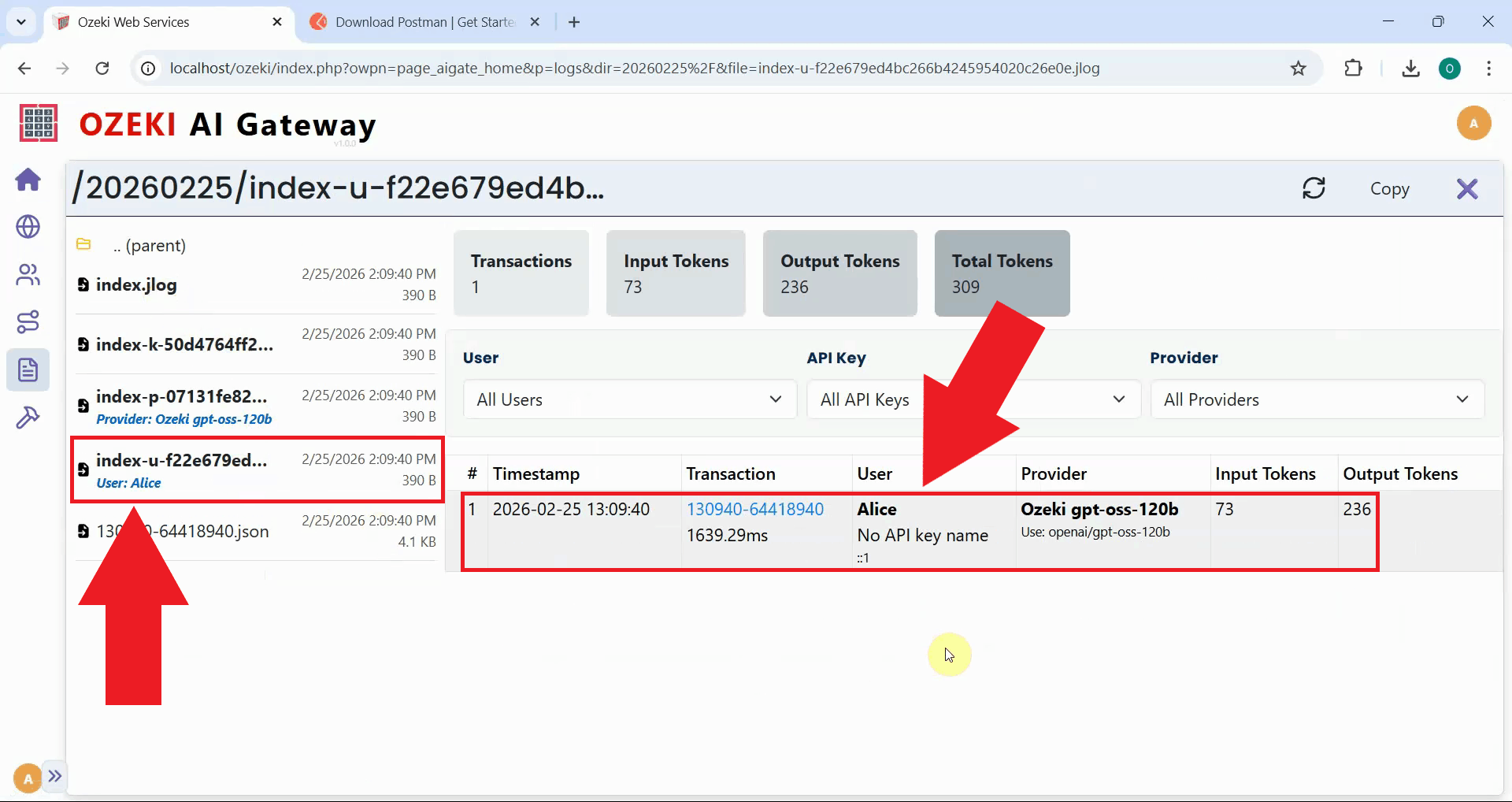
Select the .jlog file that belongs to the API key you used to access the AI model with. The log file displays all transactions in a table format, showing detailed information including timestamps, models used, token consumption, and response times. You can click on individual transactions to view the complete request and response data in JSON format (Figure 13).
Final thoughts
You have successfully tested LLM services using Postman with Ozeki AI Gateway. This method provides developers with a powerful way to understand the API request format, test authentication, debug issues, and validate gateway configurations. Postman's interface makes it easy to experiment with different models, parameters, and prompts while examining detailed request and response data.