
How to test LLM services using the Ozeki AI Gateway GUI
This guide demonstrates how to test LLM services directly through the Ozeki AI Gateway web interface. You'll learn how to use the built-in testing tool to send prompts to configured providers, verify responses, and review transaction logs.
What is the provider testing tool?
The provider testing tool in Ozeki AI Gateway is a built-in interface that allows you to test AI provider connections directly from the web interface. This tool enables you to send test prompts to any configured provider, view the responses in real-time, and verify that your gateway is correctly communicating with AI services. It's particularly useful for validating new provider configurations, troubleshooting connection issues, and confirming that API keys and endpoints are working as expected.
Steps to follow
We assume Ozeki AI Gateway is already installed on your system. You can install it on Linux, Windows or Mac.
How to test LLM services video
The following video shows how to test LLM services using the Ozeki AI Gateway GUI step-by-step. The video covers accessing the test interface, sending prompts, viewing responses, and checking transaction logs.
Step 0 - Create provider
In order to use the testing page you need atleast one provider configured in your Ozeki AI Gateway. If you haven't created a provider yet follow our How to connect to an AI service provider guide.
Step 1 - Open provider testing page
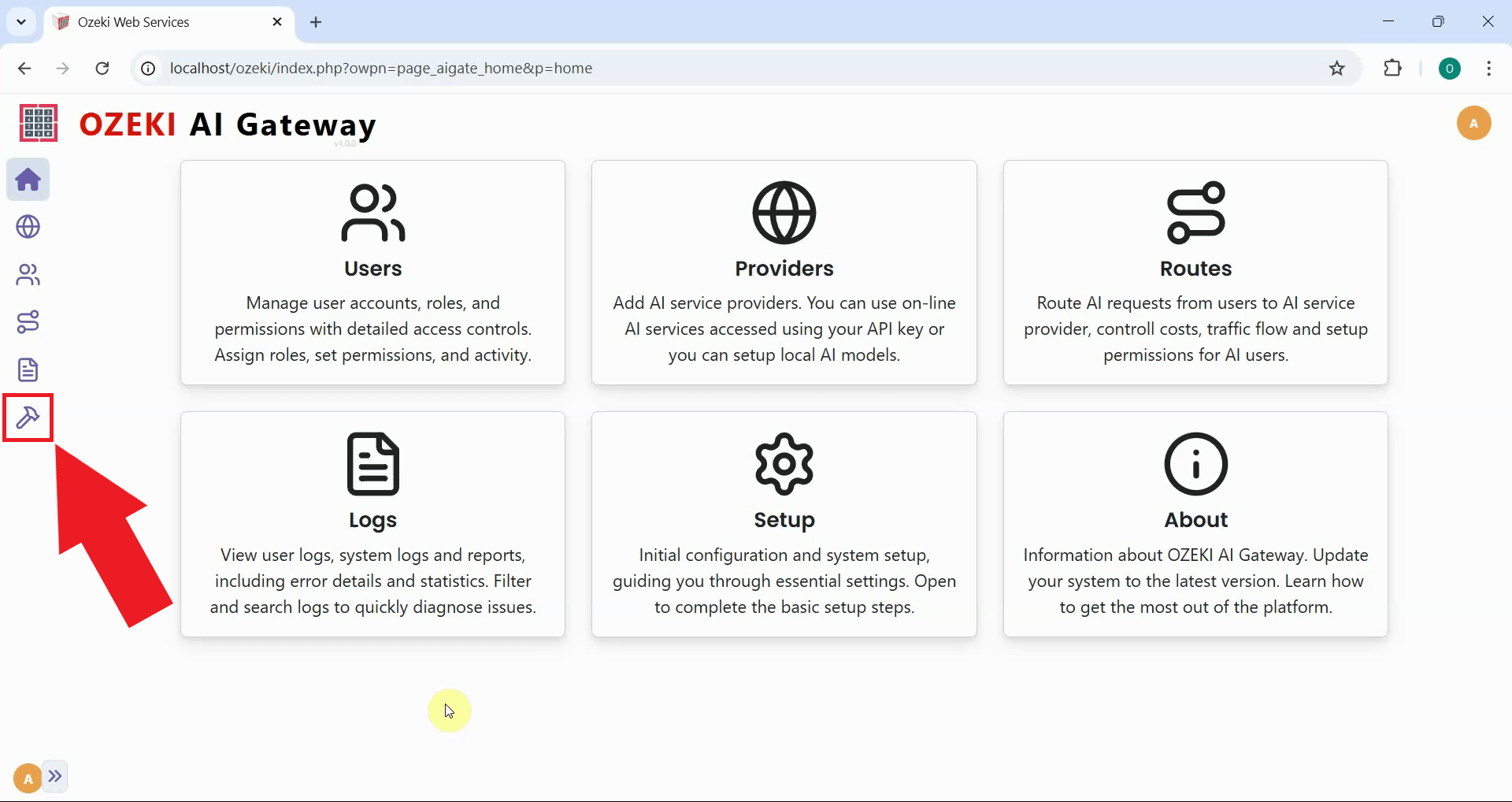
Launch the Ozeki AI Gateway web interface and navigate to the Testing page from the left sidebar. This opens the provider testing interface where you can send test prompts to your configured providers and verify their responses (Figure 1).
Step 2 - Test LLM service
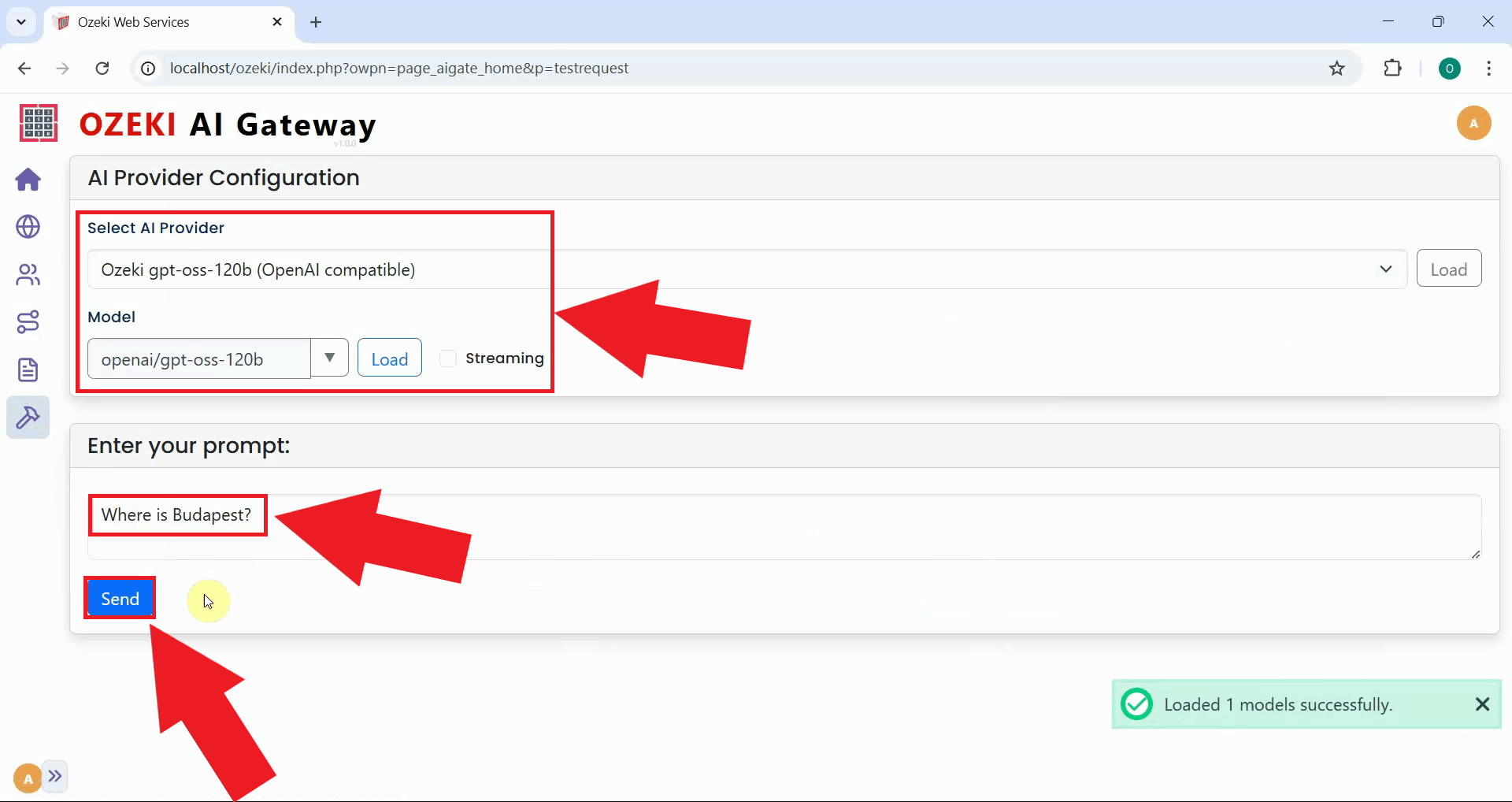
From the provider dropdown menu, select the AI provider you want to test. Enter a simple test prompt in the message field, such as "Where is Budapest?". Click the Send button to submit your test request to the selected provider (Figure 2).
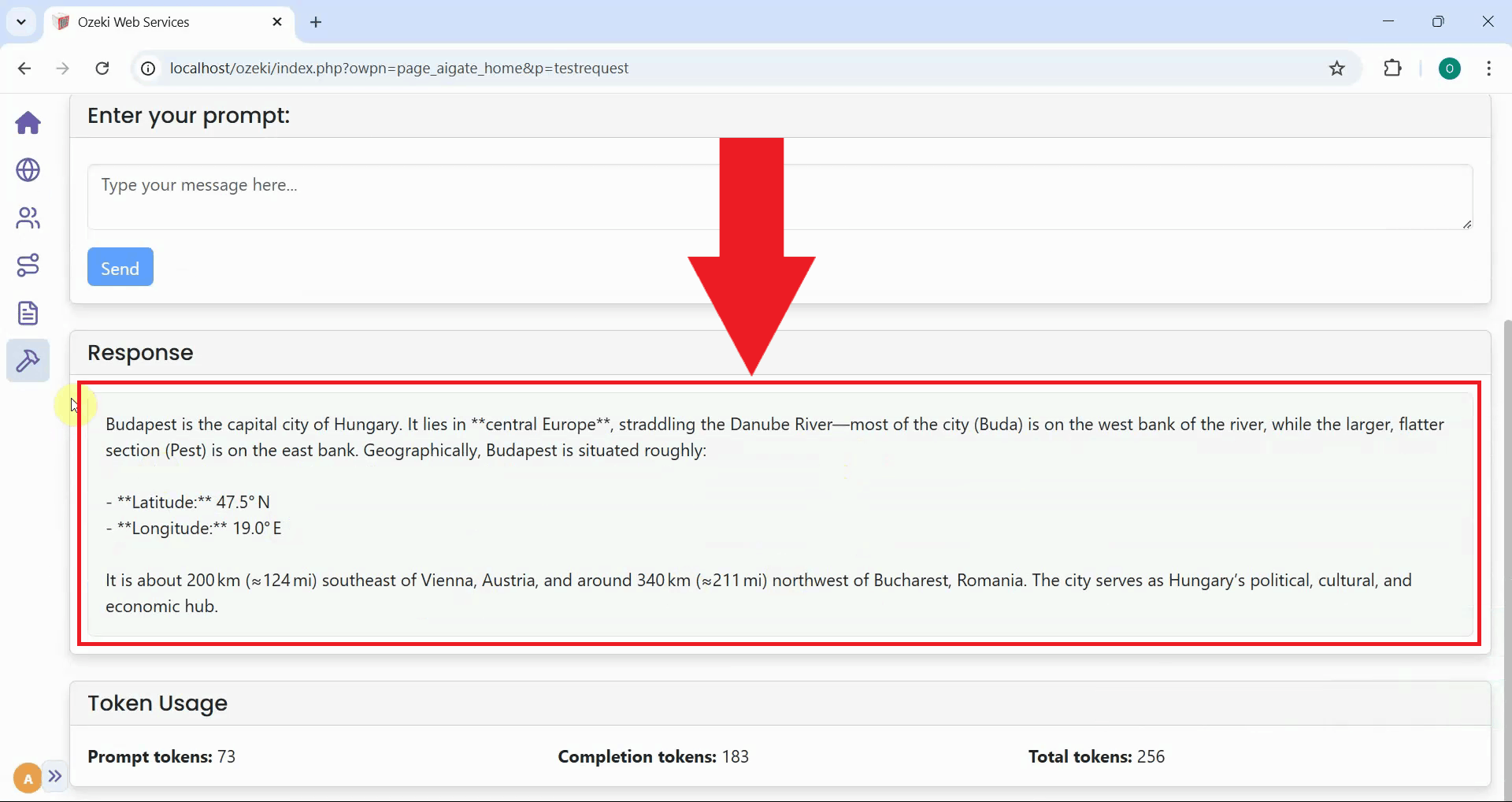
After sending the test prompt, the gateway forwards your request to the selected AI provider and displays the response in the interface. A successful response confirms that your provider is configured correctly, the API credentials are valid, and the gateway can communicate with the AI service (Figure 3).
Step 3 - Open gateway logs
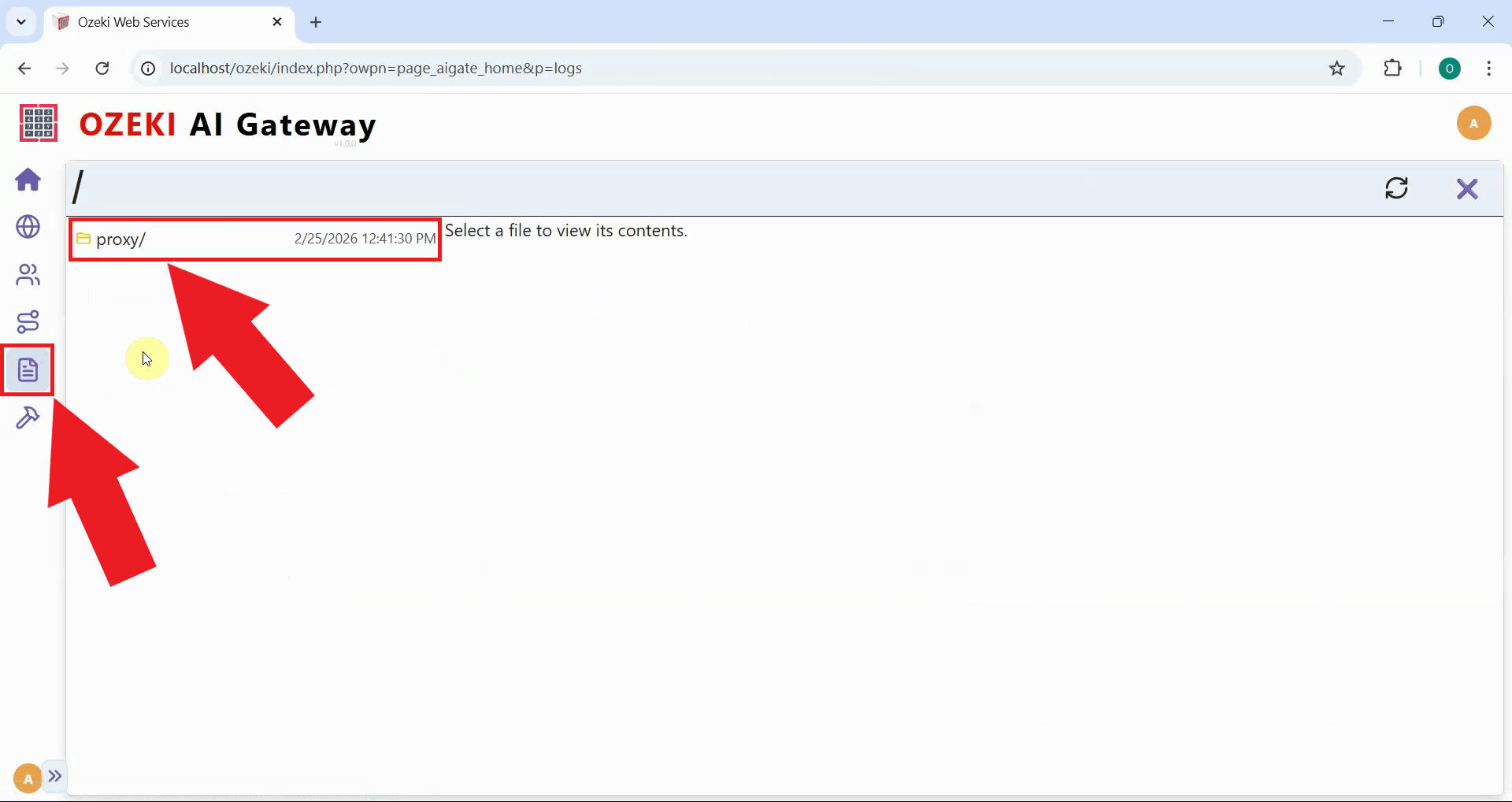
To view detailed transaction information about your test request, navigate to the Logs section from the left sidebar menu. The Logs page provides access to all transaction records, allowing you to review request details, response data, timing information, and any errors that may have occurred (Figure 4).
Step 4 - View transactions
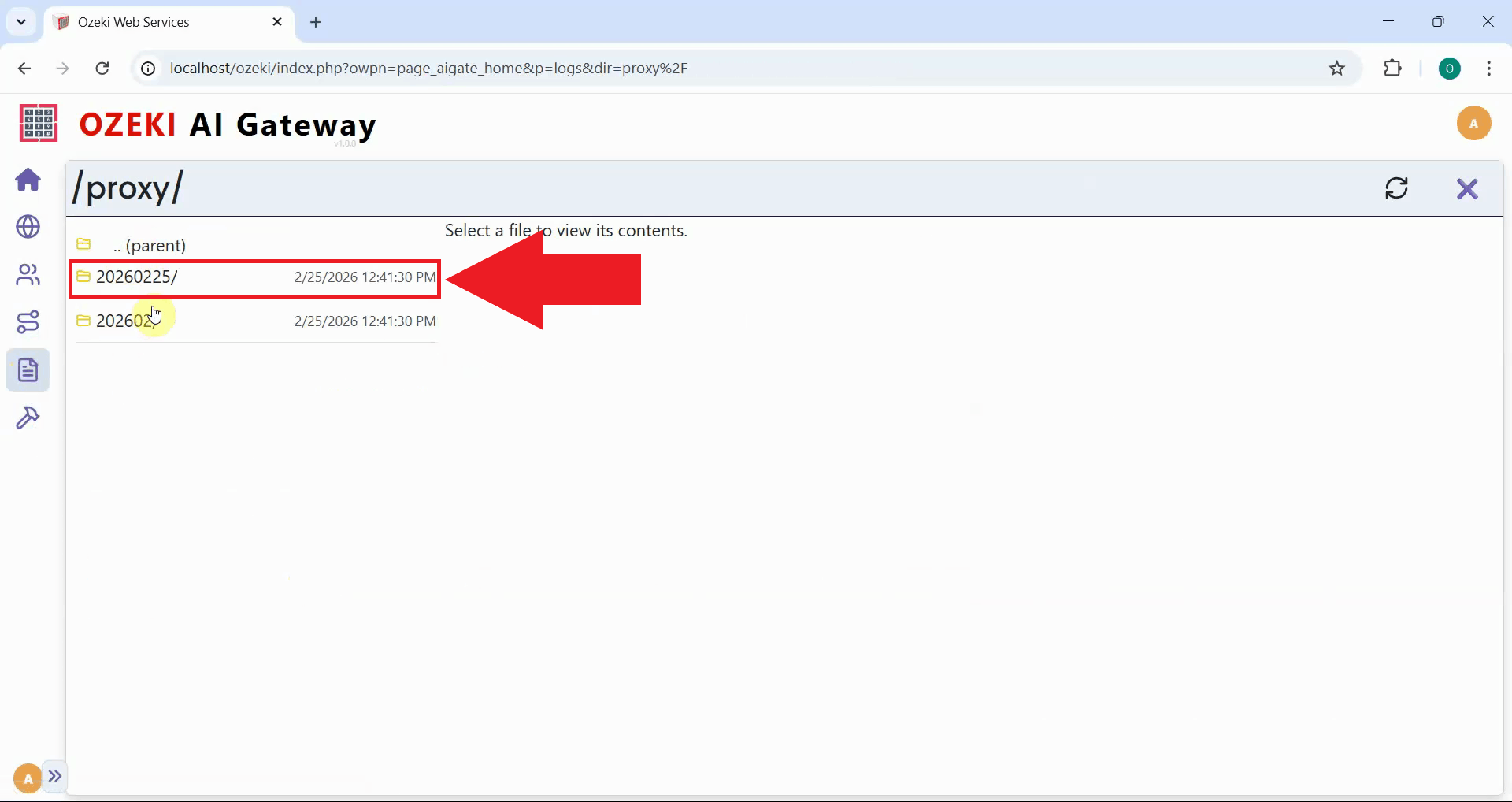
In the Logs section, navigate to the date folder corresponding to when you sent your test prompt. You will see the JSON log files processed by the gateway listed on the left (Figure 5).
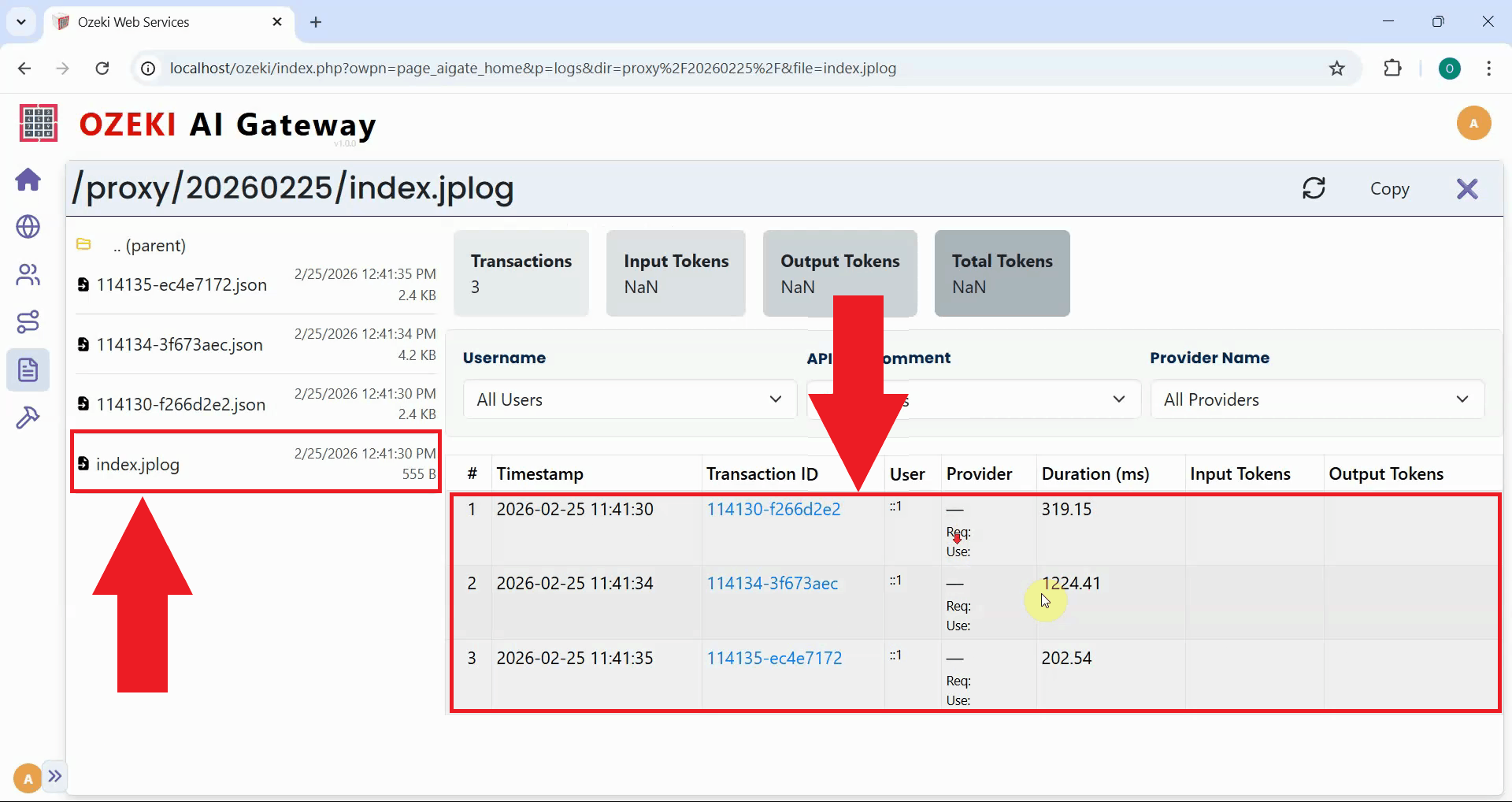
Click on the index.jlog file to view the transaction list in a table format. You will see detailed information about your requests including the timestamp, provider used, model selected, token usage and response time. You can click on individual transactions to view the complete request and response data in JSON format (Figure 6).
To sum it up
You have successfully tested an LLM service using the Ozeki AI Gateway GUI. The built-in testing tool provides a quick and convenient way to validate provider configurations, verify API credentials, and troubleshoot connection issues without needing external applications. You can use this tool whenever you add new providers, update configurations, or need to diagnose problems with AI service connections.