
How to test LLM services using a Python command line script
This guide demonstrates how to test LLM services using a Python command line script called llm-tester. You'll learn two methods for running the script: using a convenient batch file or running Python directly from the terminal. Both methods enable you to test your Ozeki AI Gateway configuration and troubleshoot provider connections from the command line.
LLM tester download
Download: llm-tester.zip
Command syntax:
python llm-tester.py --llm-url http://localhost/v1 --llm-api-key sk-123 --llm-model ai-model --debug
What is the llm-tester script?
The llm-tester script is a Python-based command line tool for testing AI provider connections. It allows you to send prompts to your configured AI services and receive responses directly in the terminal. The script requires three main parameters: the API endpoint URL, an authentication API key, and the model name you want to test.
Option 1: Run using batch file
Quick steps
We assume Ozeki AI Gateway is already installed on your system. You can install it on Linux, Windows or Mac.
- Open llm-tester folder
- Modify batch file
- Run batch file
- Enter and send test prompt
- View LLM response
- Check logs in Ozeki AI Gateway
How to run llm-tester using batch file video
The following video shows how to run the llm-tester script using a batch file on Windows step-by-step. The video covers editing the batch file with your connection details and running the test script. You'll also learn how to use the llm-tester tool and check the logs in Ozeki AI Gateway.
Step 0 - Configure Ozeki AI Gateway prerequisites
Before you can test LLM services with the llm-tester script, you need to have Ozeki AI Gateway properly configured with the following components:
- At least one AI provider configured with valid credentials
- A user account created in the gateway
- An API key generated for the user
- A route connecting the user to the provider
These components work together to enable authentication and routing of AI requests through your gateway. If you haven't set up these prerequisites yet, follow the linked guides to complete the configuration before proceeding with the llm-tester script.
Step 1 - Open llm-tester folder
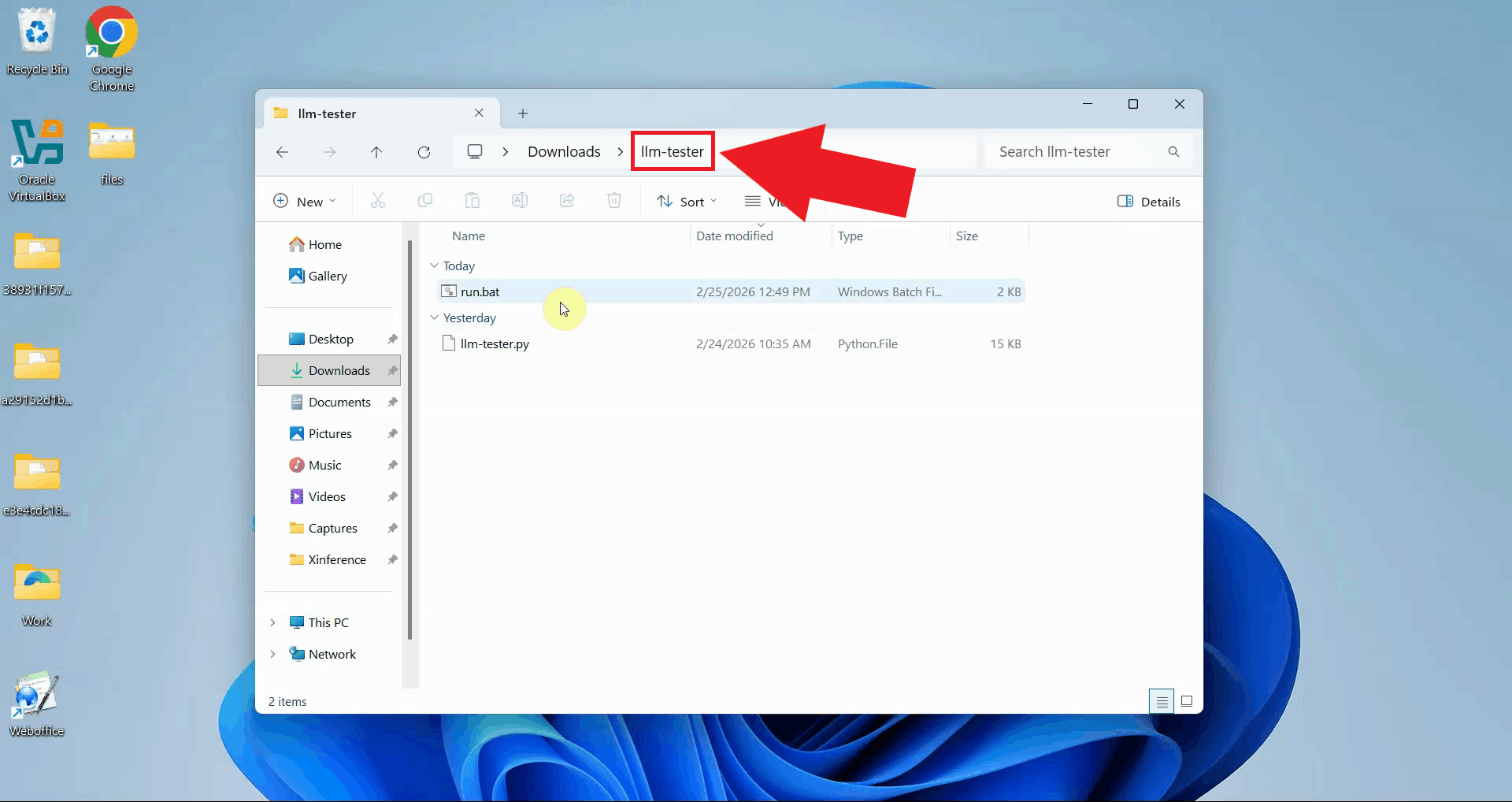
Download and extract the llm-tester.zip file to a convenient location on your computer. Navigate to the extracted folder which contains the llm-tester.py Python script and a run.bat batch file for easy execution (Figure 1).
Download: llm-tester.zip
Step 2 - Modify run.bat file
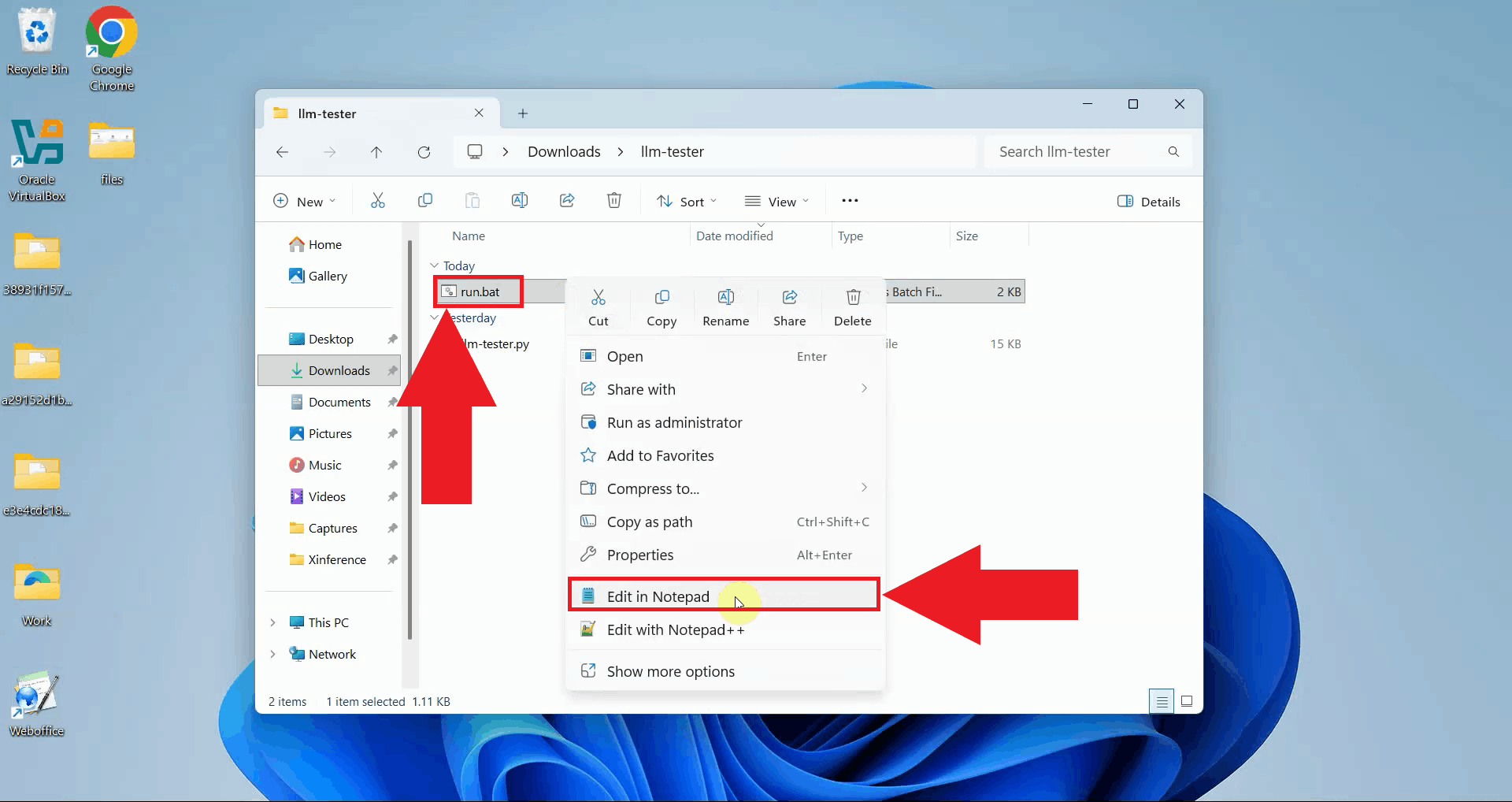
Right-click on the run.bat file and open it with your preferred text editor such as Notepad. This opens the batch file where you can configure the connection parameters for your AI provider (Figure 2).
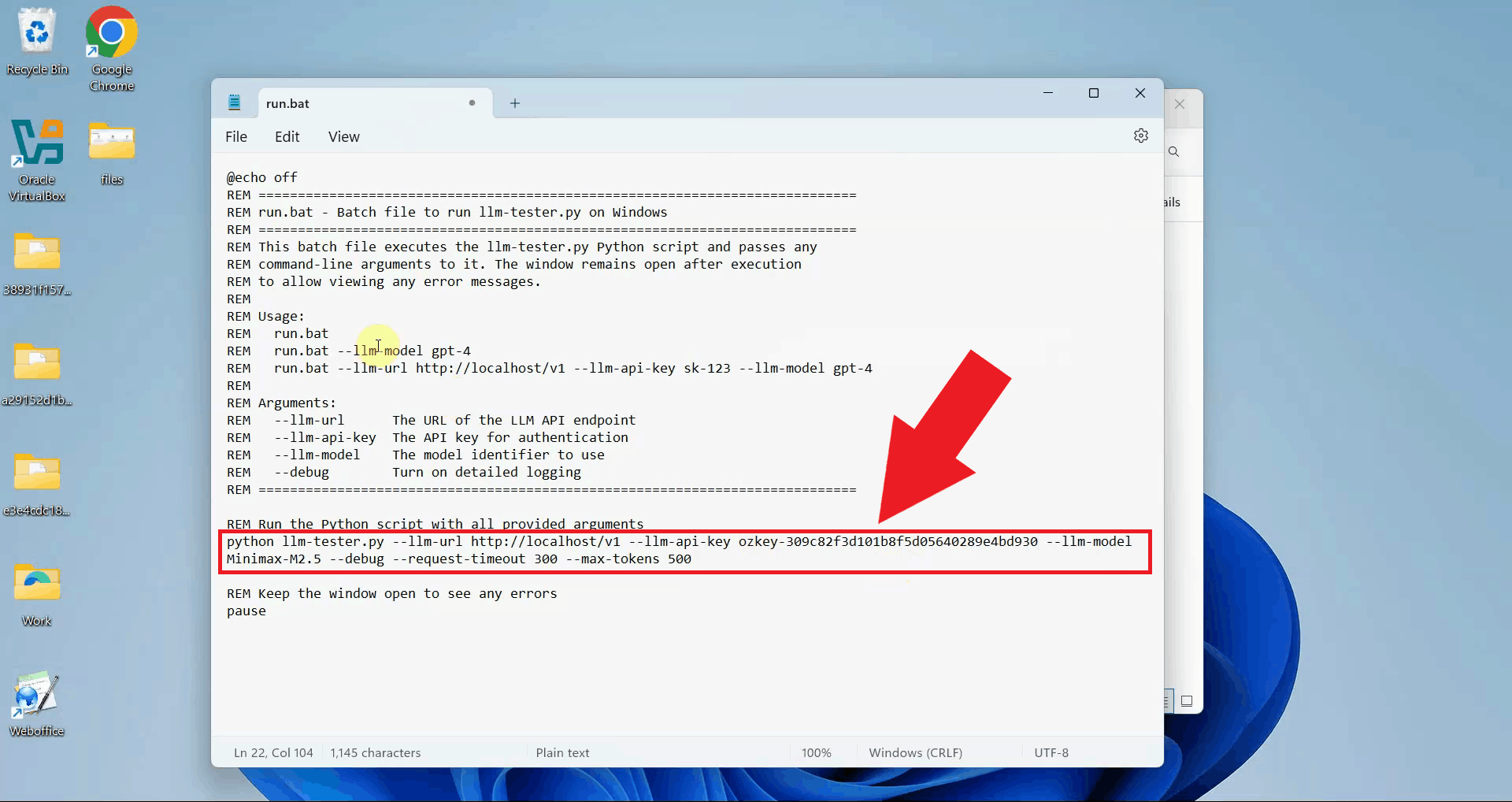
Edit the batch file to specify your Ozeki AI Gateway connection details. Update the --llm-url parameter with your gateway's API endpoint, the --llm-api-key with your authentication key, and the --llm-model with the model name you want to test. You can also add the --debug flag to see detailed connection information (Figure 3).
python llm-tester.py --llm-url http://localhost/v1 --llm-api-key sk-123 --llm-model ai-model --debug
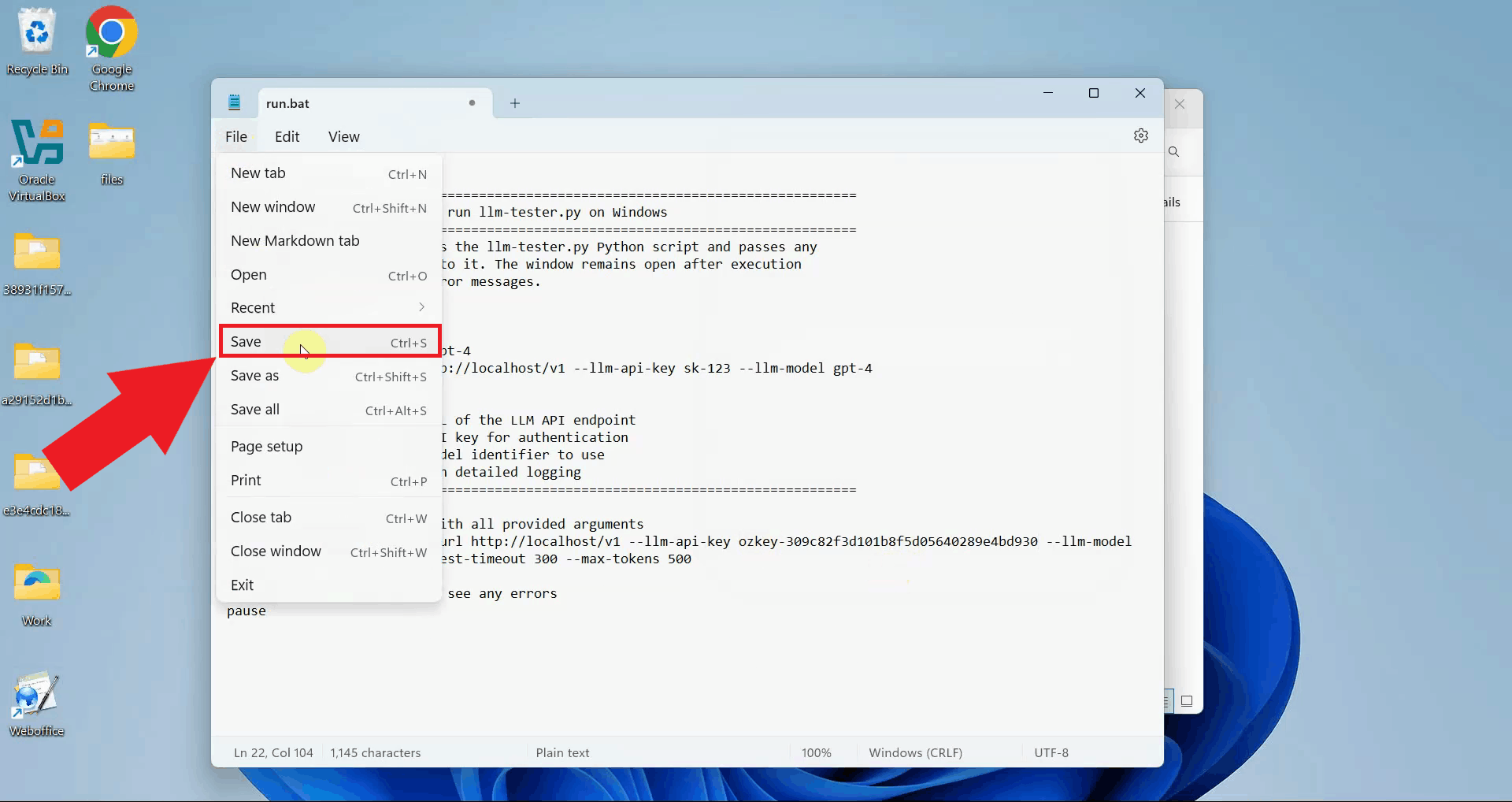
After modifying the connection parameters, save the batch file and close your text editor. The updated configuration is now ready to use (Figure 4).
Step 3 - Run batch file
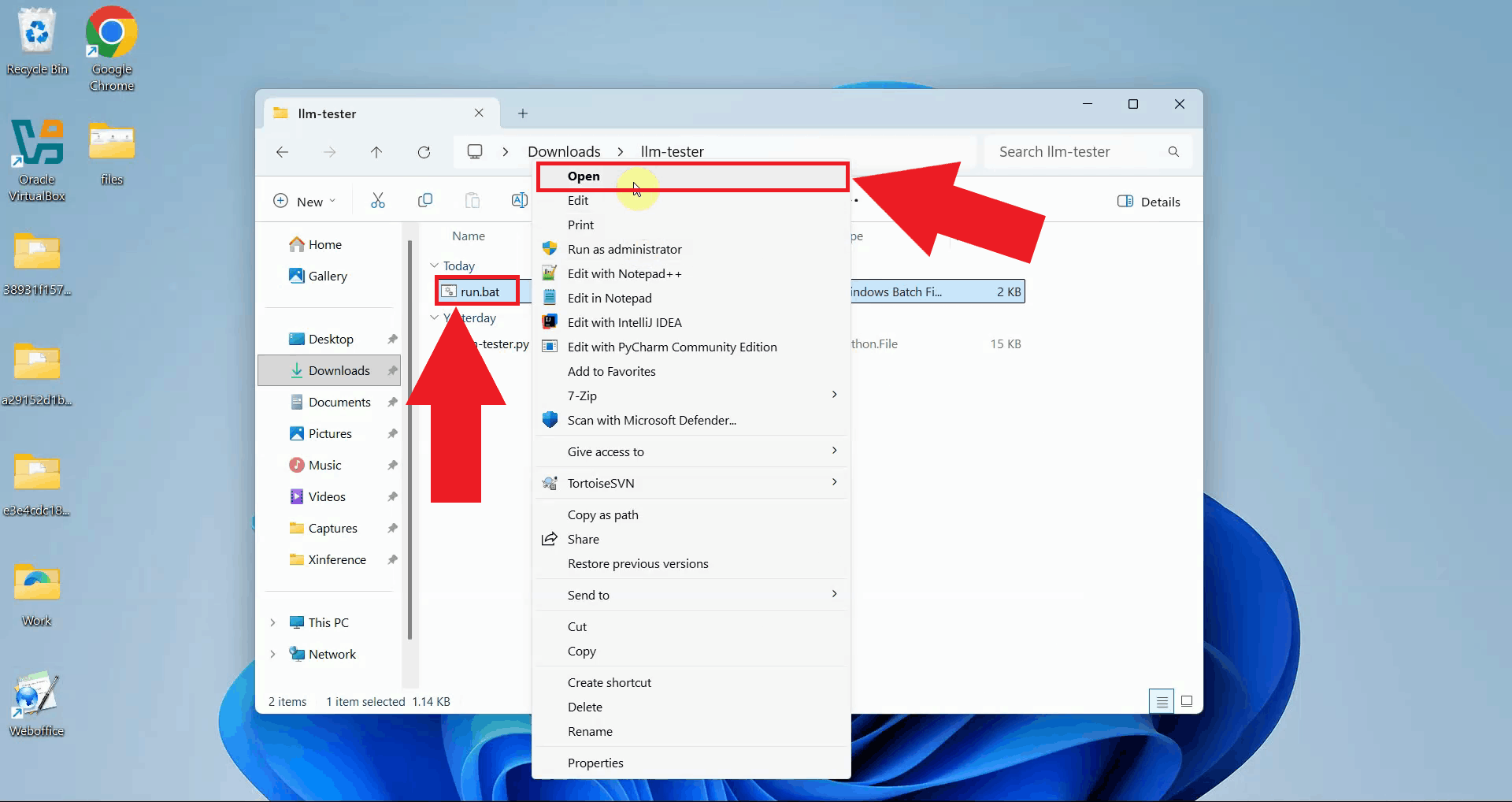
Execute the run.bat script. A terminal window opens and the llm-tester script starts, establishing a connection to your Ozeki AI Gateway using the parameters you configured (Figure 5).
Step 4 - Enter and send test prompt
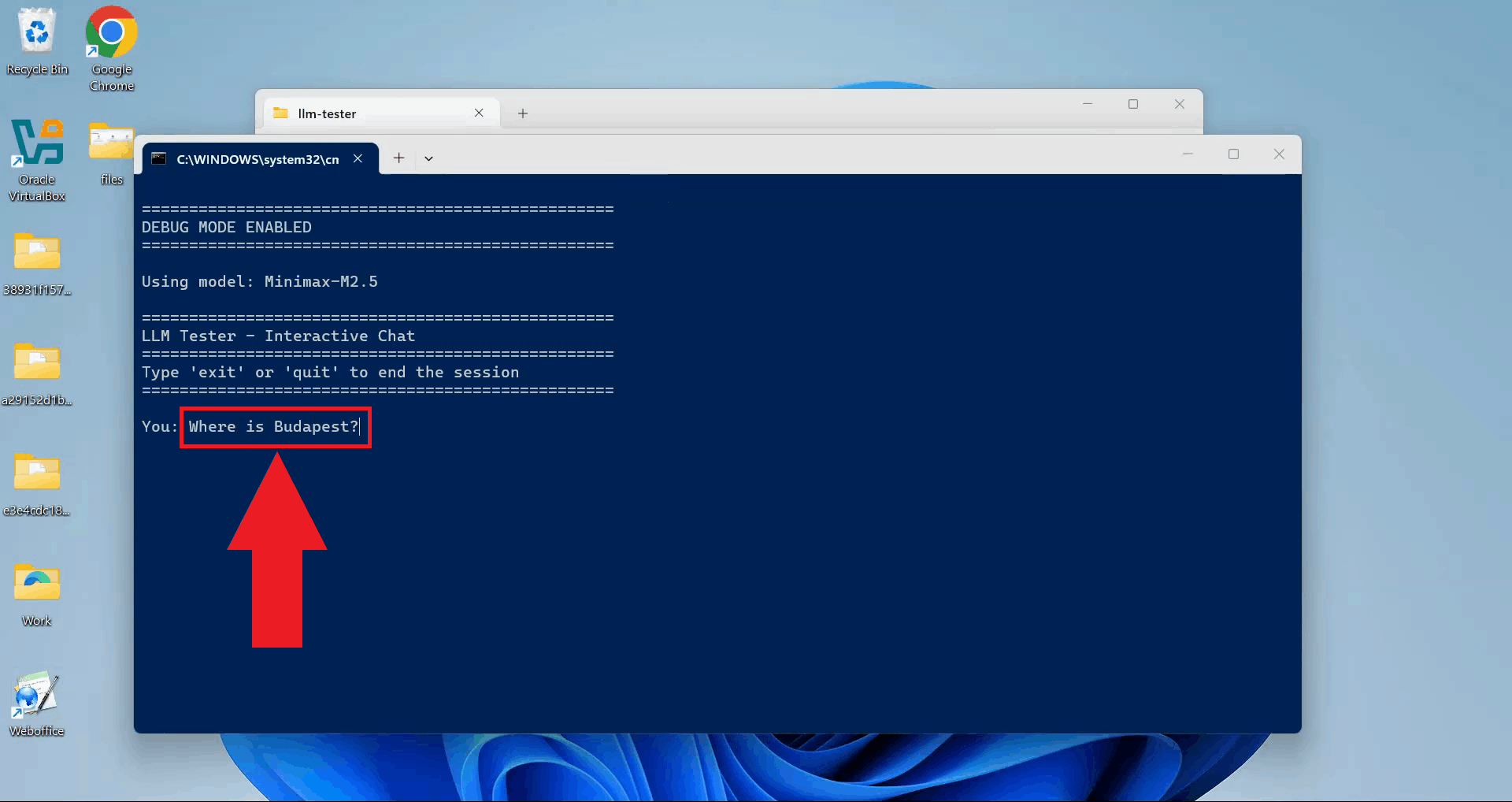
Type your test prompt, and press Enter to send the request to your AI provider through the Ozeki AI Gateway (Figure 6).
Step 5 - View LLM response
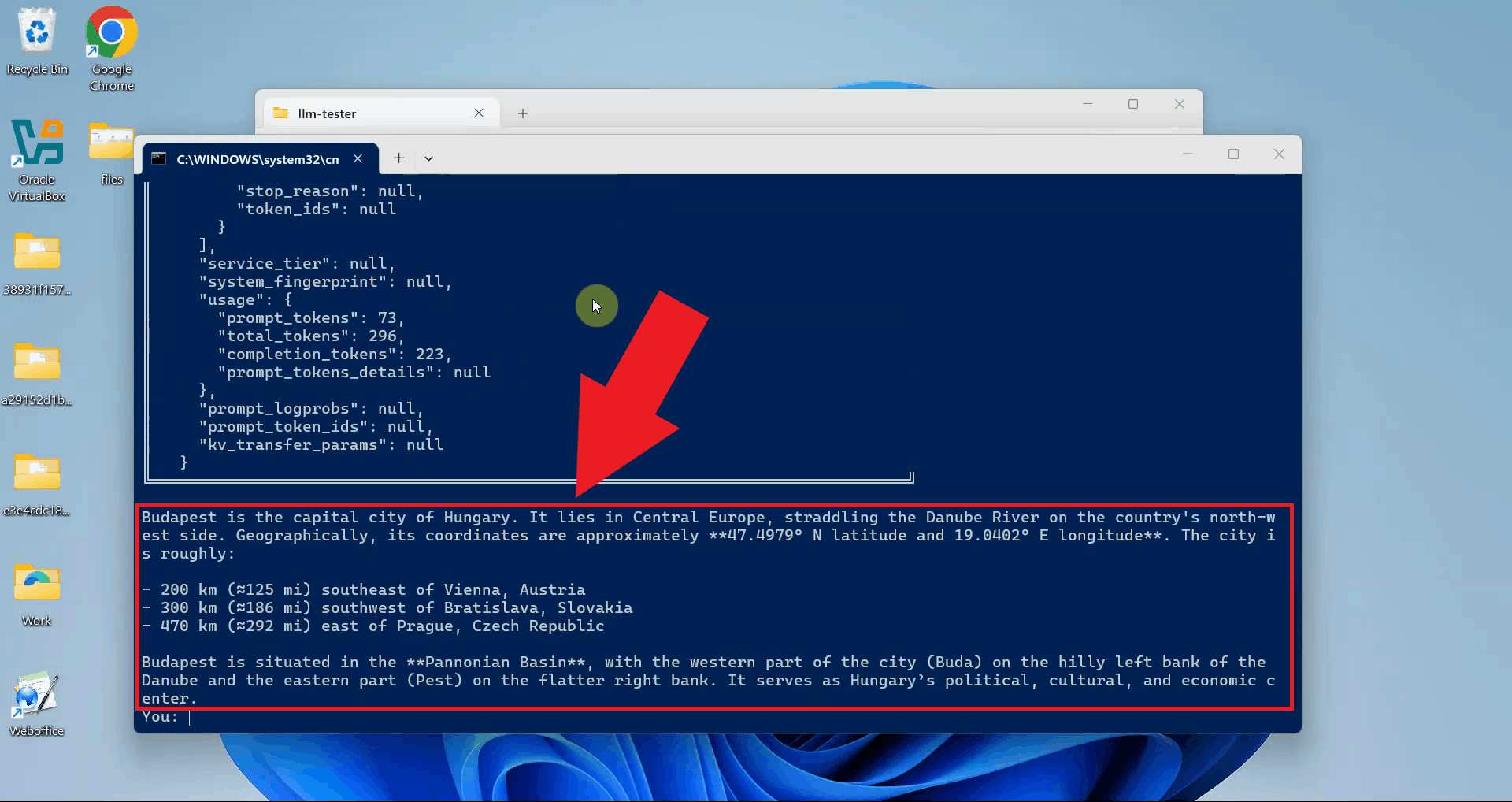
The script displays the AI provider's response in the terminal. A successful response confirms that your Ozeki AI Gateway is properly configured and can communicate with the AI provider. You can enter additional prompts to continue testing or close the terminal window to exit (Figure 7).
Step 6 - Check logs in Ozeki AI Gateway
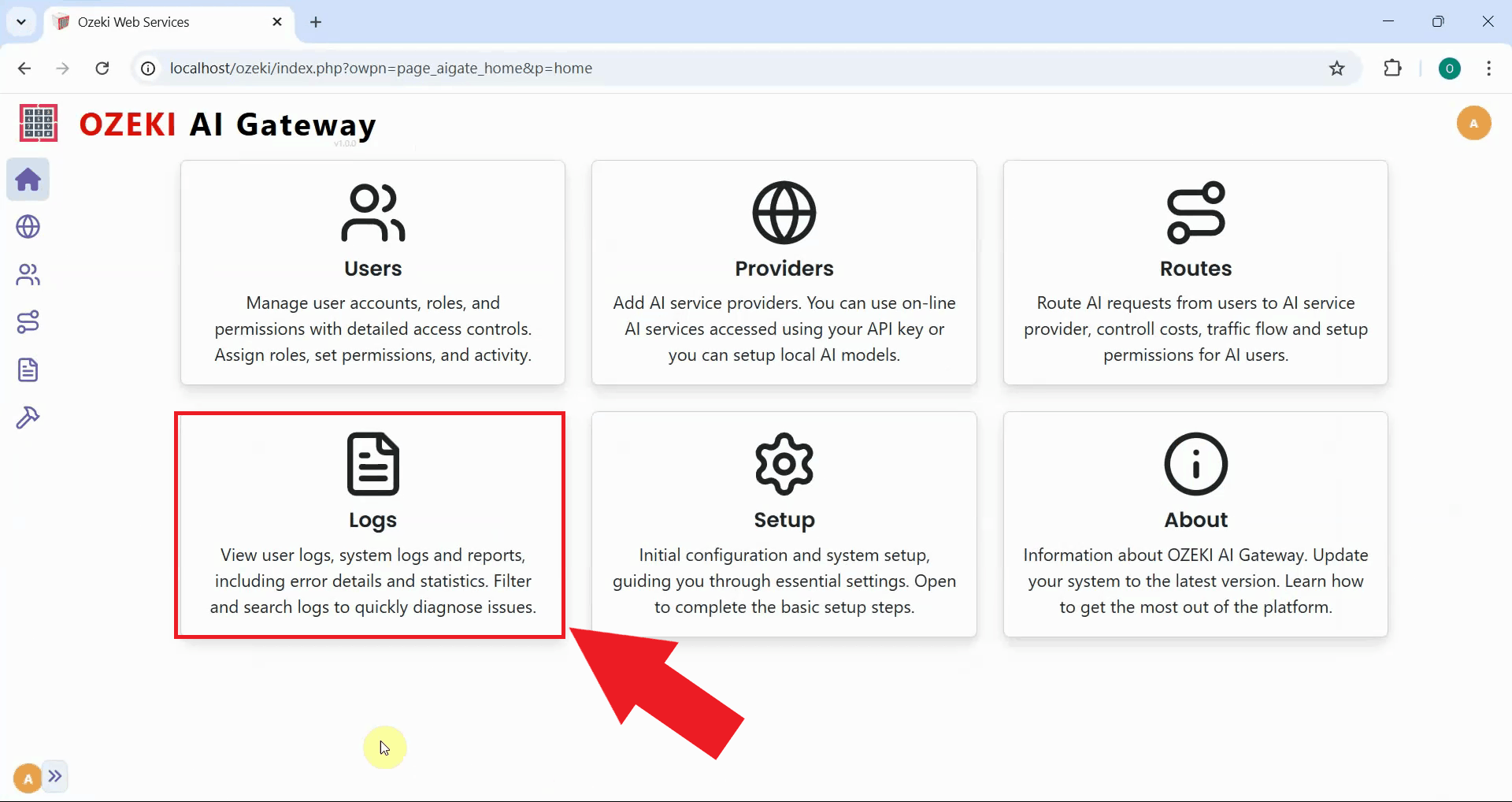
To view detailed transaction information about your test request, open the Ozeki AI Gateway web interface and navigate to the Logs page (Figure 8).
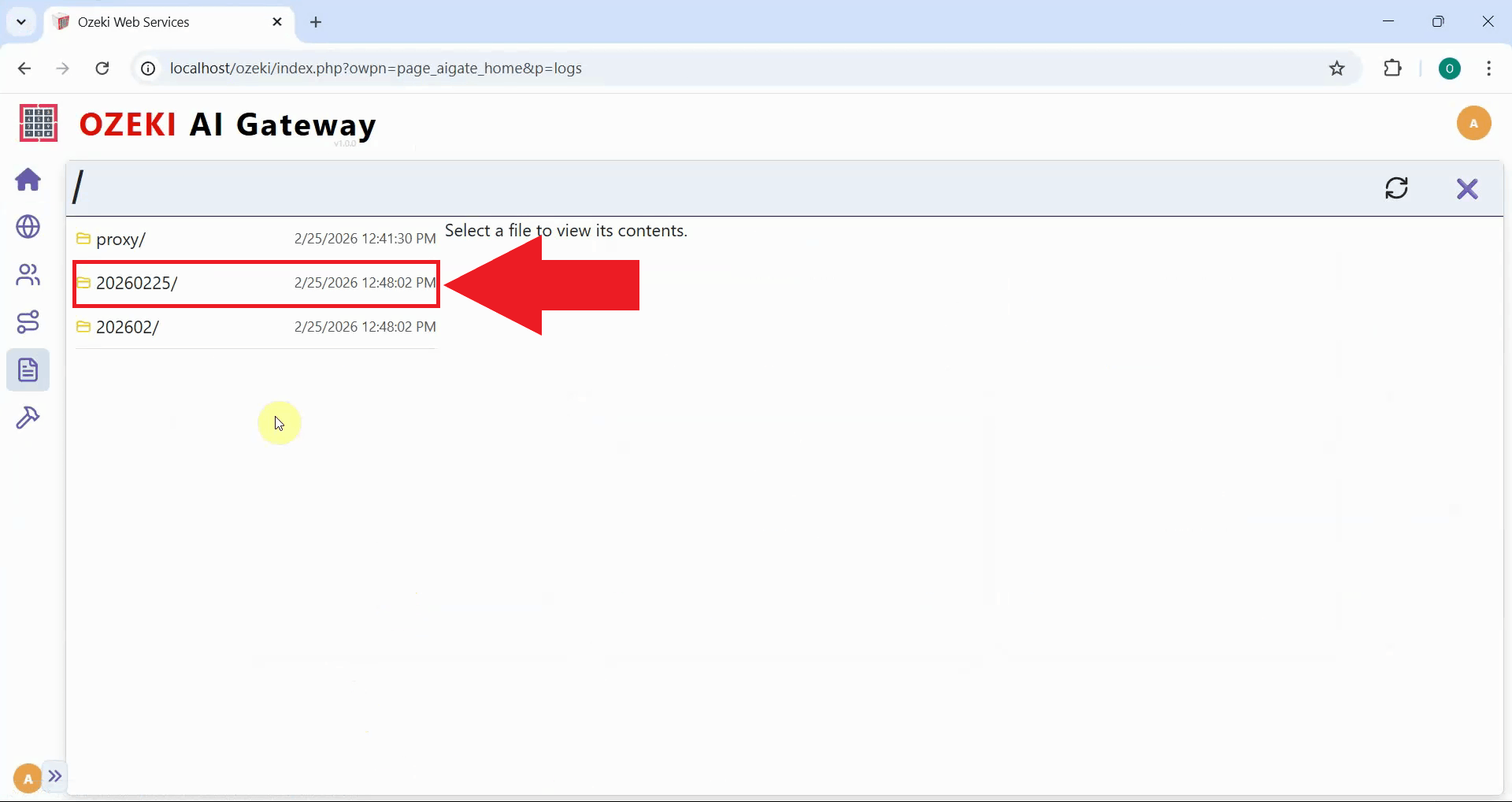
Navigate to the date folder corresponding to when you sent your test prompt (Figure 9).
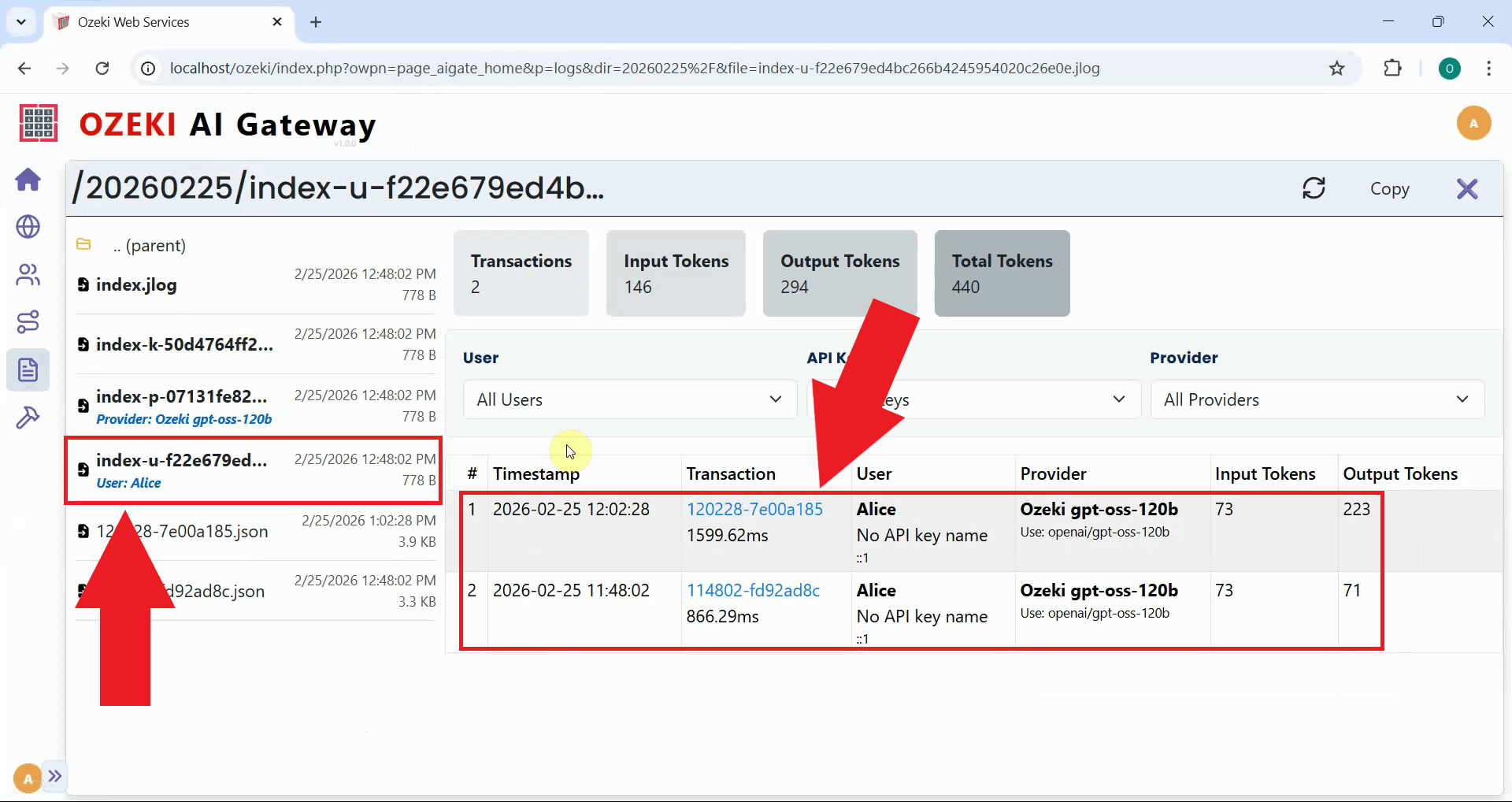
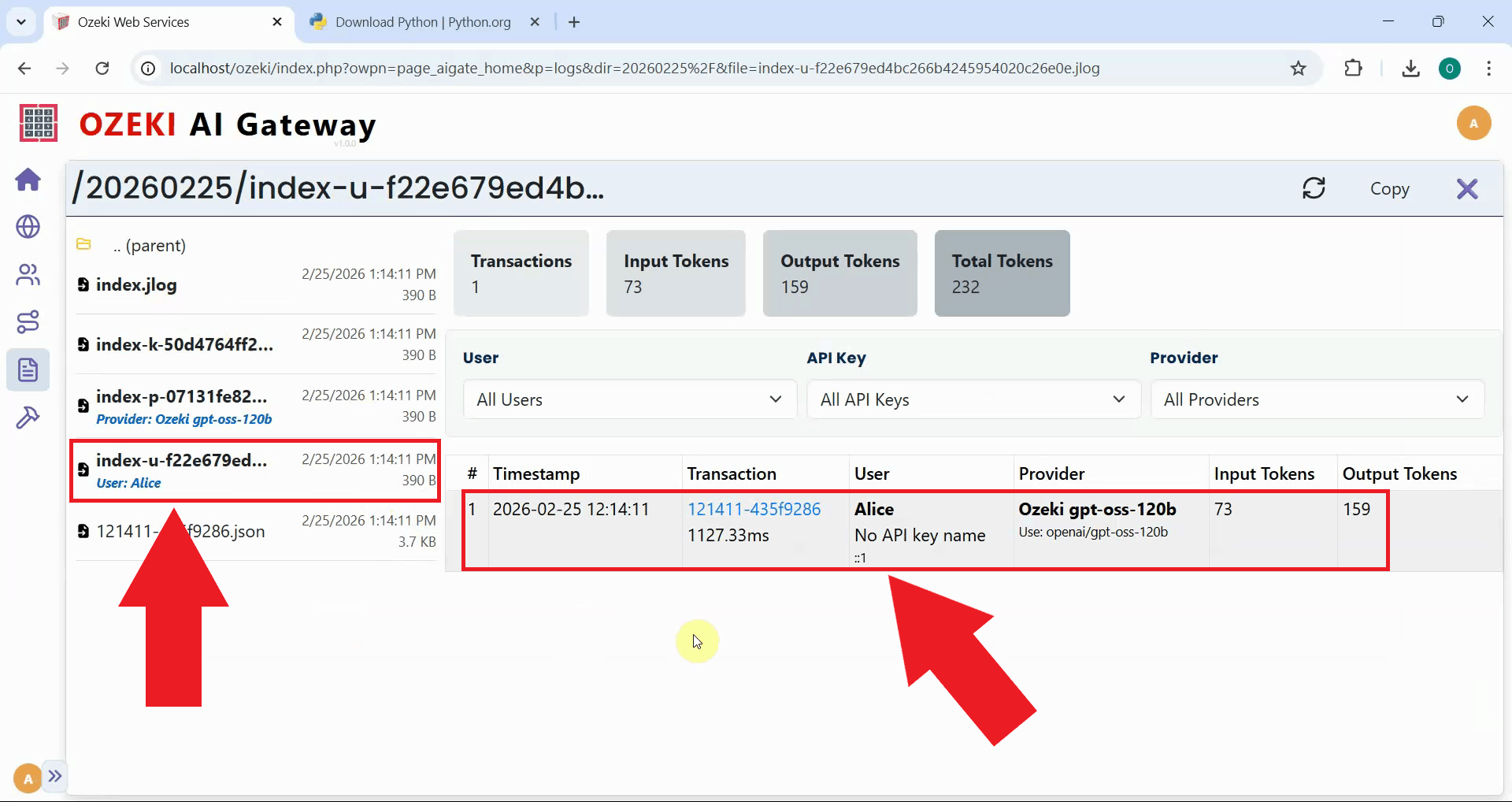
Select the jlog file that belongs to the API key you used to access the AI model with. You will see detailed information in a table format about your requests including the timestamp, provider used, model selected, token usage and response time. You can click on individual transactions to view the complete request and response data in JSON format (Figure 10).
Option 2: Run directly from terminal
Quick steps
We assume Ozeki AI Gateway is already installed on your system. You can install it on Linux, Windows or on Mac.
- Open terminal in llm-tester folder
- Run llm-tester using Python command
- Enter and send test prompt
- View LLM response
- Check logs in Ozeki AI Gateway
How to run llm-tester directly from terminal video
The following video shows how to run the llm-tester script directly from the terminal using Python step-by-step. You'll also learn how to use the llm-tester tool and check the logs in Ozeki AI Gateway.
Step 0 - Configure Ozeki AI Gateway prerequisites
Before you can test LLM services with the llm-tester script, you need to have Ozeki AI Gateway properly configured with the following components:
- At least one AI provider configured with valid credentials
- A user account created in the gateway
- An API key generated for the user
- A route connecting the user to the provider
These components work together to enable authentication and routing of AI requests through your gateway. If you haven't set up these prerequisites yet, follow the linked guides to complete the configuration before proceeding with the llm-tester script.
Step 1 - Open terminal in llm-tester folder
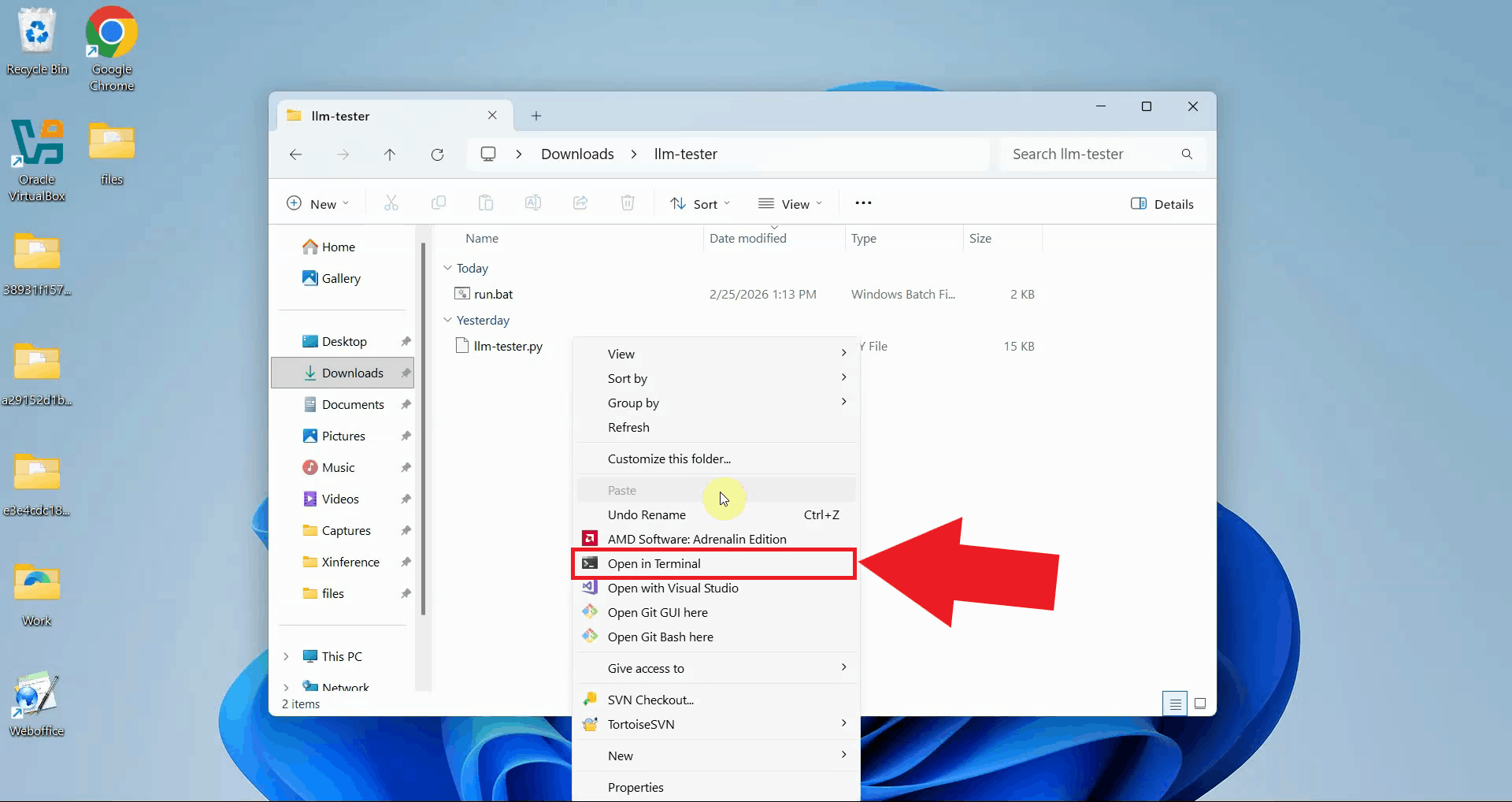
Download and extract the llm-tester.zip file to a convenient location on your computer. Navigate to the extracted folder. Right-click in the folder and select "Open in Terminal" to open a terminal window (Figure 1).
Download: llm-tester.zip
Step 2 - Run llm-tester using Python command
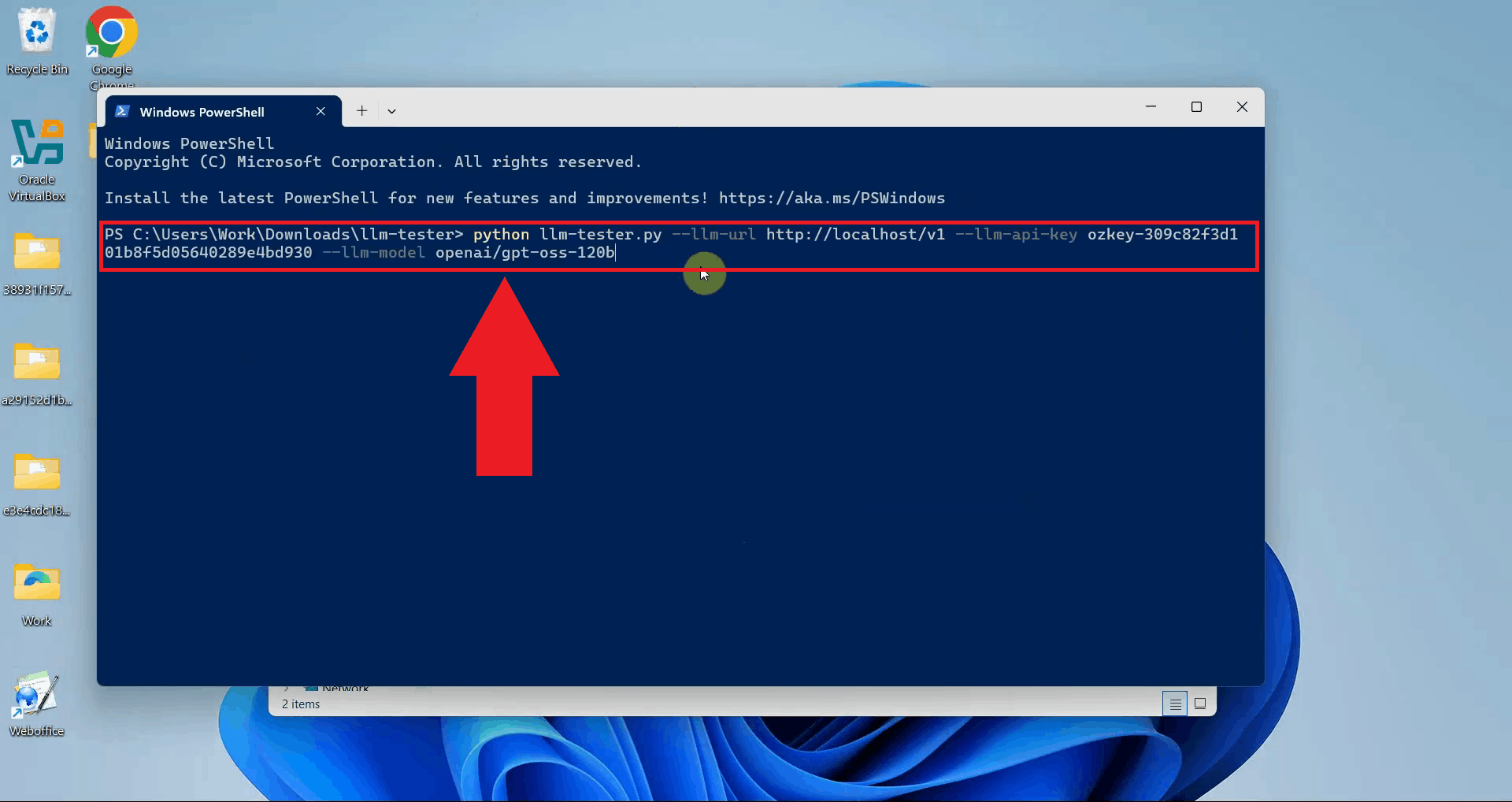
Type the Python command to run the llm-tester script with your connection parameters. Specify the --llm-url pointing to your Ozeki AI Gateway, the --llm-api-key for authentication, and the --llm-model you want to test. Press Enter to execute the command (Figure 2).
python llm-tester.py --llm-url http://localhost/v1 --llm-api-key sk-123 --llm-model ai-model
Step 3 - Enter and send test prompt
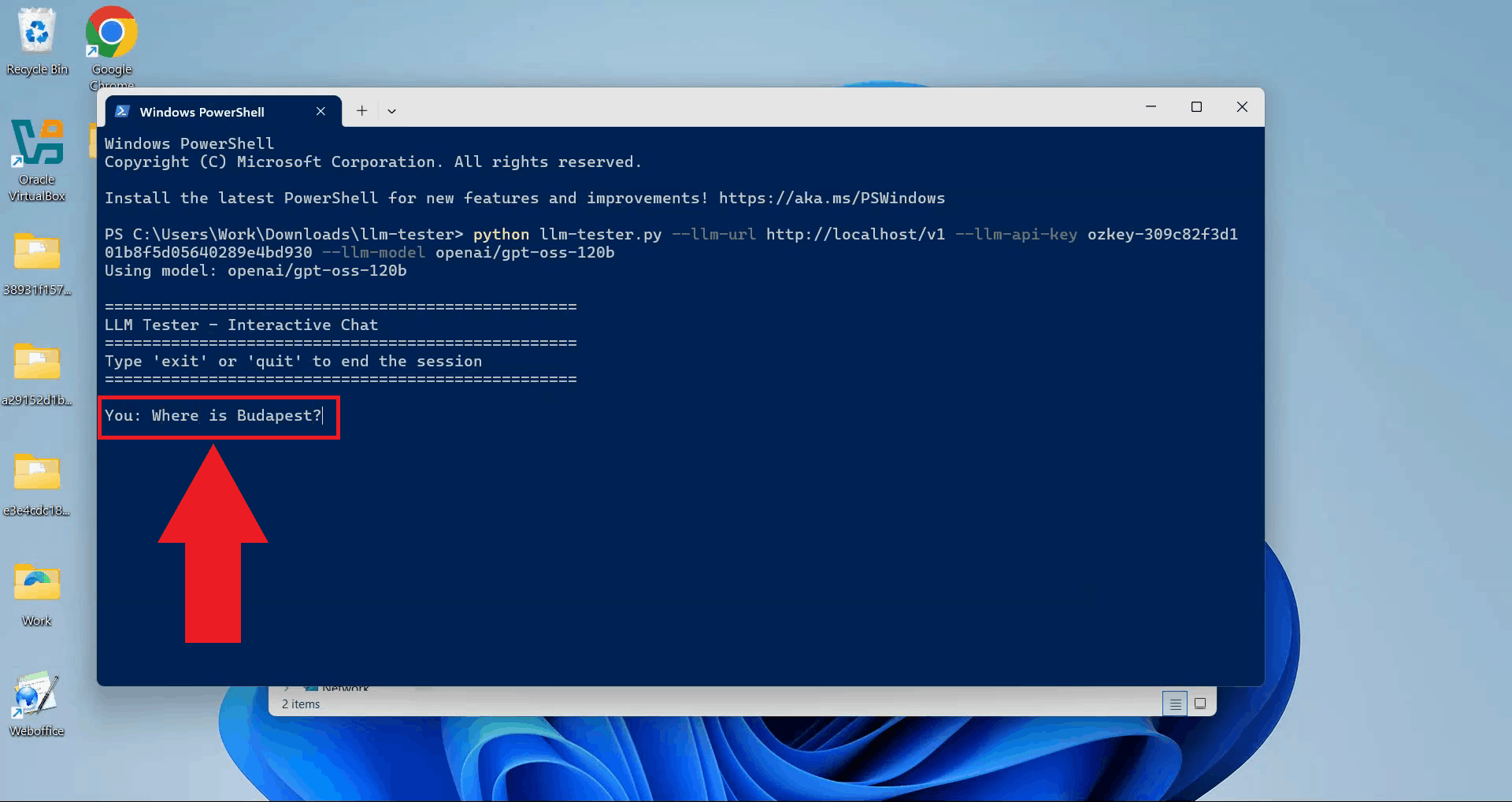
The script prompts you to enter a message. Type your test prompt and press Enter to send the request to your AI provider through the Ozeki AI Gateway (Figure 3).
Step 4 - View LLM response
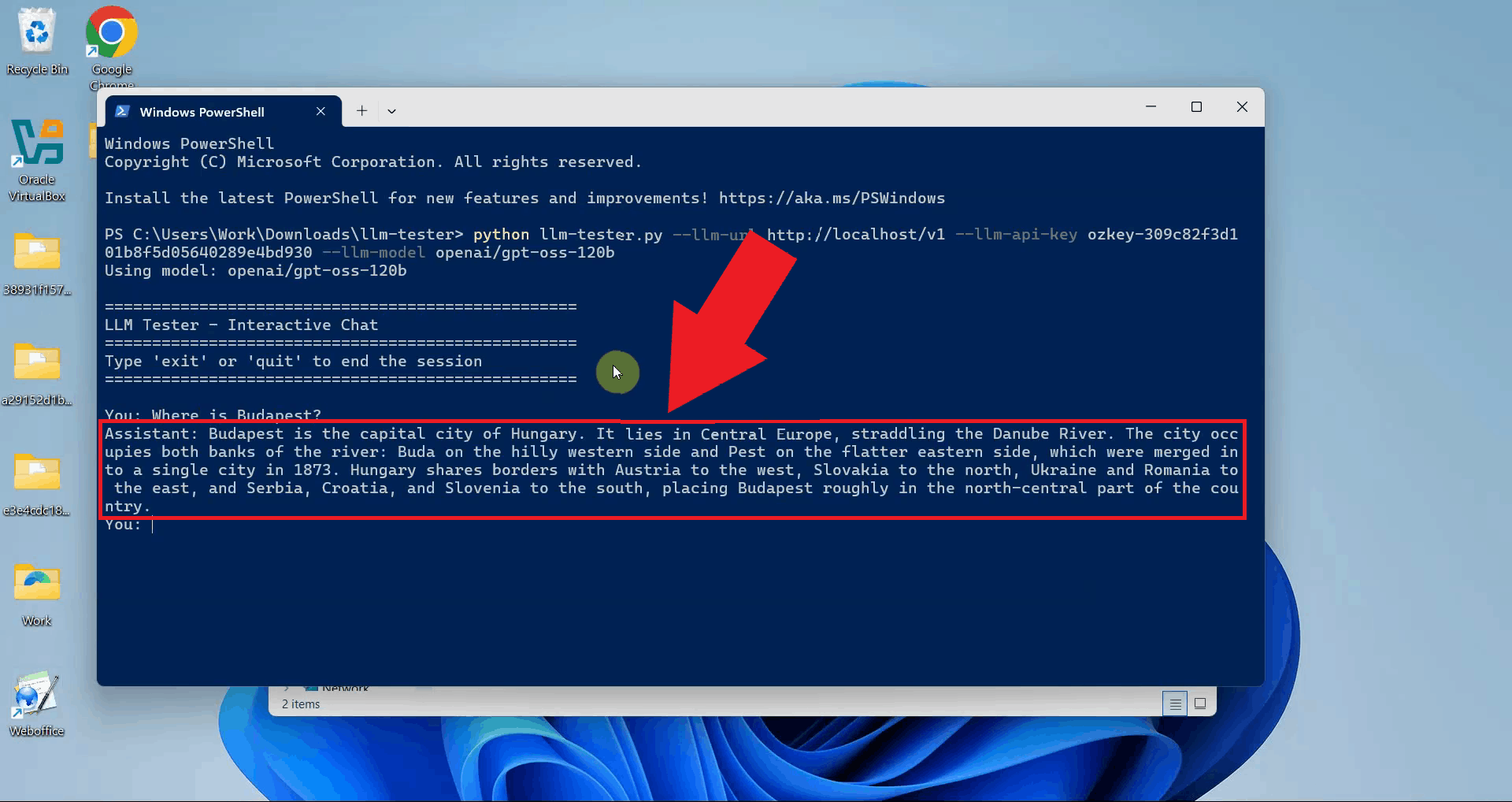
The script displays the AI provider's response in the terminal. A successful response confirms that your connection is working correctly. You can continue entering prompts or exit the script (Figure 4).
Step 5 - Check logs in Ozeki AI Gateway
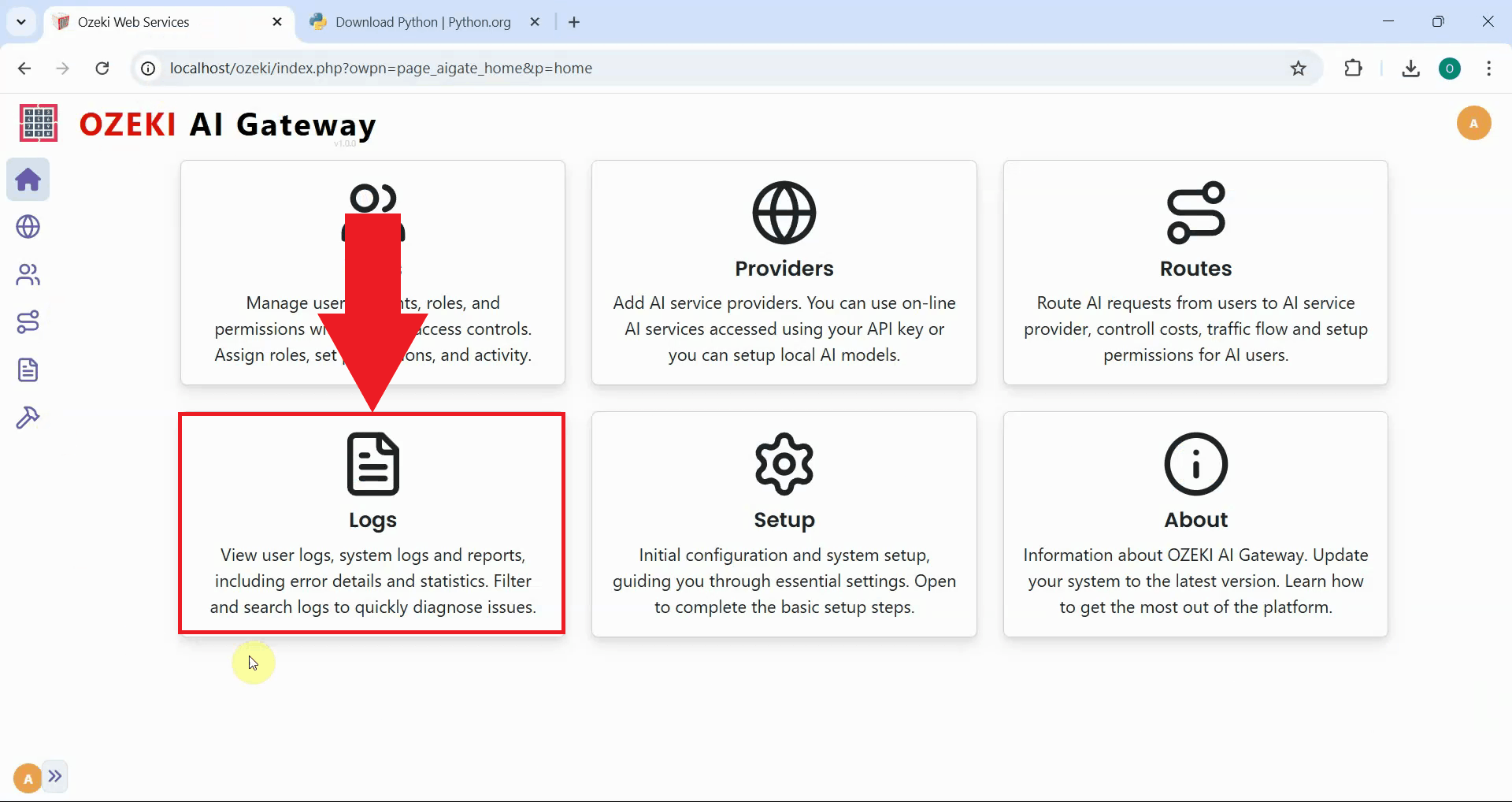
To view detailed transaction information about your test request, open the Ozeki AI Gateway web interface and navigate to the Logs page (Figure 5).
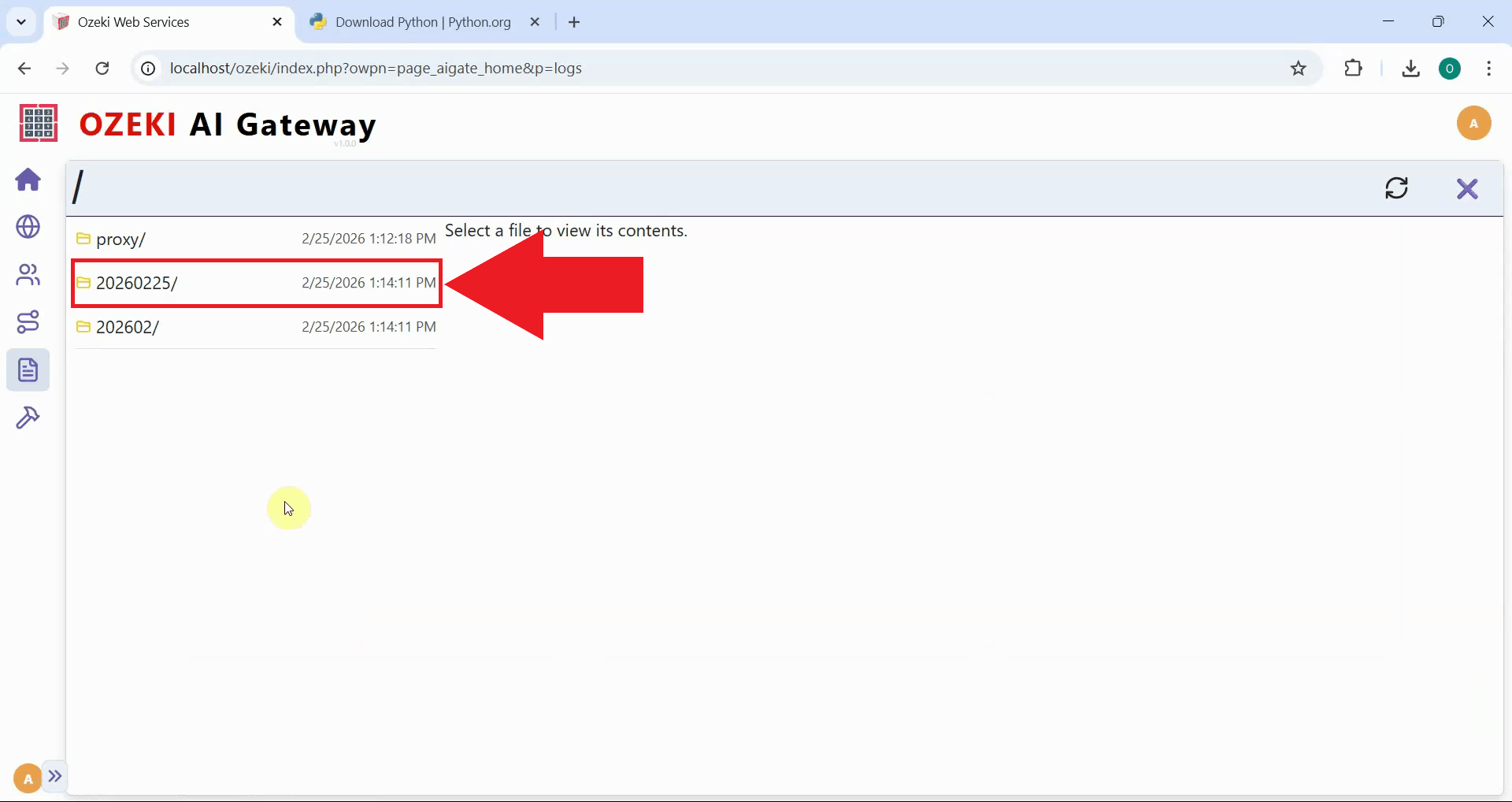
Navigate to the date folder corresponding to when you sent your test prompt (Figure 6).
Select the .jlog file that belongs to the API key you used to access the AI model. You will see detailed information in a table format about your requests including the timestamp, provider used, model selected, token usage, and response time. You can click on individual transactions to view the complete request and response data in JSON format (Figure 10).
Conclusion
You have successfully tested LLM services using the Python command line script. Both methods - using the batch file for convenience or running Python directly from the terminal - provide effective ways to test your Ozeki AI Gateway configuration and troubleshoot provider connections. The llm-tester script is particularly useful for automated testing, debugging connection issues, and validating API credentials without needing a web browser interface.