
How to download and install LM Studio on Windows
This guide demonstrates how to download and install LM Studio on Windows. You will learn how to obtain the installer from the official website, complete the setup wizard, and finish the initial onboarding to get LM Studio ready for use.
What is LM Studio?
LM Studio is a desktop application for Windows, macOS, and Linux that allows you to download and run large language models locally on your own hardware, without requiring an internet connection or a cloud-based API subscription. It provides a user-friendly interface for browsing and downloading models from Hugging Face, managing multiple models, and running a local OpenAI-compatible API server that other applications can connect to.
Steps to follow
- Navigate to the LM Studio website
- Download the installer
- Complete the setup wizard
- Complete the initial onboarding
How to download and install LM Studio video
The following video shows how to download and install LM Studio on Windows step-by-step. The video covers navigating to the download page, running the installer, and completing the initial onboarding wizard.
Step 1 - Navigate to the LM Studio website
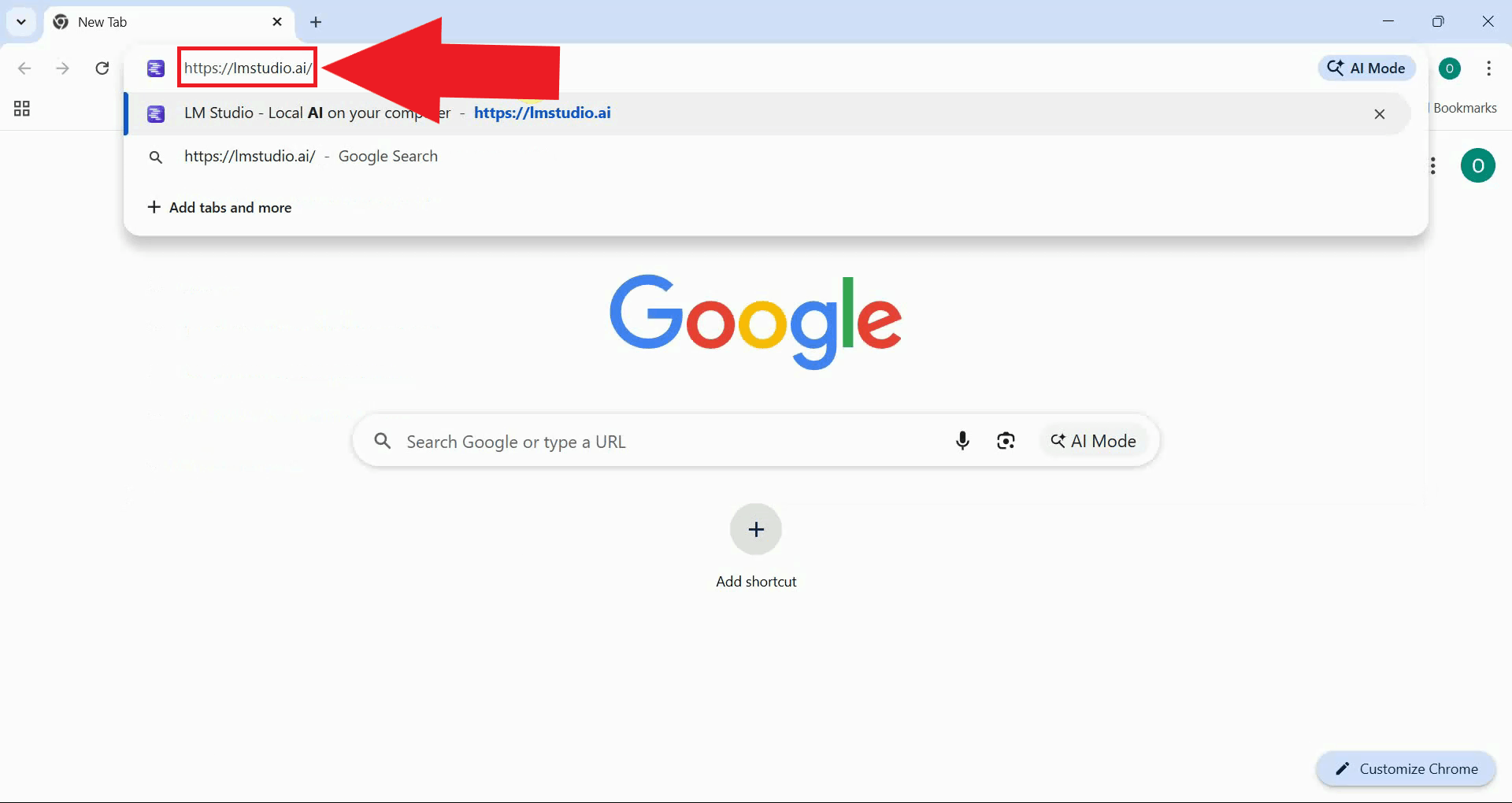
Open your browser and navigate to the official LM Studio website at lmstudio.ai. The website provides an overview of the application's features and always links to the latest available version of the installer (Figure 1).
Step 2 - Download the installer
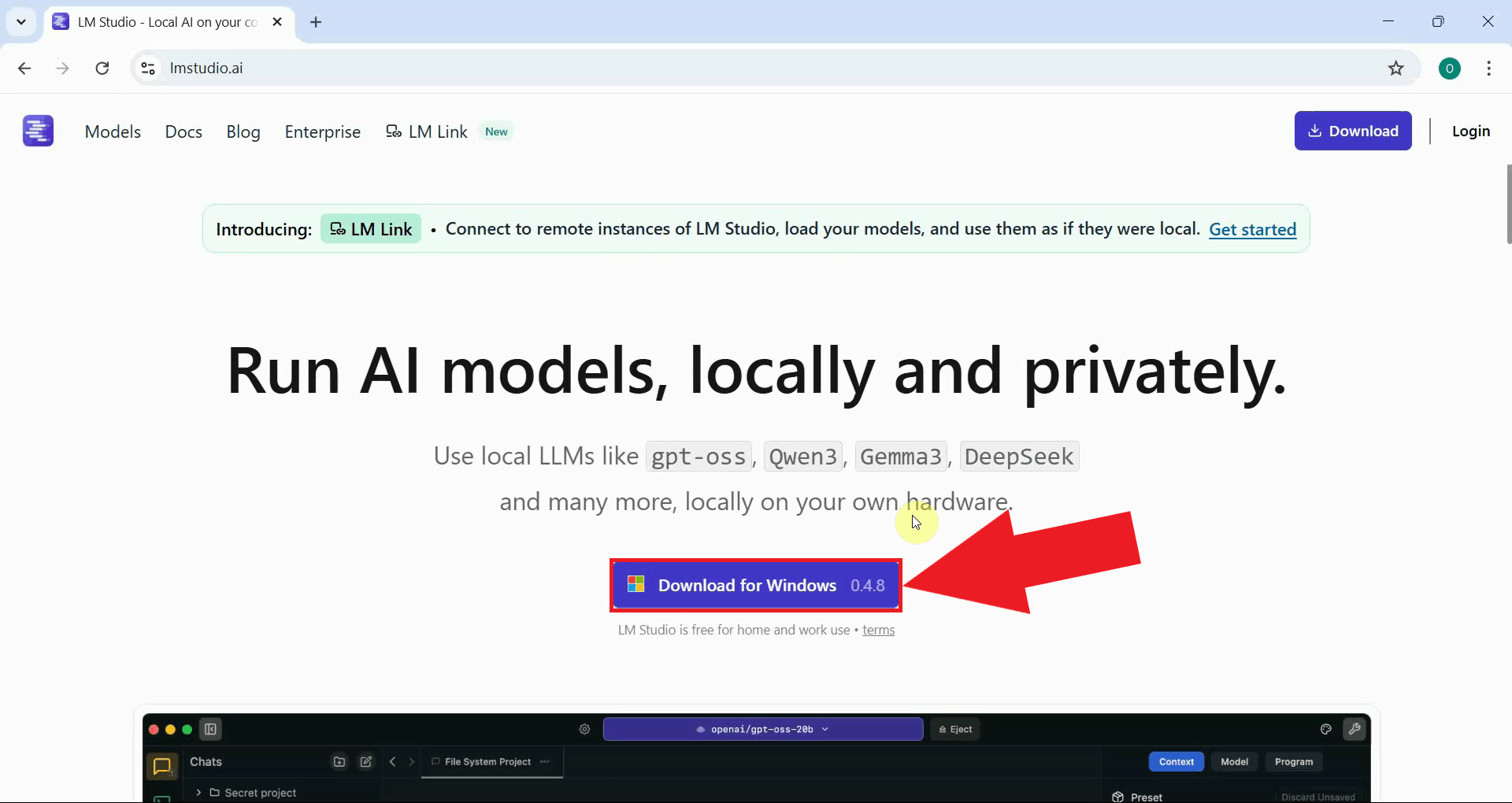
Click the download button on the LM Studio website to save the Windows installer to your computer. The file will be saved to your default downloads folder (Figure 2).
Step 3 - Complete the setup wizard
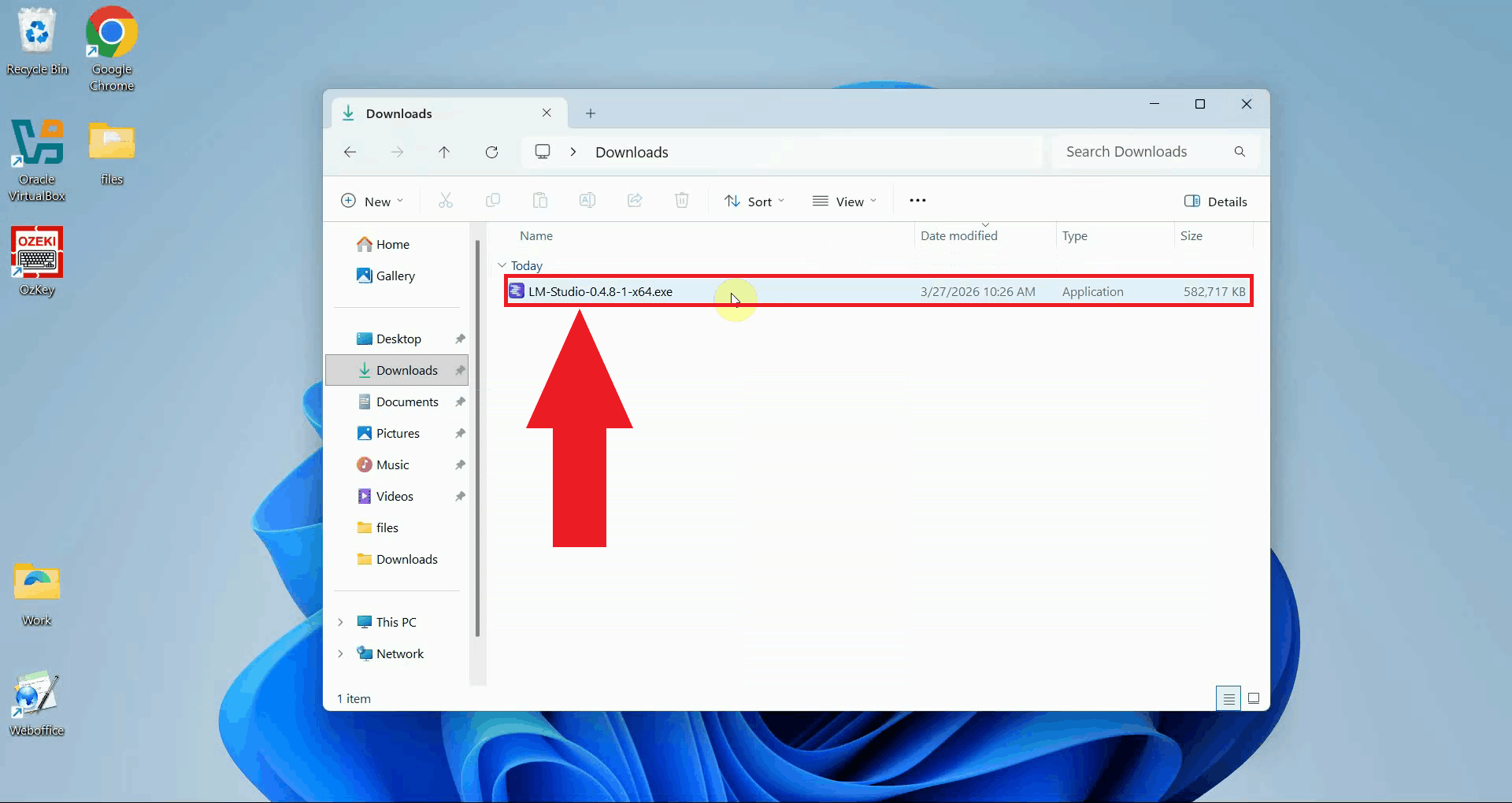
Once the download is complete, open your Downloads folder and double-click the LM Studio installer executable to launch the setup wizard (Figure 3).
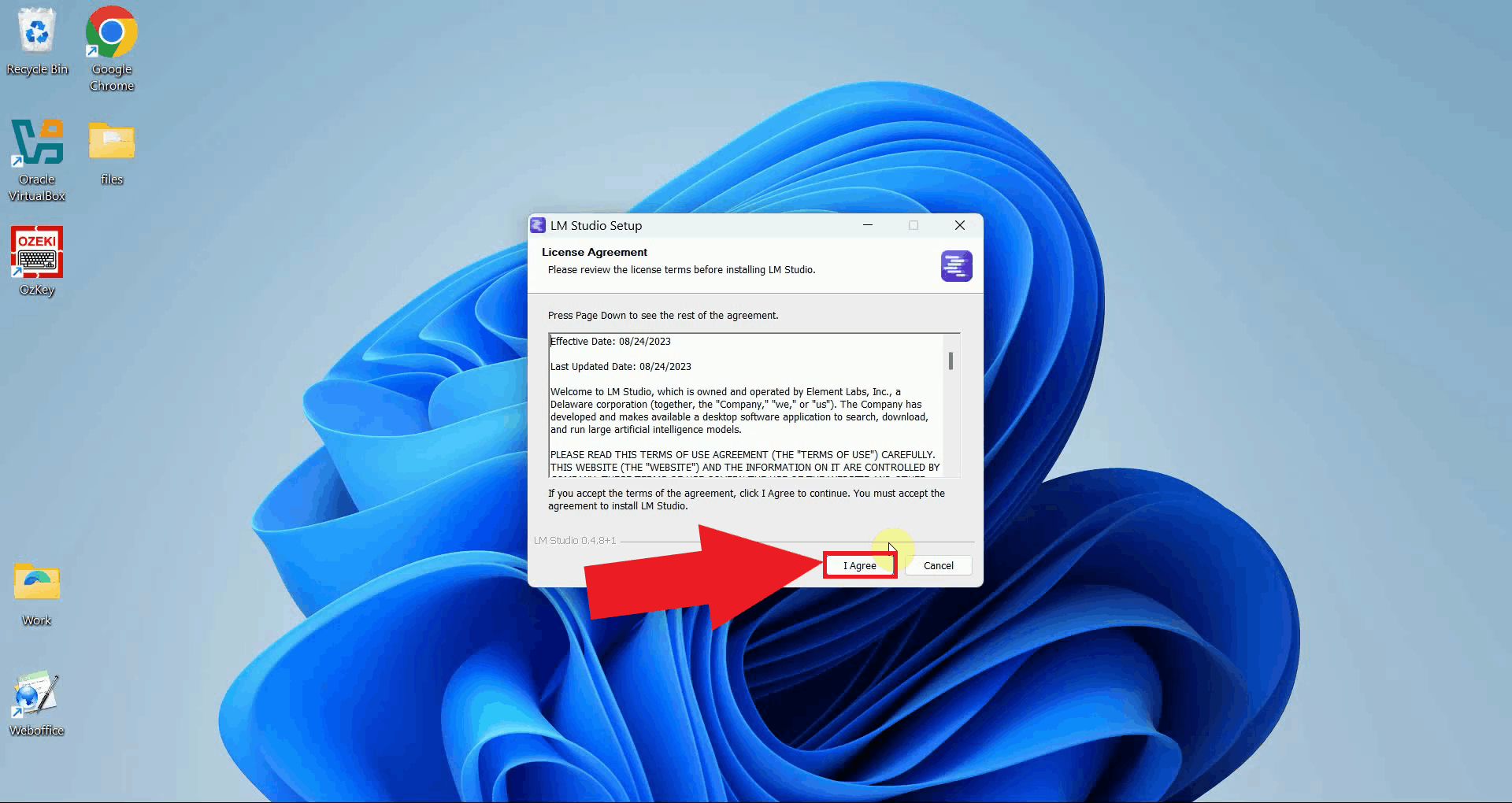
Read the license agreement and click I Agree to accept the terms and proceed to the next step (Figure 4).
Review the installation options and adjust them if needed. The default options are suitable for most users. Click Next to continue (Figure 5).
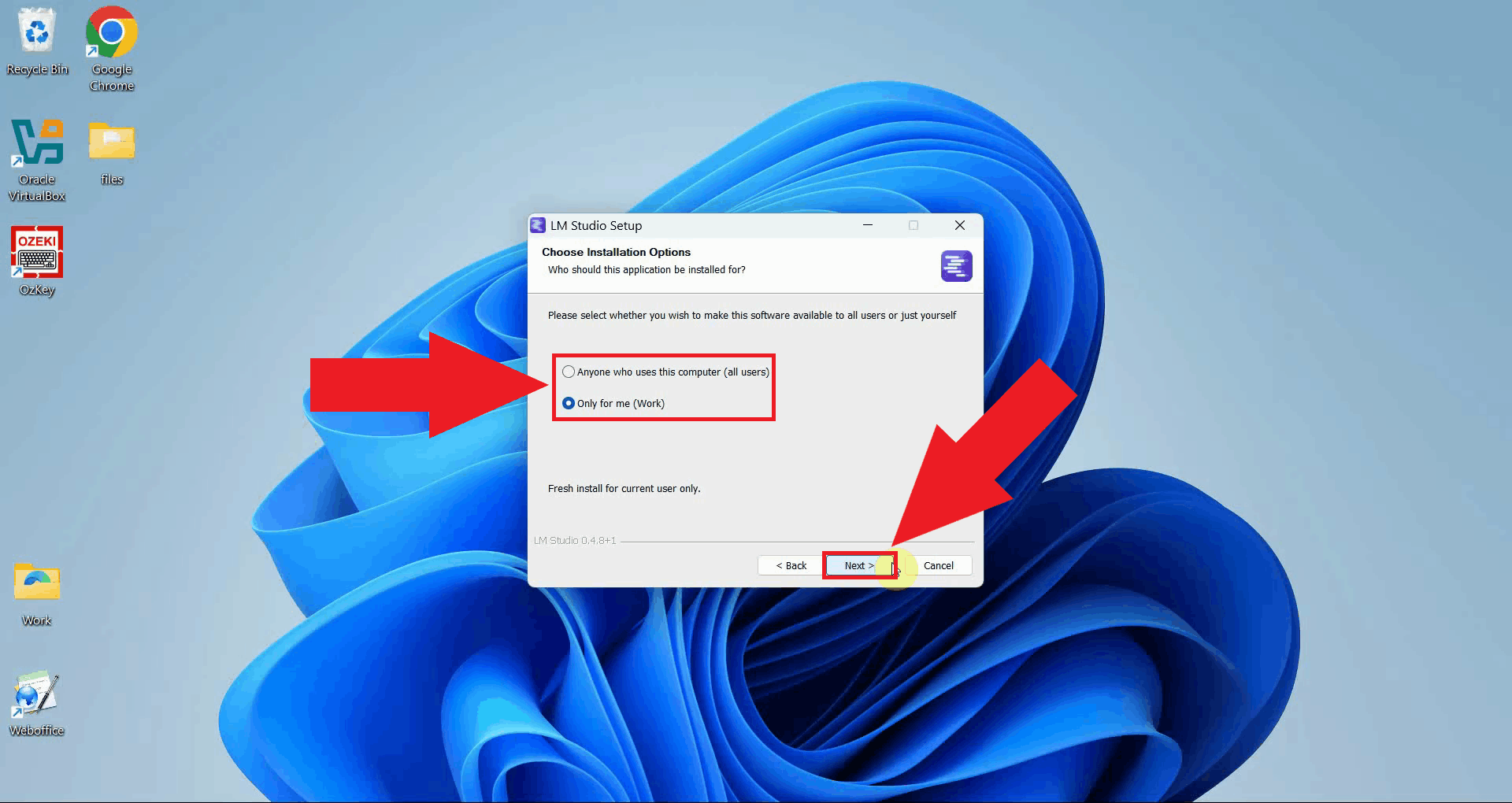
Select the directory where LM Studio will be installed. The default location is recommended for most users. Click Install to begin the installation (Figure 6).
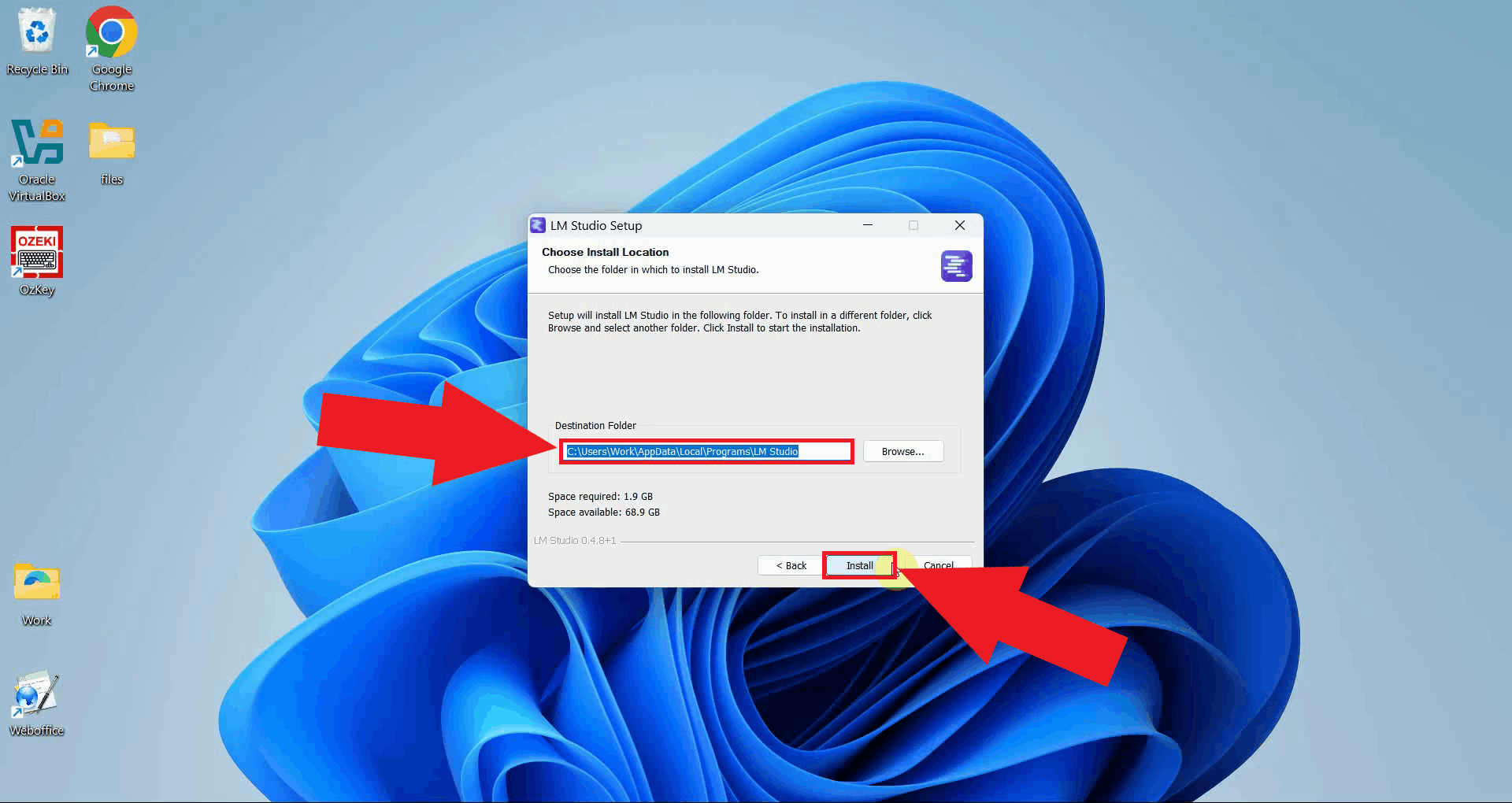
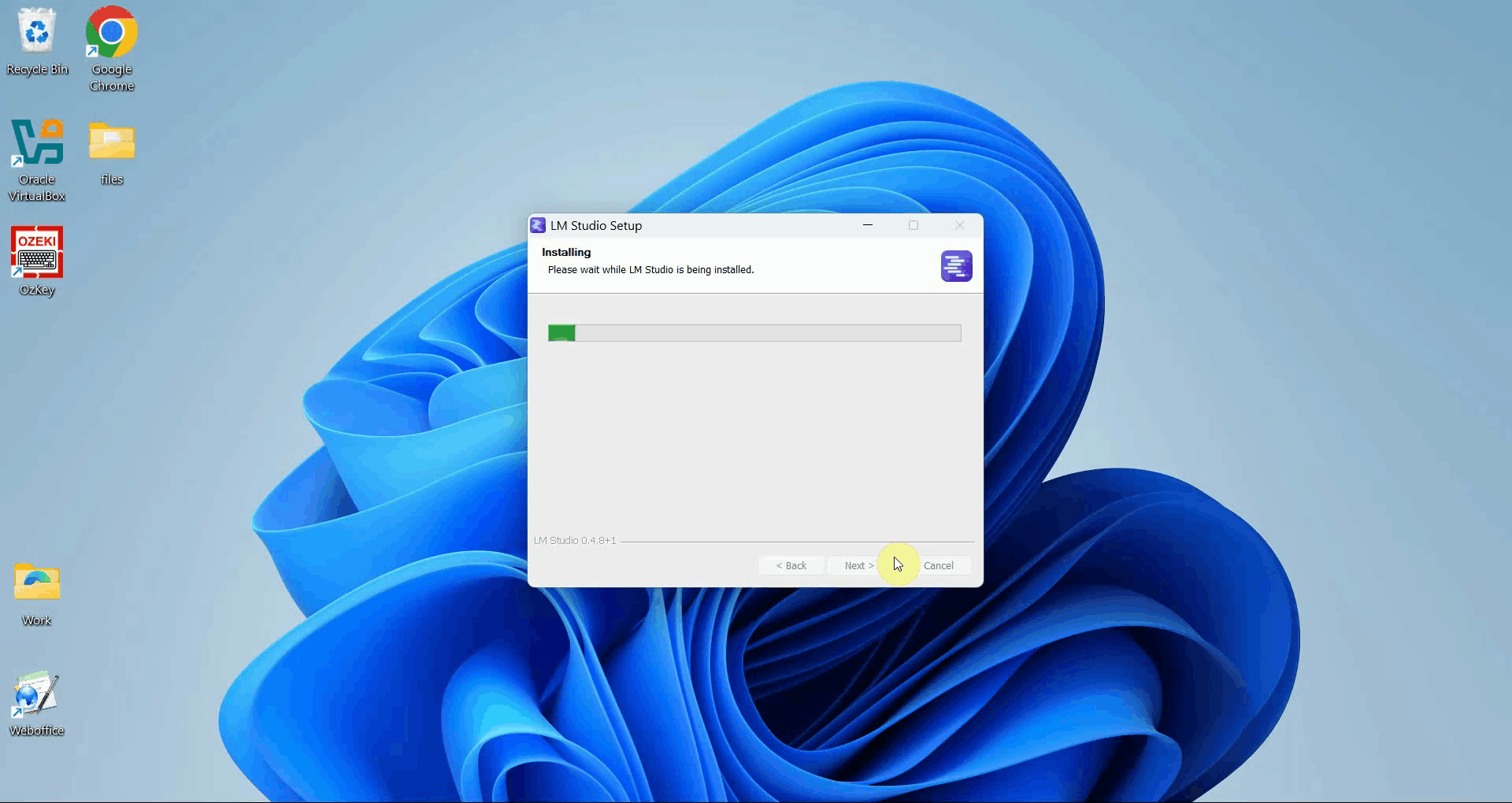
The installer will copy all necessary files to the selected directory. A progress indicator shows how much of the installation has completed (Figure 7).
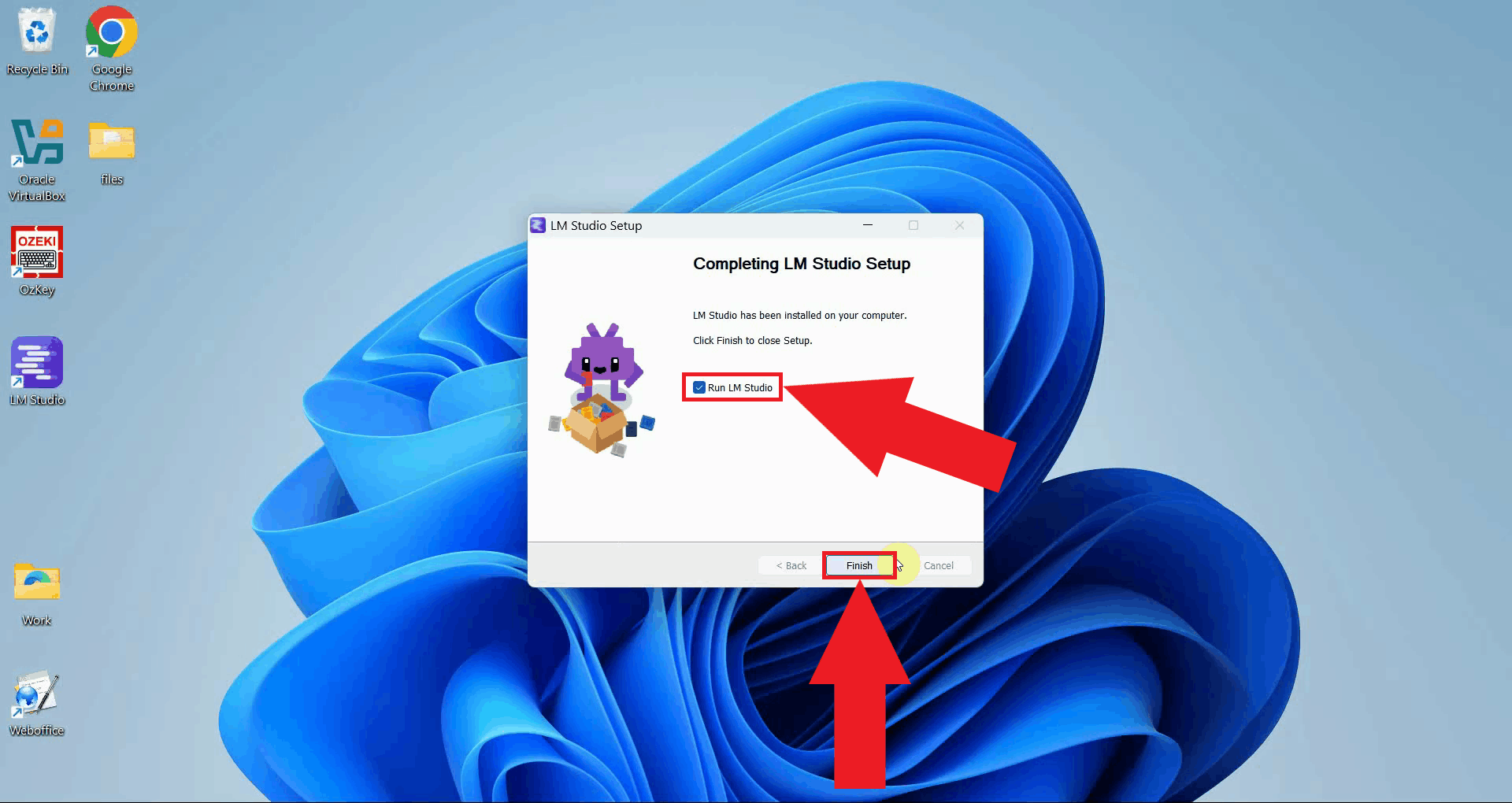
Once the installation is complete, click Finish to close the installer and launch LM Studio for the first time (Figure 8).
Step 4 - Complete the initial onboarding
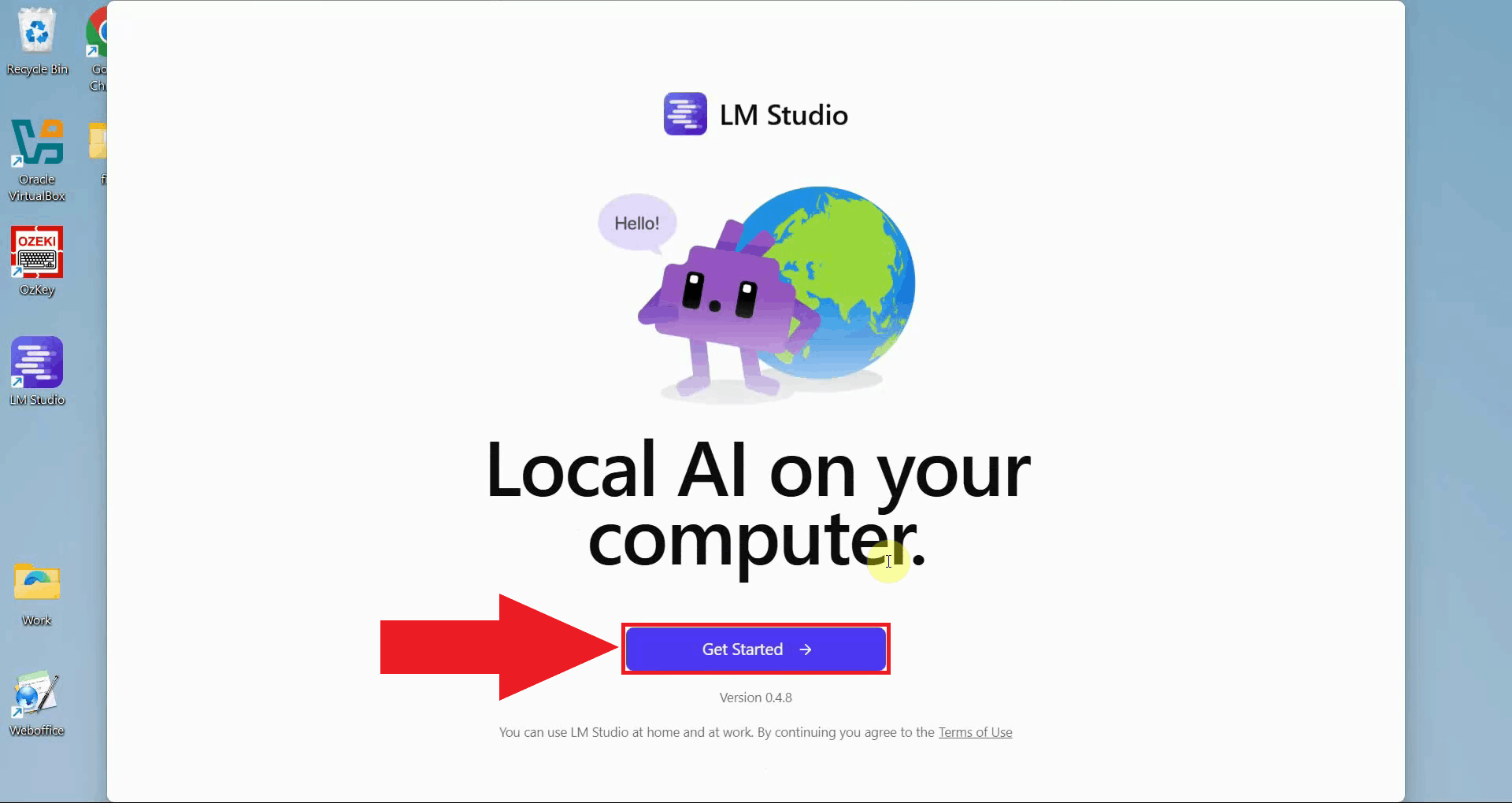
LM Studio will open and display a welcome screen. Click Get Started to begin the initial onboarding process (Figure 9).
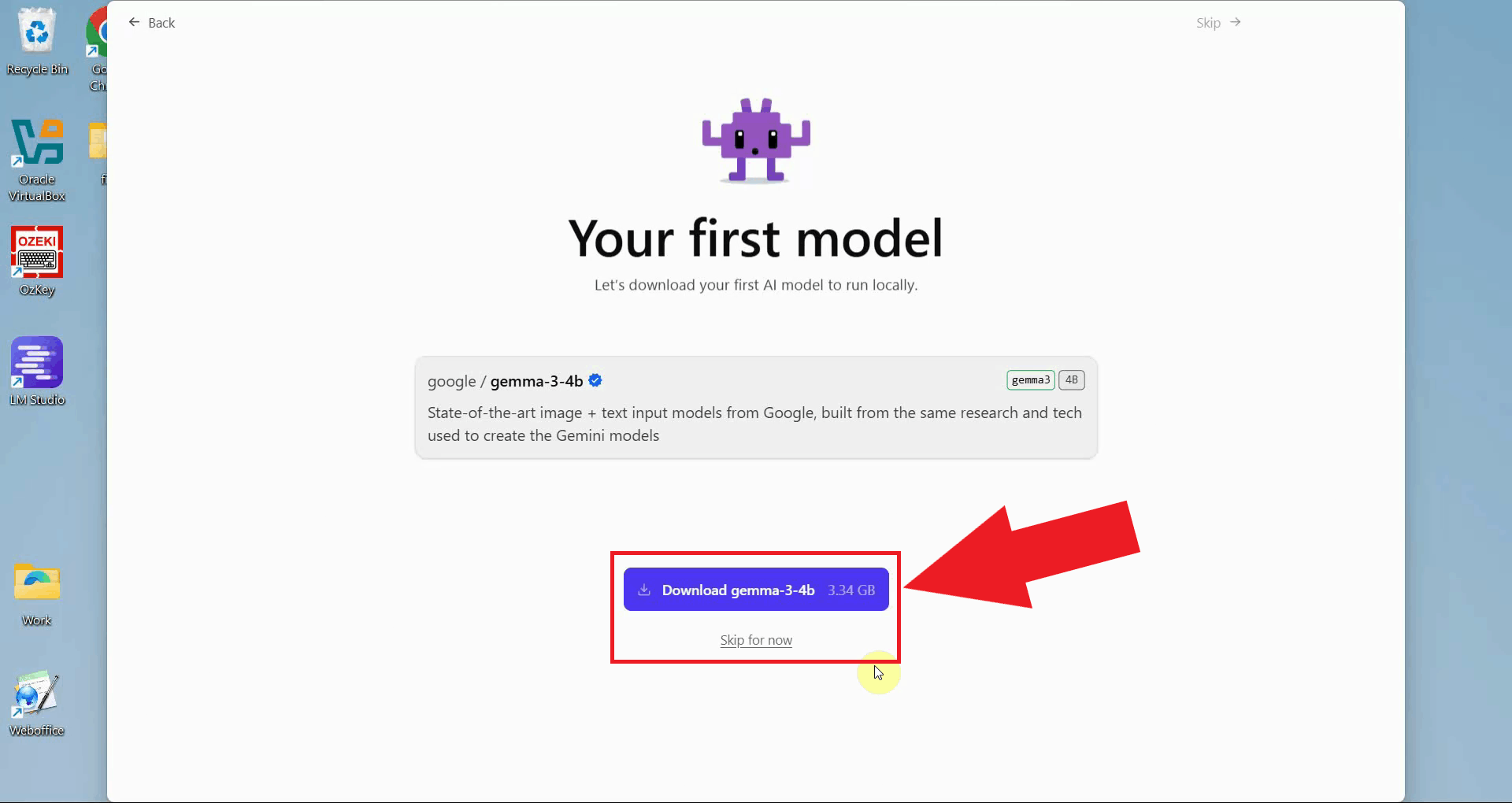
LM Studio will offer to download a model as part of the setup process. You can download a recommended model now or skip this step and download one later from the model browser inside the application (Figure 10).
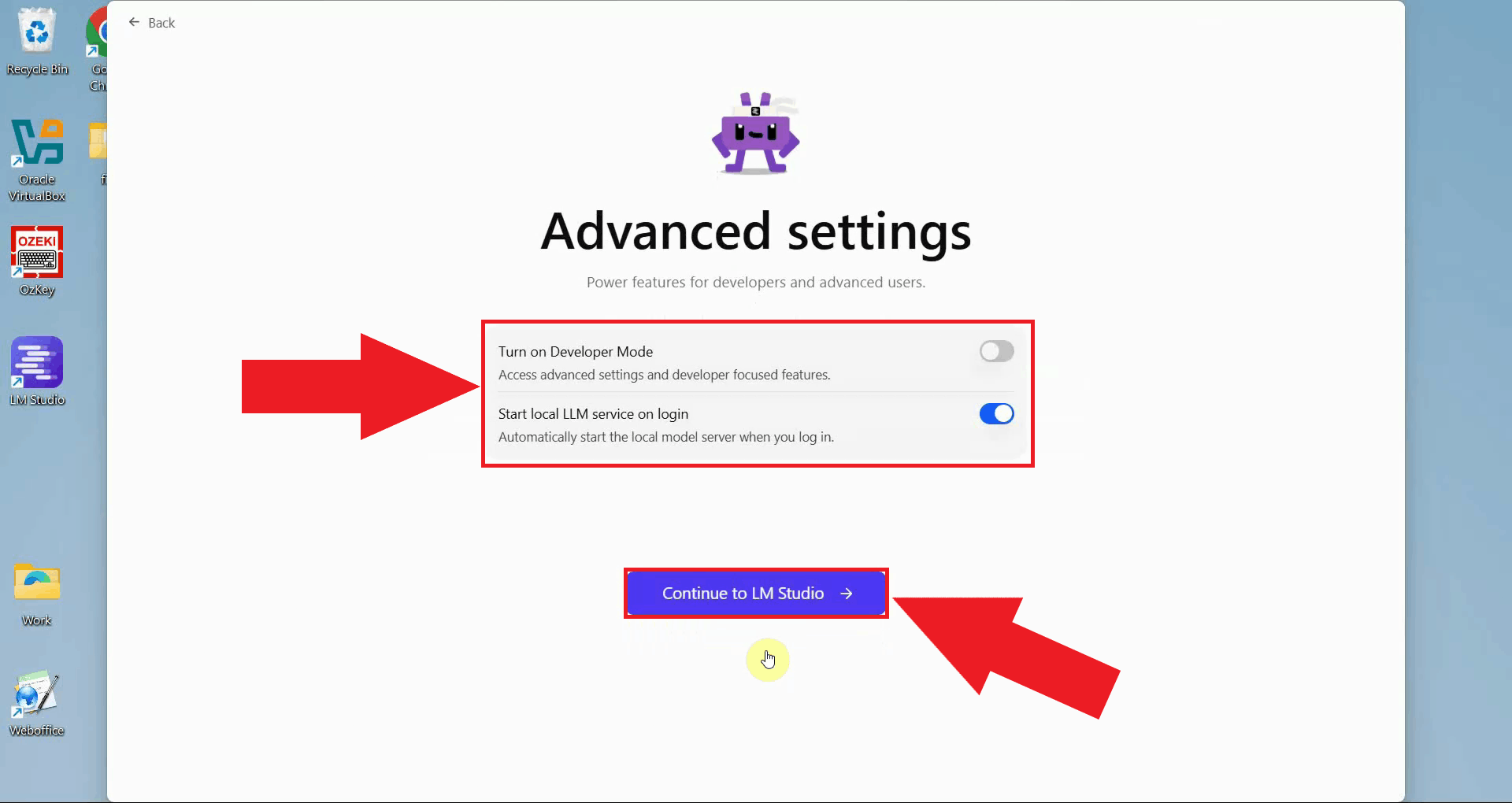
The onboarding wizard will offer advanced configuration options such as turning on Developer mode. You can configure these now or leave them on the default settings (Figure 11).
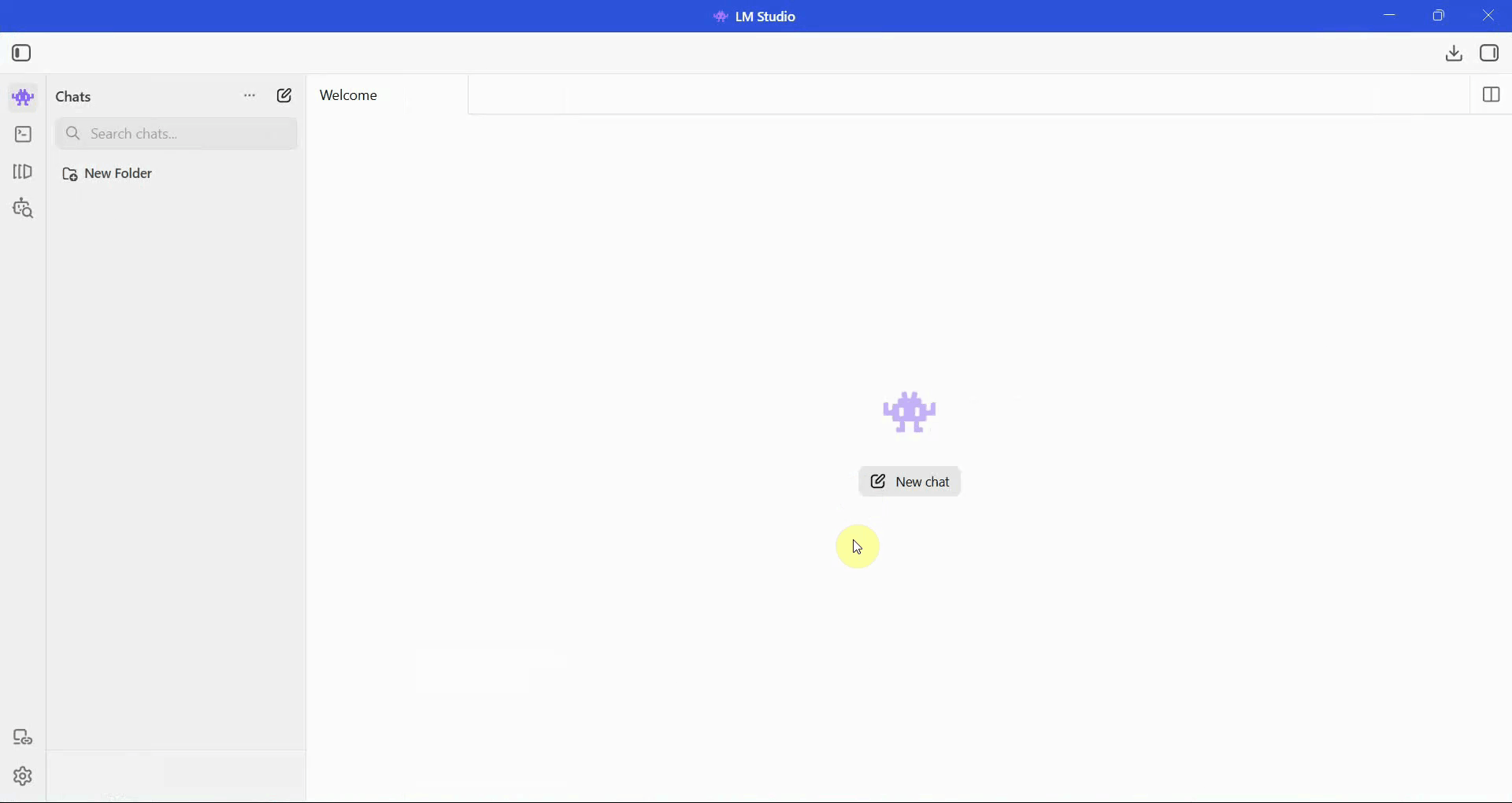
Once the onboarding is complete, the LM Studio main interface will appear. The application is now installed and ready for you to browse, download, and run local AI models (Figure 12).
Final thoughts
You have successfully downloaded and installed LM Studio on your Windows system. The application is now ready for you to download and run large language models locally, without requiring any internet connection or external API services once your chosen models are set up.