
How to setup OpenClaw with Ozeki AI Gateway
This comprehensive guide demonstrates how to install and configure OpenClaw to work with Ozeki AI Gateway on Windows systems. By connecting OpenClaw to Ozeki AI Gateway, you can route requests through your local gateway and use local AI models. This tutorial covers the complete setup process, from installing OpenClaw using PowerShell to the initial configuration.
What is OpenClaw?
OpenClaw is an open-source, autonomous AI agent designed to run locally on your computer, managing tasks by interacting directly with applications, files, and messaging apps like Telegram or Discord. Launched in late 2025, it acts as a personal AI assistant with persistent memory, capable of executing shell commands, browsing the web, and running automated "skills".
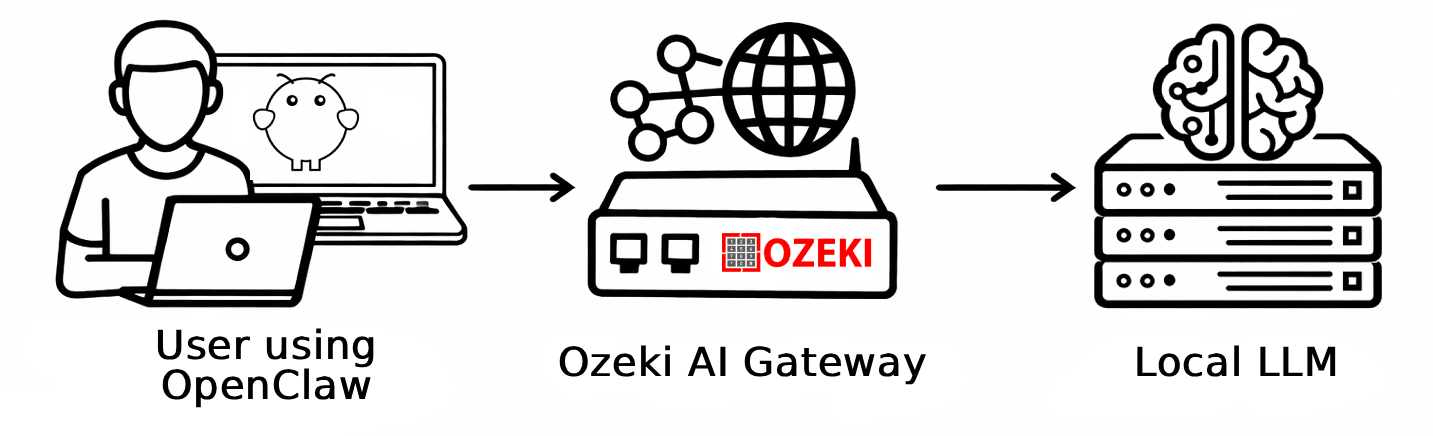
Steps to follow
We assume Ozeki AI Gateway is already installed on your system. You can install it on Linux, Windows or Mac.
Quick reference commands
Here are the key commands you'll need for installing and configuring OpenClaw:
# Set execution policy for PowerShell
Set-ExecutionPolicy RemoteSigned -Scope CurrentUser

# Install OpenClaw
iwr -useb https://openclaw.ai/install.ps1 | iex
OpenClaw installation and setup video
The following video shows how to install and configure OpenClaw with Ozeki AI Gateway step-by-step. The video covers the PowerShell installation process, configuring the custom provider settings, and completing the initial onboarding.
Step 1 - Install OpenClaw
Search for Windows PowerShell in the start menu, right-click on it and select Run as administrator. Administrator access is required to modify execution policies and install OpenClaw (Figure 1).

First, you need to allow PowerShell to run remote scripts by executing the execution policy command. Then run the OpenClaw installation command which downloads and executes the installer script from the OpenClaw website. The installer will automatically download all required dependencies and set up OpenClaw on your system (Figure 2).
Set-ExecutionPolicy RemoteSigned -Scope CurrentUser
iwr -useb https://openclaw.ai/install.ps1 | iex

The OpenClaw installer displays a security warning. Review the warning and select Yes to proceed with the installation. This confirms that you accept the risks of OpenClaw (Figure 3).

Step 2 - Configure custom provider
After OpenClaw launches its onboarding wizard, select Quickstart to begin the guided configuration process. The quickstart mode helps you configure the essential settings needed to connect OpenClaw to your AI provider (Figure 4).

When prompted to select an AI provider, scroll down and choose Custom Provider from the provider list. This option allows you to configure OpenClaw to use Ozeki AI Gateway as your AI provider (Figure 5).

Enter your Ozeki AI Gateway connection details. In the Base URL field, enter your gateway's
API endpoint (http://localhost/v1 for local installations). In the
API Key field, paste the API key you created in Ozeki AI Gateway.
For endpoint compatibility, select OpenAI-compatible.
In the Model ID field, specify the AI model you want to use.
Enter an Endpoint ID and Model alias, then press Enter to proceed (Figure 6).

Step 3 - Complete onboarding
The onboarding wizard will prompt you to configure optional features like communication channels. For a basic setup focused on code assistance, you can Skip channel configuration. These features can be configured later if needed (Figure 7).

Similarly, you'll be prompted to configure OpenClaw skills which extend its functionality. For initial testing, you can skip this process. You can explore and enable skills later through the dashboard (Figure 8).

The final onboarding step asks about hooks configuration. Hooks allow OpenClaw to integrate with external tools and services. Skip or configure hooks if needed (Figure 9).

OpenClaw now completes the setup process by initializing the gateway service and preparing the environment. Wait for the setup to finish (Figure 10).

Step 4 - Access OpenClaw dashboard
Once setup completes, OpenClaw automatically opens the dashboard in your default web browser.
The dashboard provides an interface for testing AI capabilities, managing configurations,
and monitoring OpenClaw's activities. You can also manually open the dashboard anytime by
running openclaw dashboard in your terminal (Figure 11).

Troubleshooting
If you encounter a "Model context window too small" error in the OpenClaw Gateway logs when testing, you'll need to adjust the configuration. Follow our detailed guide on How to fix OpenClaw model context window too small error to resolve this issue.
To sum it up
You have successfully installed and configured OpenClaw to work with Ozeki AI Gateway. The integration provides you with AI-powered coding assistance while maintaining centralized control over API access, model selection, and usage monitoring through your gateway infrastructure. OpenClaw can now help you write, understand, and modify code using any AI models available through your Ozeki AI Gateway configuration.